Under the Win11 system, follow these steps to reconfigure the computer to
connect to the machining machine's IP address:
1. Click on the "Start" button on the Windows taskbar, then click on the "Settings" icon.
2. In the Settings window, click on "Network & Internet".
3. On the network settings page, find and click on "Advanced network settings".
4. In the left menu, select "Ethernet", find the network connection you want to
configure, and click the expand button.
5. In the options page, find "More adapter options", right-click, and select "Edit".
6. In the network connection window, find "Internet Protocol Version 4 (TCP/IPv4)"
and double-click to open it.
7. Select "Use the following IP address", then enter the IP address, subnet mask, and
default gateway you want to set.
8. When setting the IP to 192.168.0.x, x can be any value except 0, 1, or 100.
9. Click "OK" to save the changes. After completing the above steps, your IP address
is reconfigured.
After completing the above steps, your computer's network card IP address is
reconfigured. Please ensure that the entered IP address matches the IP address
range of the machining machine's network and avoid conflicts with other devices.
21 22
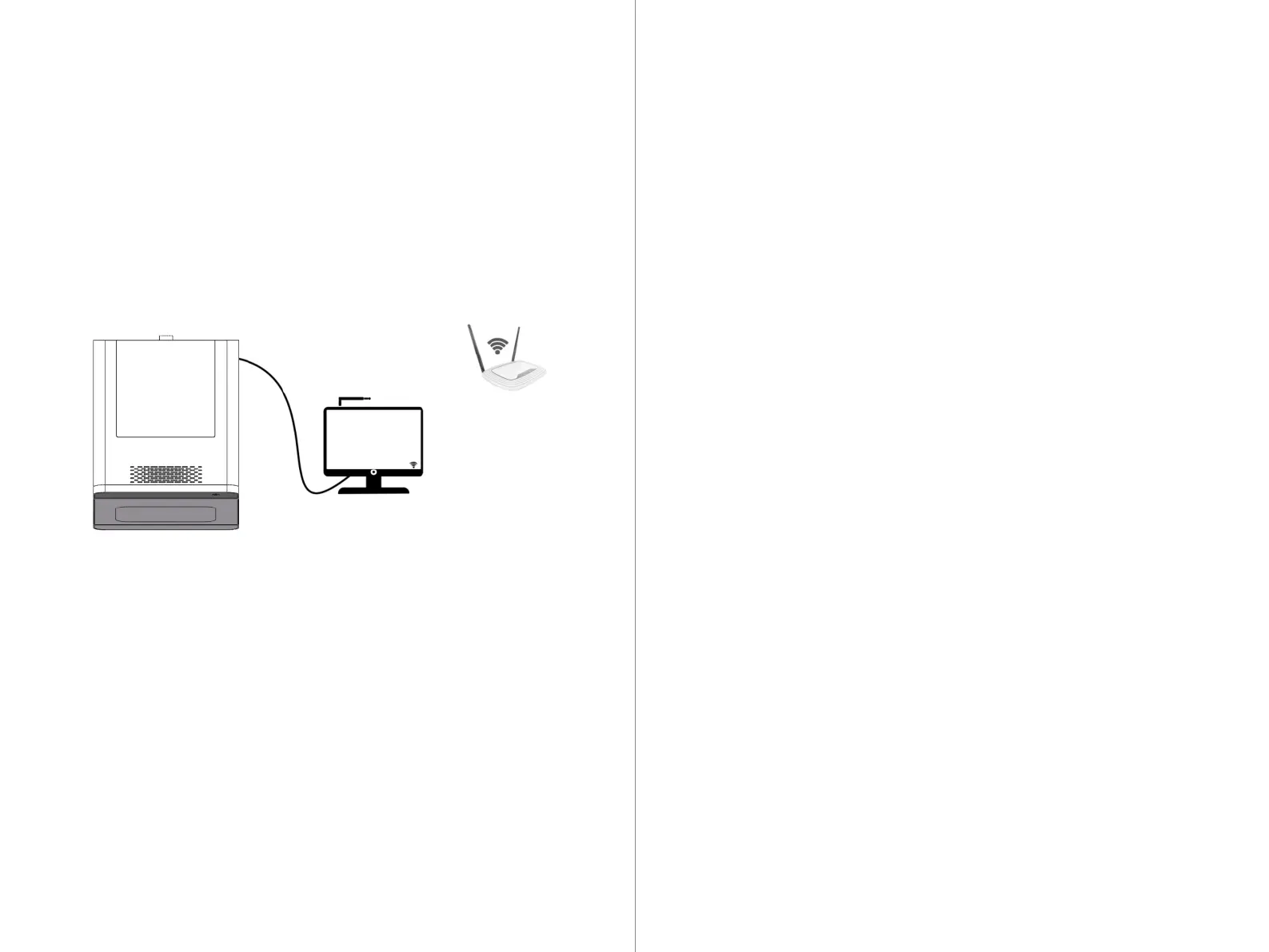
To ensure a stable control connection, it is recommended to use the network
cable provided with the machine to connect the equipment to the computer.
1. Insert the provided network cable into the network port on the machine's
connection panel.
2. Insert the other end of the network cable into the network port on the
computer
Connection Method 1: Direct Connection to Computer or Local Network
To configure the computer to connect to the machining machine's IP address
under the Win10 system, follow these steps:
1. Open "Control Panel" and click on "Network and Internet".
2. In "Network and Sharing Center", click on "Change adapter settings".
3. Find the network adapter that connects to the machining machine, right-click it,
and select "Properties".
4. In the dialog box that appears, find "Internet Protocol Version 4 (TCP/IPv4)" and
double-click to open it.
5. Select "Use the following IP address", then enter the IP address, subnet mask, and
default gateway you want to set.
6. When setting the IP to 192.168.0.x, x can be any value except 0, 1, or 100.
7. Click "OK" to save the changes. After completing the above steps, your IP address
is reconfigured.
5.3 Establishing Control Connection



 To Next Page