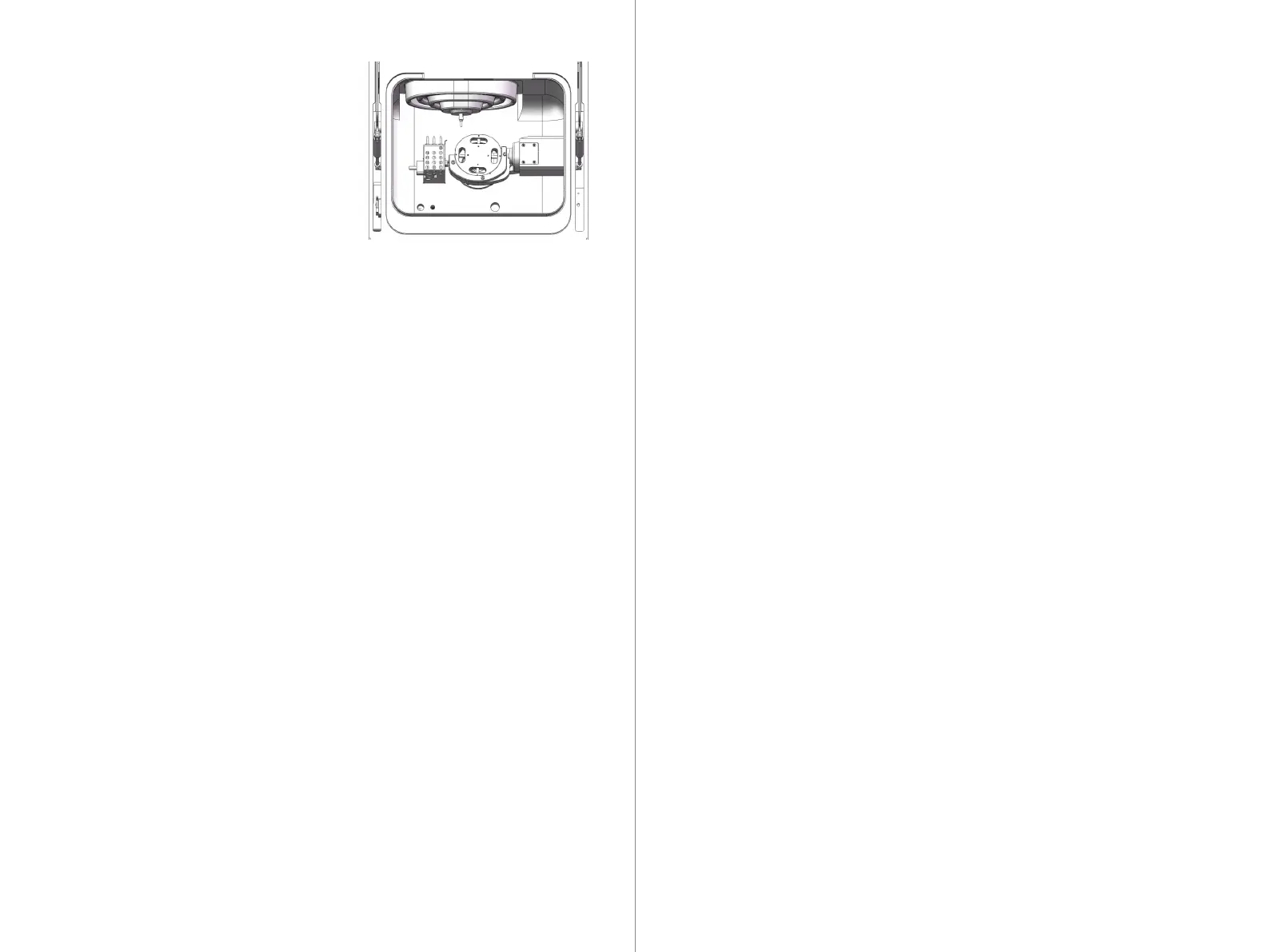
②. Take out the hex wrench, tighten the
fixture firmly in place, gently pull on the
automatic calibration plate to confirm that
it will not fall off.
③. Close the equipment operating door.
Open the computer connected to the P55D device and start the CNC3 software.
① In the CNC3 interface, select the device to operate.
--- If multiple devices are connected, click on the corresponding icon in the device
list to switch devices.
② Enter the device maintenance main interface and find the calibration function.
--- Click on the calibration icon, follow the on-screen instructions, and confirm that
the preparation work has been completed.
③ Click the calibration button to start automatic calibration.
--- During the calibration process, the intelligent light strip will display blue,
indicating the progress of calibration.
④ After calibration is complete, the device will display relevant prompt messages.
--- Click confirm, and the device will be ready for normal use.
After completing the automatic calibration, use the hex wrench to loosen the fixing
screws on the fixture body, remove the calibration plate from the fixture body, and
place it properly.
6.3.3 Initiating Automatic Calibration
CNC3 is an intelligent control program developed independently by UP3D It
allows the operation of the machining unit through computer software. With
CNC3, you can conveniently monitor and manage the operation of the machin-
ing unit, ensuring machining efficiency and quality.
- Machining Data Output: You can send machining data to the machining unit
through CNC3 to initiate machining tasks.
- Maintenance: CNC3 provides maintenance functions to help manage mainte-
nance plans and execute maintenance tasks for the machining unit.
- Calibration: Various calibration operations can be performed using CNC3 to
ensure the accuracy and stability of the machining unit.
- Status Display: CNC3 displays real-time information about the status of the
machining unit, including current operation status and work progress.
- Error Prompt: It promptly alerts and assists in troubleshooting errors or abnormal
conditions occurring in the machining unit.
1. Material Disassembly Position: Move the device fixture to a position convenient for
disassembling and installing materials.
2. Import Local NC: Open a local folder to import the NC file that needs to be processed.
7.2 CNC3 Main Interface
7.2.1 Display of Main Interface Information
Interface Analysis:
Its main functions include:
/CNC3 Software Interface Overview
07
29 30



 To Next Page