© UPLIFT Desk • 800-349-3839 • 512-614-3152 • info@upliftdesk.com • upliftdesk.com
15
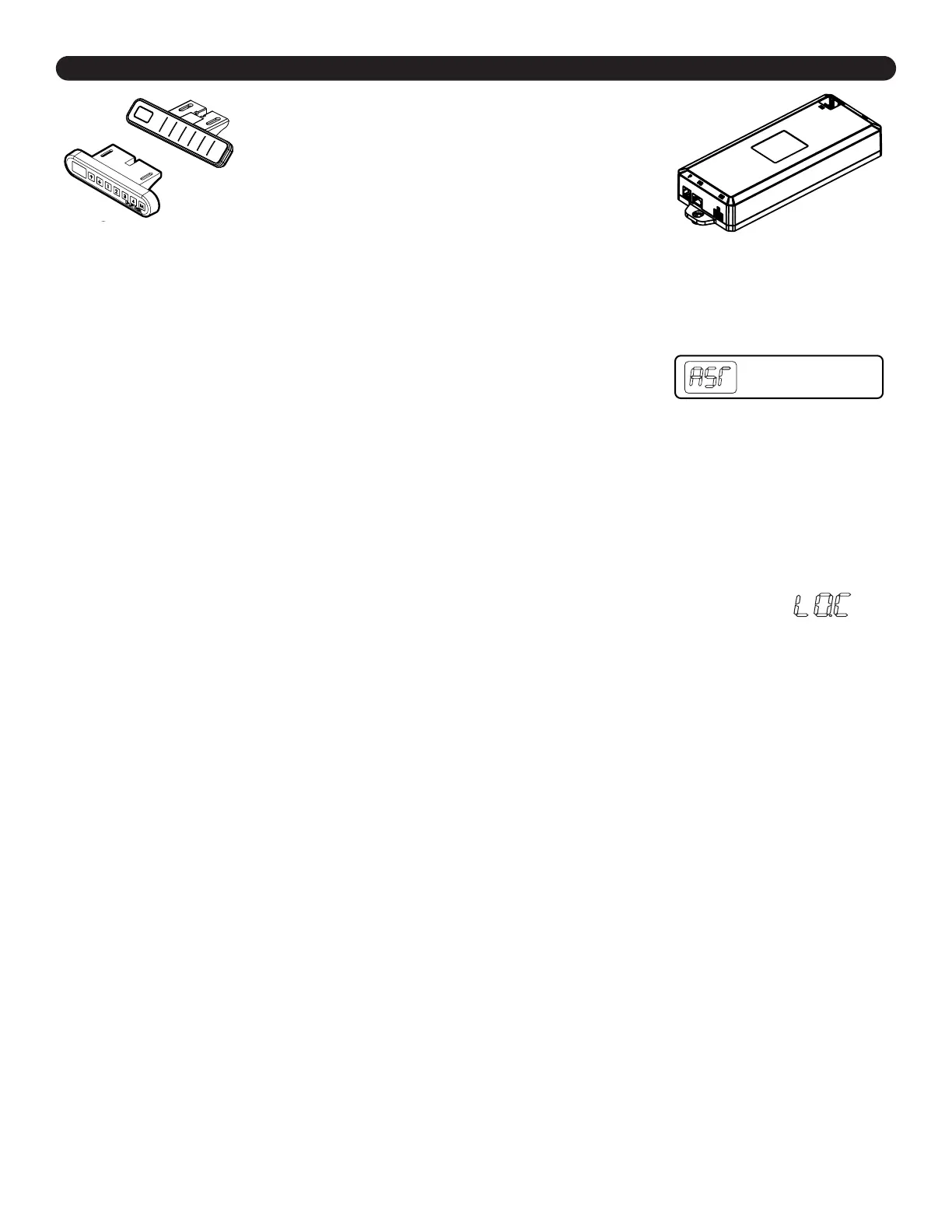
Keypad Lock
If a power outage occurs, the Control Box will automatically return to the unlocked setting. The
Keypad can be locked to prevent accidental activation or movement of the desk and to prevent
desk settings from being accidentally changed by others.
To lock: Press and hold the “M” button. The display will show “S-” then it will show the
current numeric height setting of the desk and nally will change to “LOC”.
Do not release the “M” button until “LOC” is displayed.
To unlock: Press and hold the “M” button until the display changes to a
numeric height setting.
Height Calibration
This feature will help you ensure that the numeric display matches the actual height to the top of the
desktop in the desk’s lowest position. This is particularly helpful if you have added Casters to your desk.
1. Hold the DOWN button on the Keypad until the desk reaches its lowest height, then release.
2. Measure the height from the oor to the top side of the desktop. If the displayed height does not
match your measurement, follow the next steps.
3.
Hold the DOWN button again until the Keypad display reads “RST”.
4. Press the “M” button until the numeric display begins ashing.
5. Press the UP or DOWN button to set the desk to the measured height.
6. Once the display changes back to “RST”, hold the DOWN button until the desktop lowers slightly,
then rises slightly, and the display changes back to the numeric height setting, then release.
*Note: “RST” will look like
“ASr” on the display
Programming (Advanced Keypad only)
Memory Settings
Save up to four commonly used desk heights and recall them quickly.
l. Use the UP or DOWN button to move the desk to the desired height.
2. Press the “M” button.
3. Press the “1, 2, 3, or 4” button to assign the current height to a number on the Keypad.
4. To return the desk back to any of the saved heights, press the number button of the
desired saved height.
Constant-Touch & One-Touch
These steps allow the desk to be set to either One-Touch or Constant-Touch. One-Touch requires
only a single touch of the “1, 2, 3, or 4” button to move the desktop to a preset memory location. One-
Touch is the default setting of the Control Box when received. Constant-Touch requires a continuous
touch of the “1, 2, 3, or 4” button to move the desktop to a preset memory location.
Change between One-Touch and Constant-Touch:
l. Hold the DOWN button on the Keypad until the desk reaches the lowest height, then release.
2. Hold the DOWN button again until display reads “RST”.
3. Press the “1” button until display shows “10.1” (One-Touch) or “10.2” (Constant-Touch)
and goes back to “RST”.
Note: While “RST” is still ashing, you can continue to press and hold the “1” button to toggle between
the two settings.
4. Hold the DOWN button once more until the desk lowers slightly, then raises slightly, and the
display changes back to the numeric height setting, then release.
These UPLIFT Desk programming instructions
are compatible only with Advanced keypads.
For Advanced Paddle Keypad programming
steps, refer to the instructions received with
that Keypad.
C3
C4 C5
C9
H4a
H7
C6
H1 H2 H3
H5
H4b
H6
C7


 To Next Page