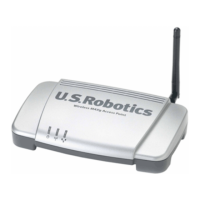
Wireless MAXg Access Point: User Guide
The networking device I am using does not have a DHCP server.
The Wireless MAXg Access Point can be connected to a networking device that does not have a DHCP
server. By default, the access point is configured to obtain an IP address from a DHCP server, but you can
manually set the IP address of the access point from the configuration pages.
If you have not set up the access point or it is in its factory default state, see
I have not installed my access
point.
If you have your access point already installed and connected to a networking device but need to connect it
to a different device that does not have a DHCP server, see
I have installed my access point but need to
connect it to a different networking device.
I have not installed my access point.
If your networking device does not have DHCP and cannot assign an IP address to the access point, you
can install the access point using a static IP address by connecting the access point directly to a computer.
1. Connect the provided antennas to the back of the access point.
2. Use the supplied Ethernet cable to connect the LAN port on the access point to a LAN port on your
computer.


 To Next Page