EasyTalk USB Tools
Vaddio EasyTalk USB Solution - Document Number 342-0449 Rev A Page 33 of 48
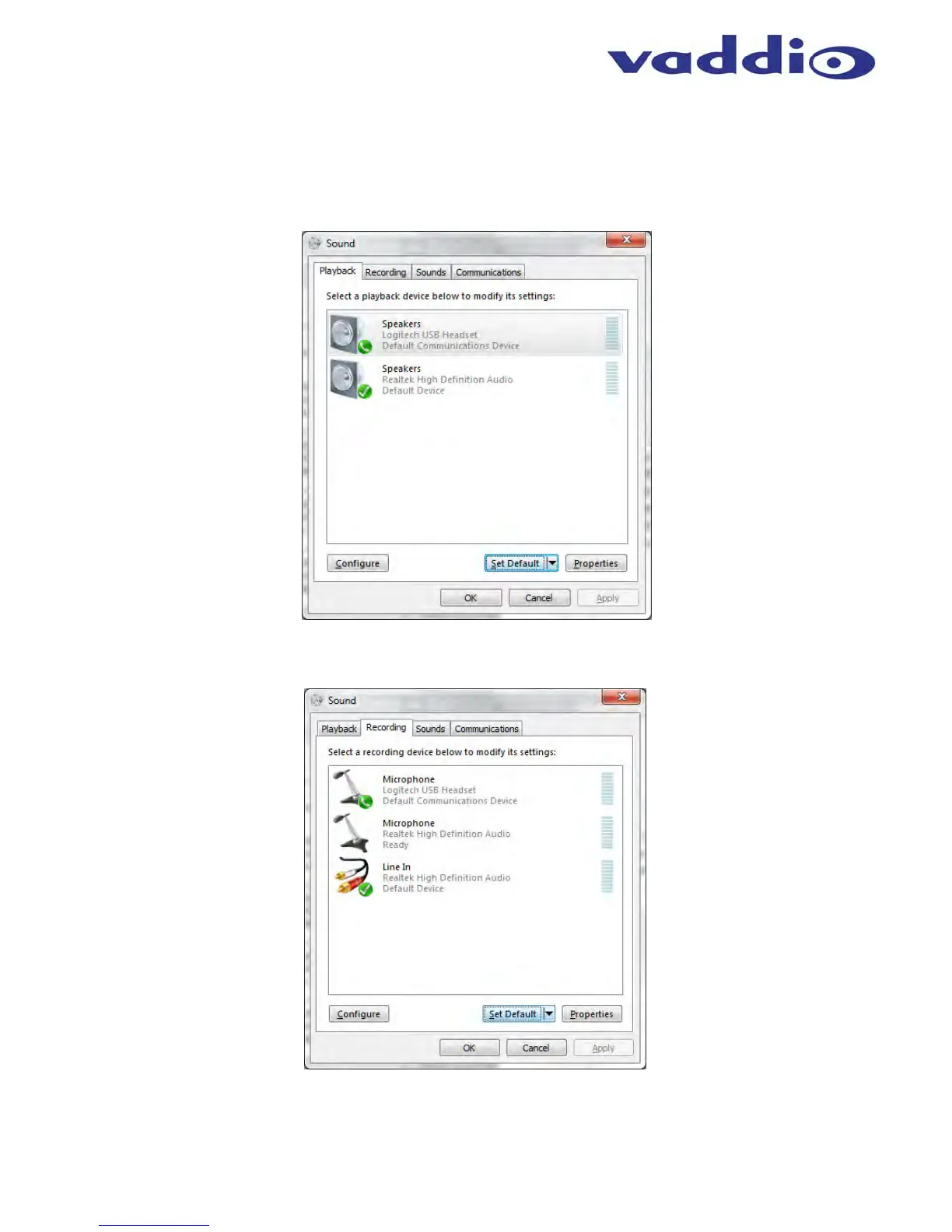
STEP 2: Go to the Playback Tab on Sound pop-up window. Select the EasyUSB device in the list. Press the
arrow on the “Set Default “button at the bottom. Select the “Default Communication Device” in the list. Windows
7 allows the user to set the sound device as either the default sound device or the default communication device.
If set as the default communication device all UC soft-client applications will automatically be routed to this sound
device. The recommendation is to configure the EasyUSB Mixer/Amp as the default communication device. A
handset icon represents this selection in the list.
STEP 3: Move to the Recording Tab on the Sound pop-up window. Select the EasyUSB Mixer/Amp within the
list and click the Set Default button. Set the EasyUSB Mixer/Amp as the default communication device for the
microphone.
It should be noted that some UC soft-clients will automatically store the Operating System sound device
configurations within the application. This function will automatically reconfigure sound device when application
is launched.


 To Next Page