DLKPro Inspection Key • Operating Instructions – Edition 03/2012 30
8 “DownloadTools” PC programme / Breach module
Select the row for which you want to display the
infringements.
In the list (in the bottom area of the display and
editing pane) click on [+] and then on the
Description tab to display an explanation of the
infringement.
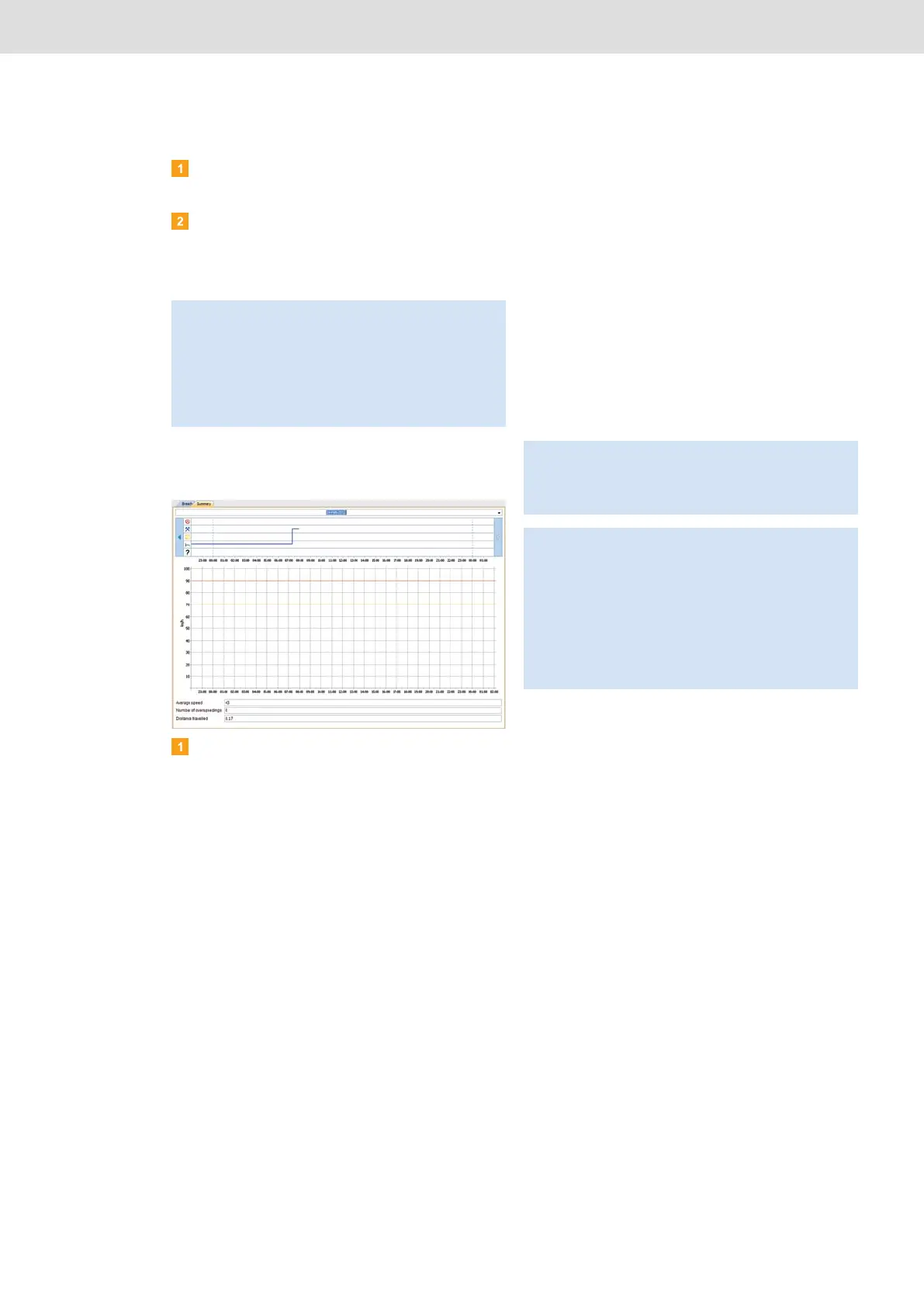
Displaying the speed graph and/or activity chart
Choose the Breach module and then the Summary
tab.
The information shown in the display and editing pane
depends on the file type:
• Mass memory data
– Chart showing the activities recorded on the
selected day
– Speed graph for the selected day
– Average speed driven on the selected day
– Number of overspeeding events on the selected
day
– Distance driven on the selected day
• Driver card data
– Chart showing the activities recorded in the
selected week
– Traffic lights denoting daily driving times and rest
periods, weekly driving times and rest periods
and driving times and rest periods recorded in
the previous two consecutive weeks
– Information about the vehicles driven in the
selected week
• Workshop card data
– Chart showing the activities recorded on the
selected day
– List of activity changes on the selected day,
including details about the selected entry
Note: Suspicious events detected for a vehicle do not
necessarily relate to the driver whose driver card you
have checked. Always verify the infringements
(suspicious events) found against a digital tachograph
printout, an infringement analysis in TIS-Web
®
,
TIS-Office
®
or a third-party software product; see
page 44.
Note: If on the DLKPro no data is available for the
selected file or if no activities were recorded, a
corresponding message will be displayed in the display
and editing pane.
Tip: You can also enlarge or reduce the speed graph
(mass memory data) and the activity chart (mass
memory, driver card and workshop card data).
Place the mouse pointer in the speed graph or activity
chart, rotate the mouse wheel forward to zoom in and
display the seconds for example.
If your mouse does not have a wheel, press the right
mouse button and at the same time move the mouse to
the right.


 To Next Page