Configuration and Operation
LD8 Operations Manual AB-V-MA-00635_RevA2 16
4.1.1 COMMAND SENDING VIA WEBUI TERMINAL
The LD8 can be configured by using terminal
commands. The WebUI provides a terminal which can
be used for sending commands and receiving status
information from the unit.
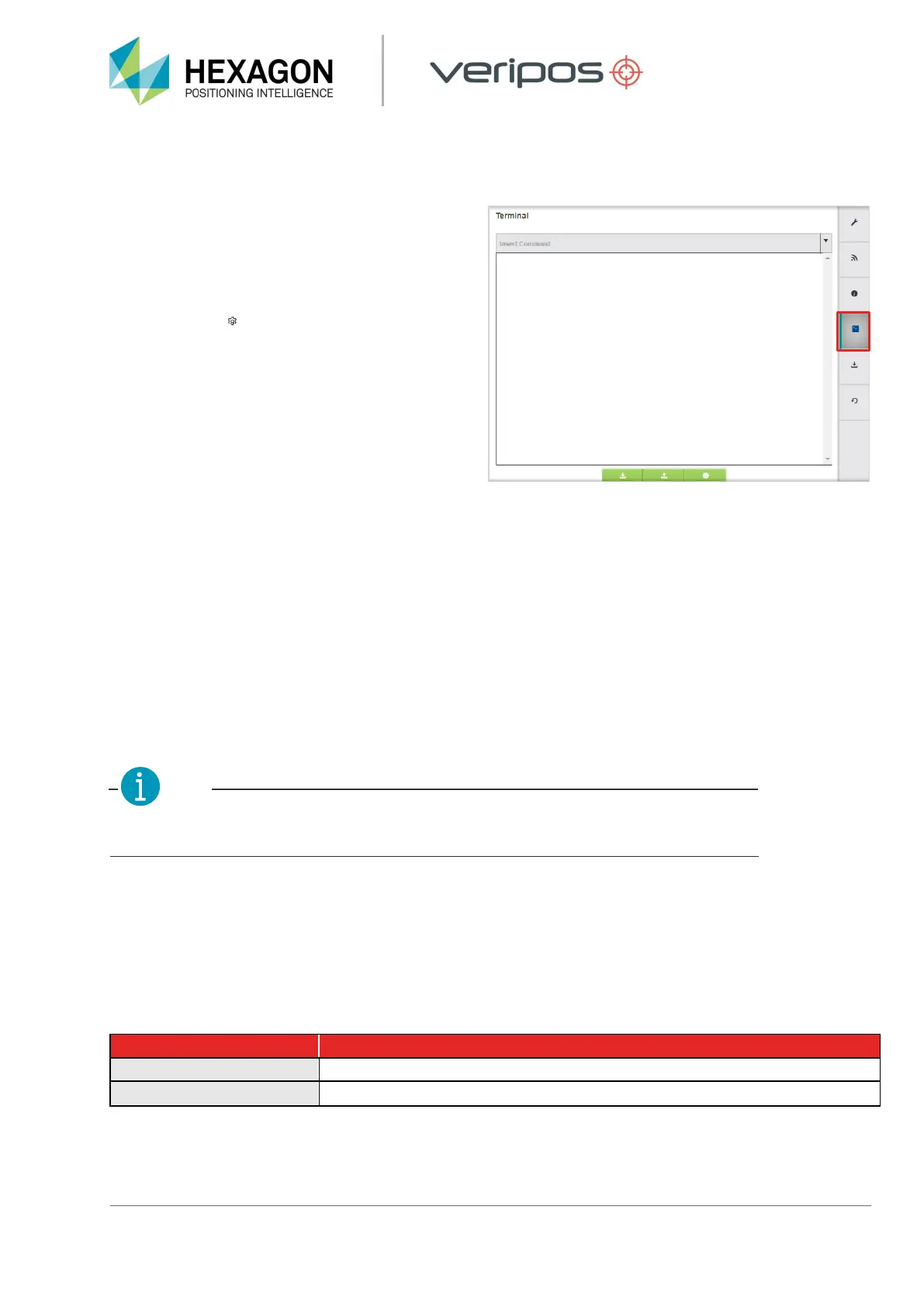
The WebUI terminal can be accessed by clicking on
the settings cog ( ) found at the top-right of the main
WebUI page, followed by clicking the sidebar terminal
icon, as highlighted in the right-hand image.
Commands can be entered into the top input bar and
sent to the unit by using the keyboard Return/Enter
key. They will appear in the terminal in green, with
echoed responses from the LD8 appearing in black.
Sending commands will one of trigger three different
responses from the LD8:
STATUS RESPONSE
When requesting system status information, such as querying which L-band beam/s are presently being
tracked, the LD8 should respond with an ‘<OK’ echo, followed by the requested information.
ACKNOWLEDGEMENT RESPONSE
When successfully making a configuration change a single or multiple line response containing ‘<OK>’ can be
expected.
REJECTION OF COMMAND
A rejected command will be flagged as such with ‘INVALID MESSAGE’ or ‘ERROR’ appearing somewhere
within the echoed response, or no response will be received. These responses indicate that a command has
not been understood, or that a command has not been successfully implemented.
For ease of use commands previously sent via the current terminal session can be found by
clicking within the top input bar and hitting the up and down keyboard keys.
4.1.2 SAVING CHANGES
Whilst configuring the LD8 via the WebUI terminal, any configuration changes made will not get automatically
saved. Although any configuration changes made may appear to immediately work, without use of a save
command these changes will be lost in the event of a power cycle.
There is one command used for saving network changes and another that is used for saving all other changes.
Once either of the below commands have been sent an acknowledgment response should be received:
Saves any Ethernet configurations
Saves all settings excluding Ethernet configurations


 To Next Page