8
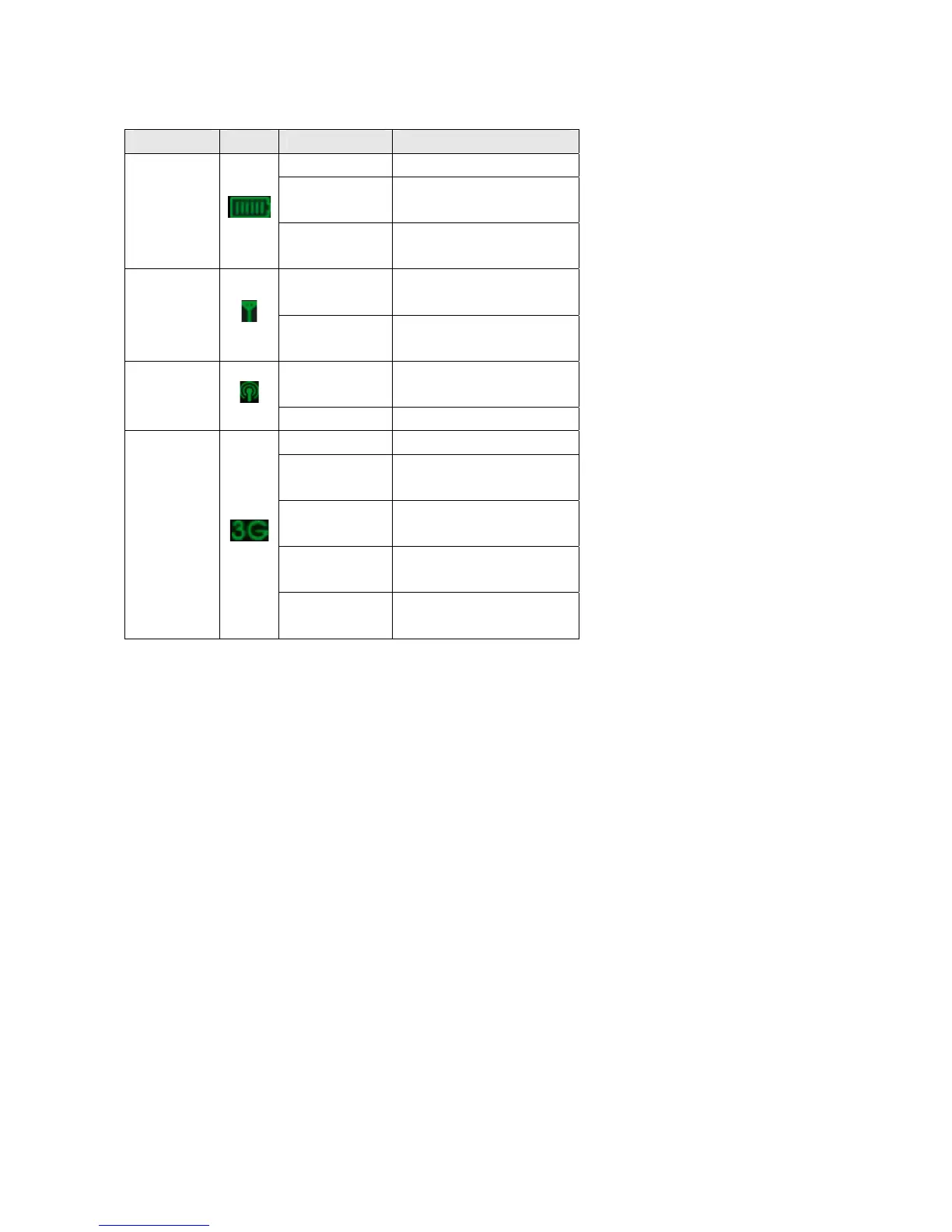
Indicator Icon Status Description
Red solid Battery is low
Green blinking
Charging
Battery
Green solid
Battery is charged
Red solid
Signal is weak
Signal strength
Green solid
Signal is good
Green solid
Wi-Fi is active
Wi-Fi
LED off: Wi-Fi is off
LED off No service
Green solid
Device is in domestic network
with 3G coverage
Green blinking
Device is in global roaming
with 3G coverage
Red solid
Device is in domestic network
with 2G coverage
Network
Red blinking
Device is in global roaming
with 2G coverage
NOTE:
The battery indication LED will be turned off once the battery is fully charged when powered off.
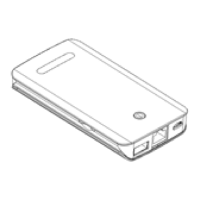
3 Charger/USB port
The device must work with the battery even though it is connected with a charger or PC USB port.
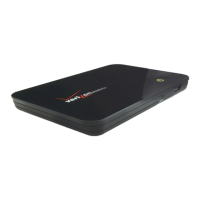
Care of Your Fivespot
As
with
any
electronic
device,
Fivespot
must
be
handled
with
care
to
ensure
reliable operation.
Verizon
Wireless
recommends
the
following
handling
guidelines:
z
Do not apply adhesive labels to Fivespot; they may cause the device to potentially overheat and
they may alter the performance of the antenna.
z
Using USB data cable carefully connect Fivespot with your computer.
z
Protect the Fivespot from liquids, dust, and excessive heat.
z
Store the Fivespot is a safe place, when not in use.
Ways to Access



 To Next Page