18
Fivespot Wi-Fi Setting
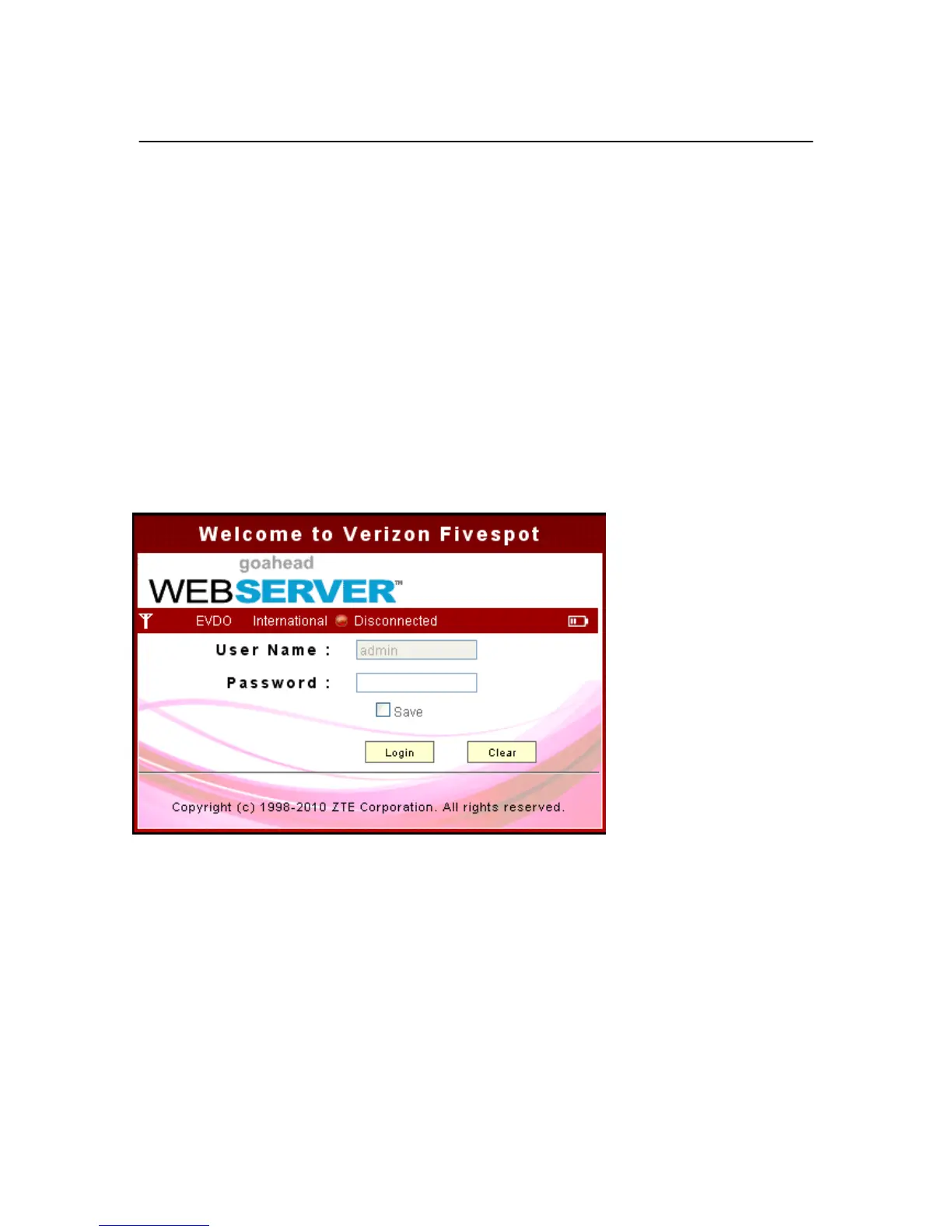
Welcome Page
To connect to the Wi-Fi Settings in the Fivespot, follow this procedure:
1. Establish a Wi-Fi connection to the Fivespot.
-Use your normal WI-Fi manager on your computer to establish a Wi-Fi connection from your
computer to the Fivesot.
- The Wi-Fi settings must match those in use on the Fivespot. If using the default settings, refer to the
Quick Start Guide for the default values. If you have previously changed the default profile on the Fivespot, or
are using a different profile, use the values previously set on the Fivespot.
2. Open your Web Browser
3. In the “Address” or “Location” bar, enter the address of the Fivespot:
- http://192.168.0.1
4. The Welcome Page appears.
Use the case-sensitive default User name “admin” and default Password “admin”, then Click Login to log in
the Setting.
NOTE:
If you check Save after you give user name and password, the device will save them, next time when you want to log
in the device with the same user name and password, what you need to do is click
Login
.



 To Next Page