TROUBLESHOOTING TIPS
Note: The advanced settings should only be configured by
experienced network technicians to avoid adversely aecting the
operation of your Verizon Wi-Fi Extender and your local network.
./ TROUBLESHOOTING TIPS
5.0a/ IF YOU ARE UNABLE TO CONNECT TO THE INTERNET:
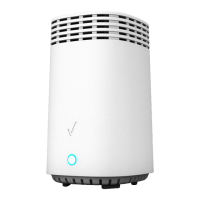
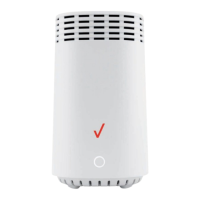
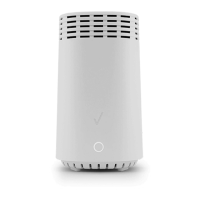
• The first thing to check is whether your Verizon Wi-Fi Extender
is powered on and is connected to the Router. Check the Status
LED on the front of the Verizon Wi-Fi Extender. Be sure to refer
to the “1.3a/ FRONT PANEL” on page 7 to determine status
of the Verizon Wi-Fi Extender. Check the WAN cable (Ethernet
or coaxial) connecting your Router to the internet to make sure
it is properly connected on both ends.
• If the prior tips do not resolve your connection issue, try
restarting (rebooting) the Verizon Wi-Fi Extender by manually
pressing the ‘red’ reset button on the rear panel of the
Verizon Wi-Fi Extender for 2-4 seconds (the Status LED should
go o) to begin rebooting your Verizon Wi-Fi Extender. Your
Verizon Wi-Fi Extender will begin rebooting and will return to
service in 3-5 minutes depending on your network connection.
Check Status LED and if it is solid white, try again to access the
internet.
• If rebooting your Verizon Wi-Fi Extender does not resolve
your connection issue, try power cycling the Extender by
unplugging the power cable from the adapter or the wall and


 To Next Page