10
/ INTRODUCTION
verizon.com/business/products/fios-internet | ©2020 Verizon. All Rights Reserved
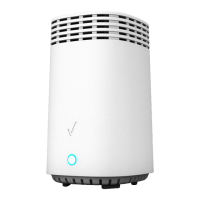
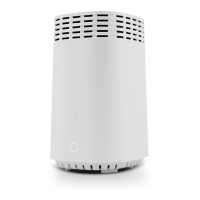
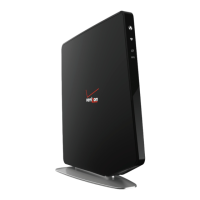
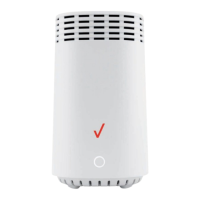
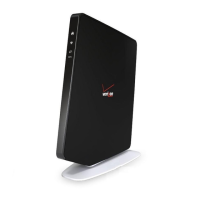
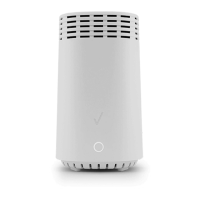
./ GETTING TO KNOW YOUR FIOS ROUTER
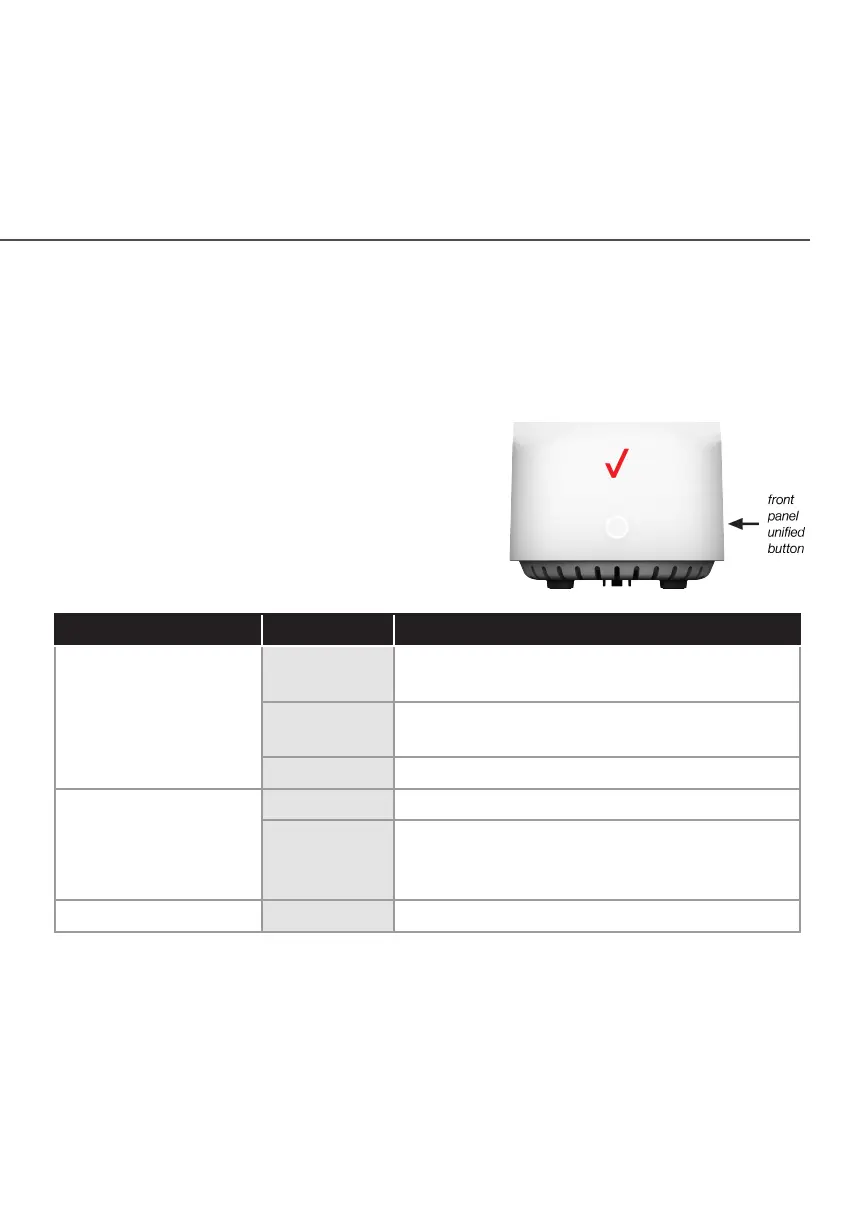
1.3a/ FRONT PANEL
The front panel’s unified button allows quick access to the Wi-Fi
Protected Setup (WPS) feature and pairing mode.
The Router Status LED will be solid
white when your Fios Router is turned
on, connected to the internet, and
functioning normally.
Router Status LED
Condition Status LED Color Fios Router
Normal WHITE Normal operation (solid)
Router is booting (fast blink)
BLUE Pairing mode (slow blink)
Pairing successful (solid)
GREEN Wi-Fi has been turned o (solid)
Issue(s) YELLOW No internet connection (solid)
RED Hardware/System failure detected (solid)
Overheating (fast blink)
Pairing Failure (slow blink)
Power OFF Power o
The WPS button is used to initiate Wi-Fi Protected Setup. This is an
easy way to add WPS capable devices to your Wi-Fi network. To
activate the WPS function, press and hold the unified button located
on the front of your Fios Router for more than two seconds. When
WPS is initiated from your router, the Router Status LED slowly
flashes blue for up to two minutes, allowing time to complete the









 To Next Page