167
/ TROUBLESHOOTING
verizon.com/business/products/fios-internet | ©2020 Verizon. All Rights Reserved
In rare cases you may also need to:
• Unplug the Ethernet cable to Fios Router and restart the
Fios Router, wait 1-2 mins. and insert the Ethernet cable again.
• Under limited circumstances you may use a port forwarding
configuration on the router, based on the application you are
using (refer to the 7.2/ Port Forwarding section or Verizon’s
support online help for more details).
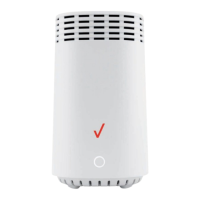
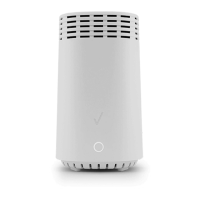
9.0g/ FRONT UNIFIED BUTTON
The front panel’s Unified Button allows quick access to the Wi-Fi
Protected Setup (WPS) feature and handset paging/paring mode.
In addition, the Unified Button provides a visual display of the
Fios Router’s current condition. Refer to the chart below for details.
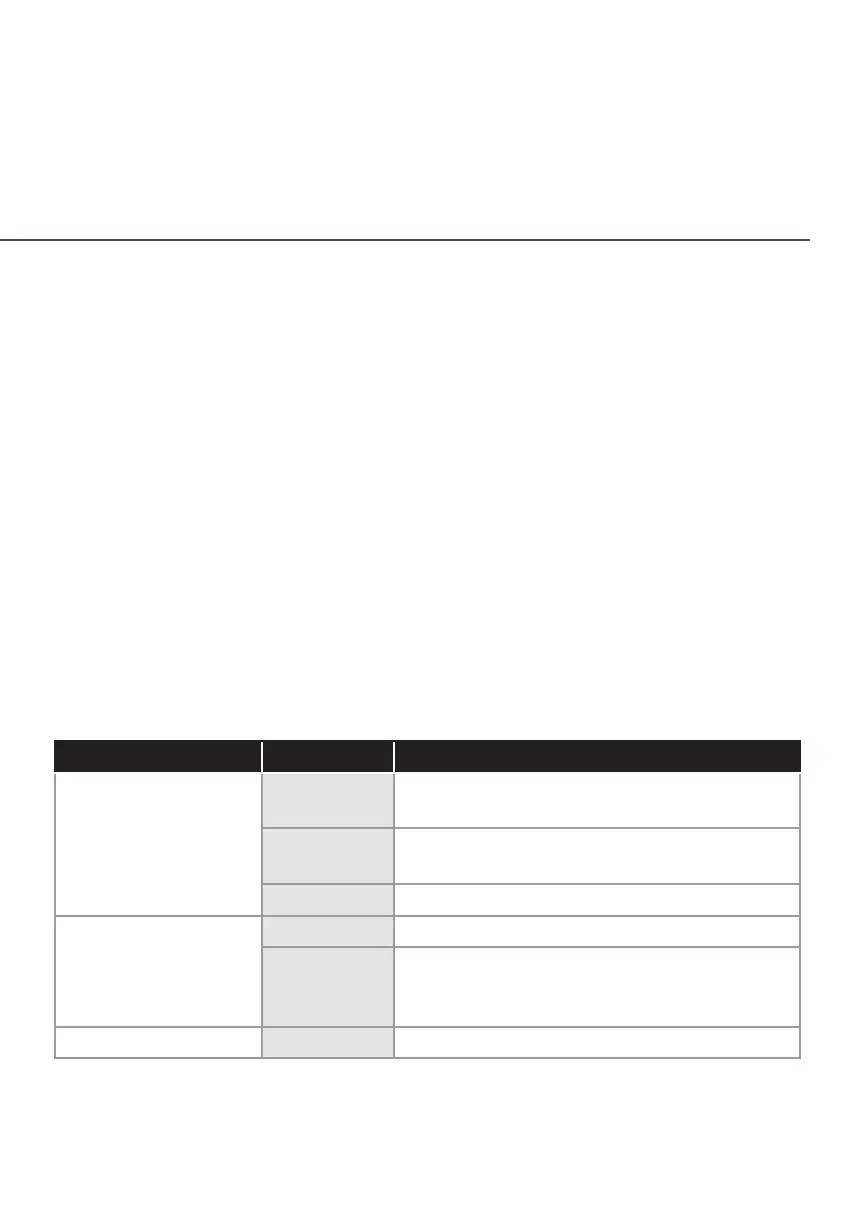
Condition Status LED Color Fios Router
Normal WHITE Normal operation (solid)
Router is booting. (fast blink)
BLUE Pairing mode (slow blink)
Pairing successful (solid)
GREEN Wi-Fi has been turned o. (solid)
Issue(s) YELLOW No internet connection (solid)
RED Hardware/System failure detected (solid)
Overheating (fast blink)
Pairing Failure (slow blink)
Power OFF Power o










 To Next Page