24
Conguring MiFi Settings
You can congure the Wi-Fi settings on your device using the easy-to-use MiFi Settings Web-based
User Interface (MiFi Settings). It allows you to manage, monitor, and customize your Wi-Fi and
4GLTE Mobile Broadband connection.
The following sections describe how to connect to MiFi Settings, as well as each screen and the
corresponding functionality.
Connect to MiFi Settings
To connect to MiFi settings, follow these steps.
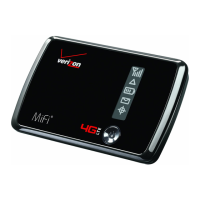
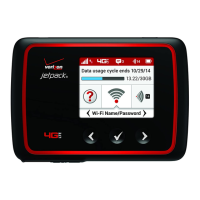
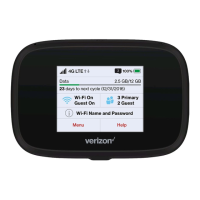
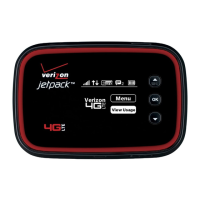
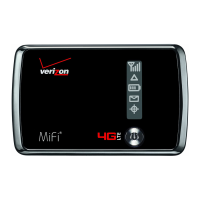
➊ Turn on your computer and turn on the MiFi4510L device.
MiFi4510L’s LED should be solid green or violet, indicating the device is in service and ready
to connect. MiFi4510L broadcasts its own wireless network.
➋ On your computer, use the Wi-Fi manager (Windows) or the AirPort menu bar icon
(MacOSX) to connect wirelessly to the MiFi4510L wireless network.
Tip! The steps to connect to a Wi-Fi network vary depending on your operating system and whether
you use the native application or third-party software. Generally, you click an icon in the Windows
notification area where you can select View Available Wireless Networks, or click the Airport icon in the
menu bar on a Mac. If you are unfamiliar with wireless networking on your computer, consult the
computer help system.
➌ Connect to the network name found on the sticker on the device. The name includes
MiFi4510L.
➍ Open your browser and type http://192.168.1.1 into the address bar. Then press the Enter or
Return key.
The Welcome Page opens. See Welcome Page on page 25.
➎ Type the password admin in the Login eld in the upper right corner of the window.
The Welcome Page changes to the Home Page. See Home on page 26.


 To Next Page
 Loading...