iMS3D – Indoor Mobile Scanning System
Operating Guide. © Viametris SAS.
iMS3D – Operating Guide Document v2.12 12
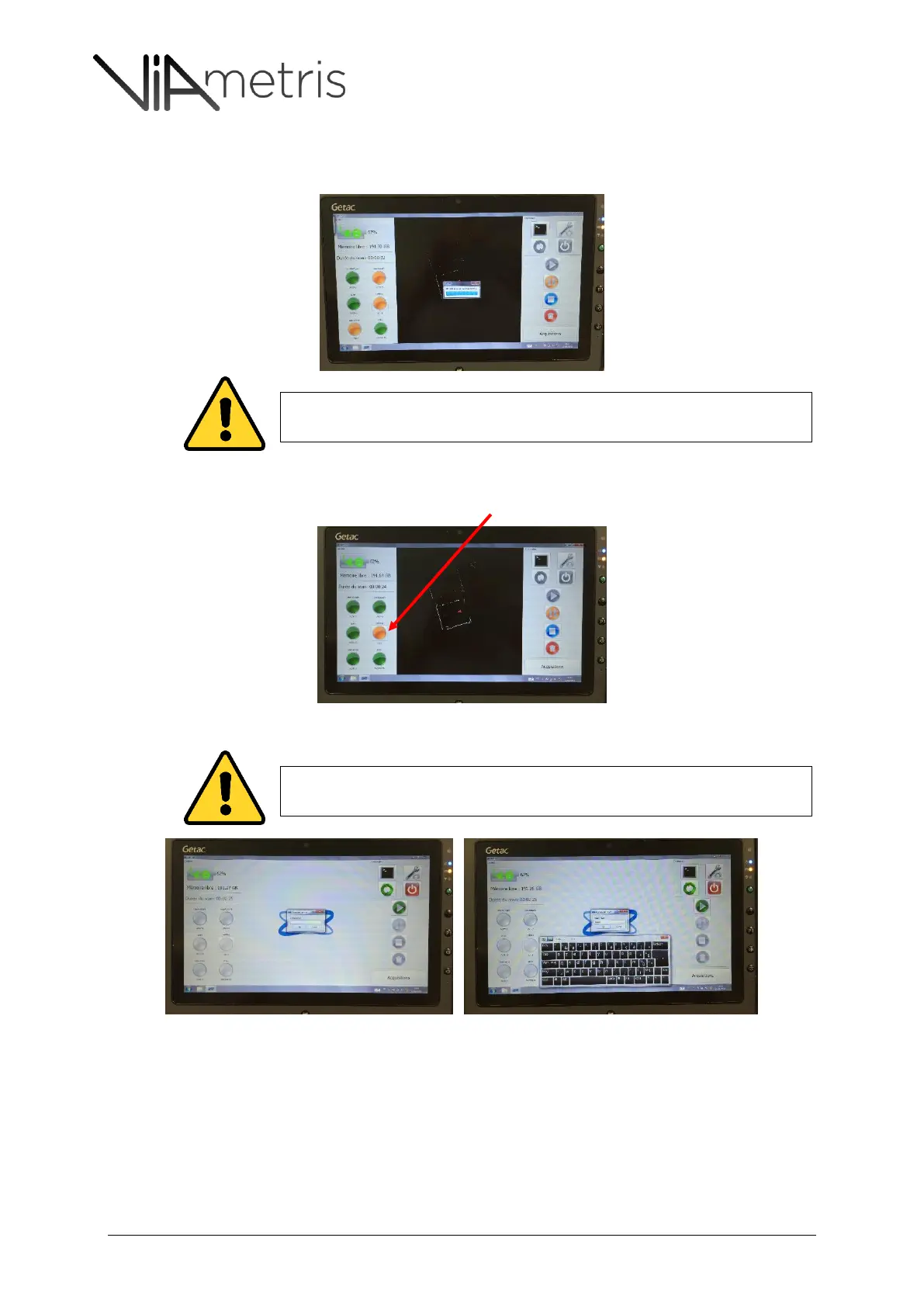
6- The map appears and every sensor starts… the status of each sensor is displayed on the left by
six (6) lights
7- The camera status is mainly orange (no image is grabbed) and blinks green once new image is
grabbed. The user can force and is able to trig manually by clicking the camera status light
8- When terminated, stop the acquisition and enter a comment if you want to. Press enter.
4 DATA TRANSFER
Once one or several acquisitions have been done, it is necessary to export the dataset.
A window pops up and informs the user to not move the equipment. This static
position is required during five (5) seconds.
A window pops up and informs the user to not move the equipment. This static
position is required during five (5) seconds.



 To Next Page