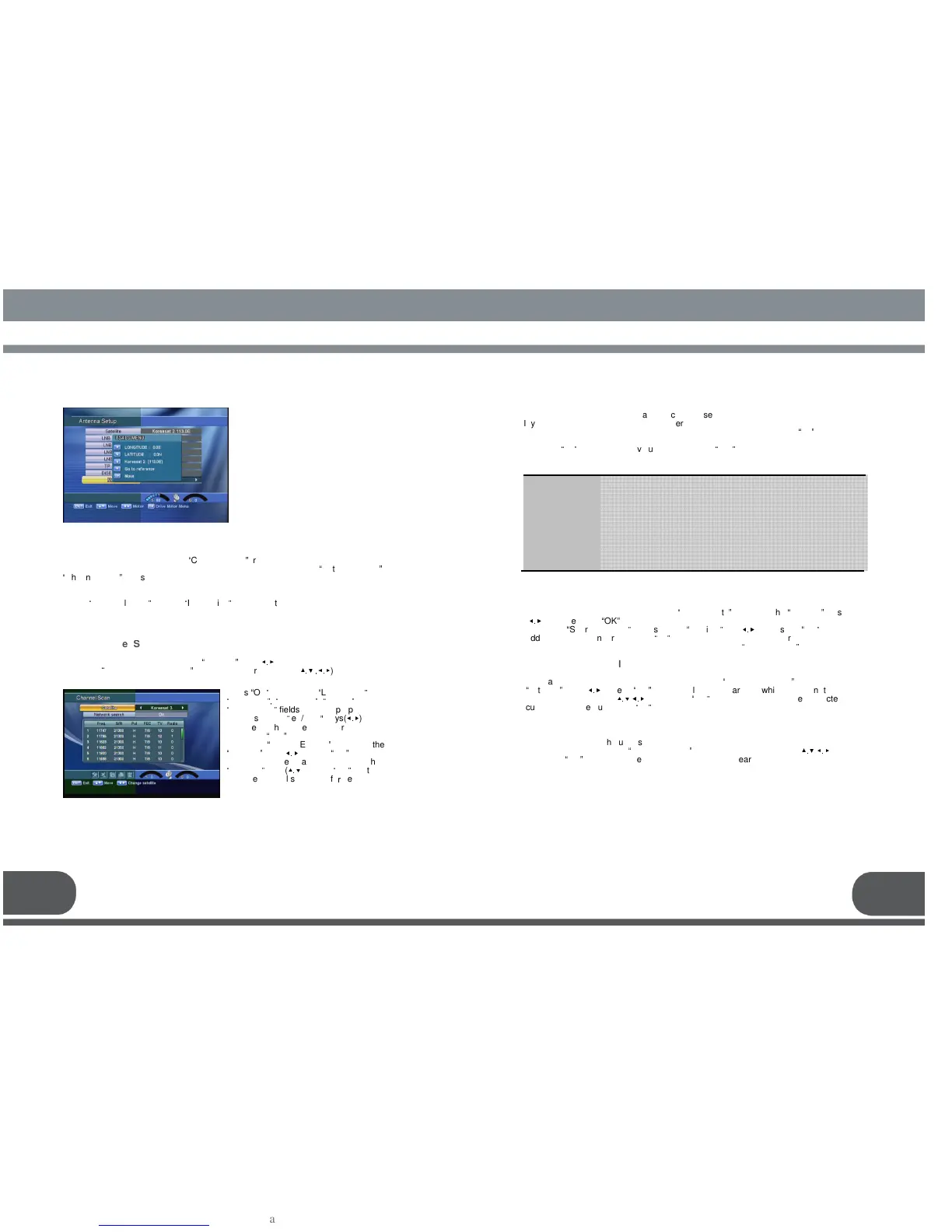
USALS from motor.
Press the “OK” key then Pop-up will be
appeared.
Press arrow button to write Longitude
Press arrow button to write Latitude, then OK
to work.
It will be more convenient to use
“
Channel Scan
”
procedure when you want to search
channel for a specified transponder offered from the satellite. As in
“
Antenna Setup
”
,
“
Channel Scan
”
also searches all channels broadcasted over a specific transponder
using its predefined information. You can add a new transponder if you cannot find it on
the predefined transponder list.
Select
“
Channel Scan
”
menu in
“
Installation
”
menu, and the following screen will be
displayed.
Freq.
S/R
PoI.
FEC
: Input the frequency of the transponder you want to find manually.
: Inputs the symbol rate of the transponder you want to find.
: Select the polarization of the transponder you want to find. In the
case of horizontal,18V and in the case vertical, 13V are output
through LNB line.
: Select the FEC of the transponder you want to find. You can select
the value of 1/2,
2/3, 3/4, 5/6, 7/8 or auto.
You can add a new satellite. Select the
“
Add Satellite
”
icon using the
“
left/right
”
keys
(
◀.▶
),and press the
“
OK
”
key.
Select the
“
Search/Edit TP
”
icon using the
“
left/right
”
key (
◀.▶
). Press the
“
OK
”
key and
add a new transponder using the
“
F1
”
key. You should set various parameters of the
transponder. The default name of the added satellites is
“
UserSAT-No.
”
1. B. 3 Rename Satellite
You can also change the satellite name. Select the
“
Rename Satellite
”
icon using the
“
left/right
”
keys (
◀.▶
).
Press
“
OK
”
key and select the character which you want to edit
using the browse
keys (
▲.▼
,
◀.▶
). Press the
“
OK
”
key to confirm. Save the character
currently renamed using the
“
F2
”
key.
1. B. 4 Delete Satellite
You can also delete the user satellite. Select the satellite that you want to delete from
the satellite list. Select the
“
Delete Satellite
”
icon using the browse keys (
▲.▼
,
◀.▶
).
Press the
“
OK
”
key, and the selected satellite will disappear.
Select the desired satellite using the
“
left/right
”
keys (
◀.▶
).
Select the
“
Antenna Configuration
”
icon using the browse keys(
▲.▼ ,◀.▶
).
“
LNB Type
”, “
LNB Freq
”
,
“
22KHz
”
, and
“
DiSEqC 1.0
”
fields to the appropriate
value using the
“
left/right
”
keys(
◀.▶
) at
each field. Check the signal strength
and press
“
Exit
”
key.
Select the
“
Search/Edit TP
”
icon using the
“
left/right
”
keys(
◀.▶
). Press
“
OK
”
key, and
select the desired transponder using the
“
up/down
”
keys (
▲.▼
). Press
“
OK
”
key to
start the manual searching fo
r
selected
transponder.
You can see the progressive status of channel searching.
If you cannot find the desired transponder from the transponder list, you can add it by
inputting appropriate parameter values for a new transponder using the
“
F1
”
key. When
you want to change the parameter of an existent transponder, select the parameter
using the
“
F1
”
key, change its value and press the
“
Exit
”
key. Correctly set various
parameters.



 To Next Page