This is to restore the factory set values in case the user has encountered some
problems after changing any new values of channel data and others which may be in
error. Select
“
Factory Default
”
menu in
“
User Setting
”
menu and press
“
OK
”
key.
If you want to continue, select option
“
Yes
”
.The receiver will be reset to settings
automatically.
Please note that the
“
Factory Default
”
procedure may take a few minutes.
3. CHANNEL ORGANIZATION
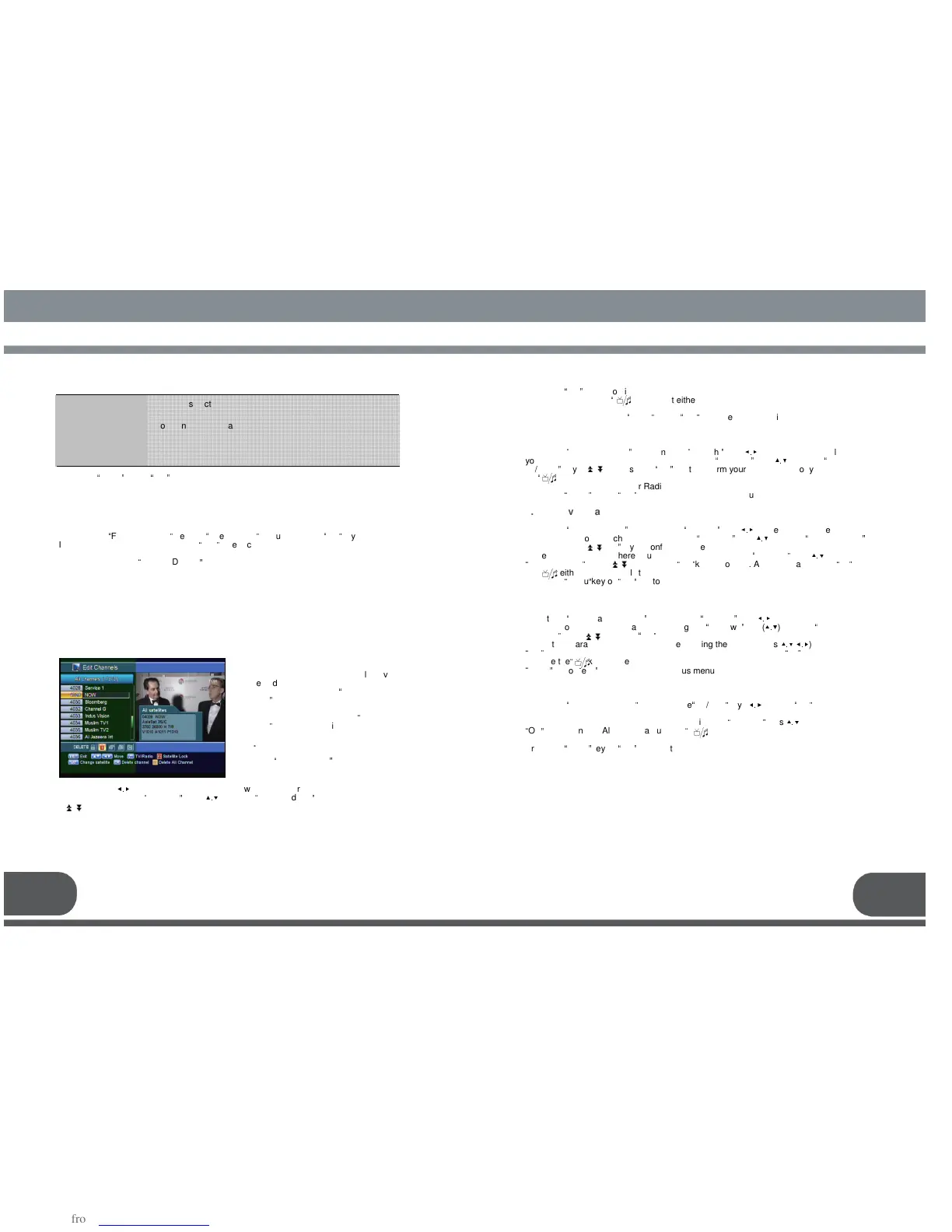
This menu helps you to edit the favorite Channel List and Channels.
Select “Chanel Organization” menu in “Main Menu”, and the following Screen will be
displayed.
Also, you can use the
“ ”
key to select either TV channel list or Radio channel list.
Once the channel is locked, every time you try to watch the program, you will be asked to
enter PIN code. Press the
“
menu
”
key or
“
exit
”
key to return to previous menu.
3. A.2 Delete Channel
Select the
“
Delete Channel
”
icon using the
“
left/right
”
keys(
◀.▶
). Select the channel that
you want to delete from the channel list using the
“
up/down
”
keys(
▲.▼
) and the
“
page
up/down
”
keys( ). Press the
“
OK
”
key to confirm your selection. Also, you can use
the
“ ”
key to
select either TV channel list or Radio channel list.
Press the
“
menu
”
key or
“
exit
”
key to return to previous menu.
3. A.3 Move Channel
Select the
“
Move Channel
”
icon using the
“
left/right
”
keys(
◀.▶
). Select the channel that you
want to move from the channel list using the
“
up/down
”
keys(
▲.▼
) and the
“
page up/down
”
keys( ). Press
“
OK
”
key to confirm your selection.
Move it to the position where you want to place it using the
“
up/down
”
keys(
▲.▼
) and the
“
page up/down
”
keys( ). Press the
“
OK
”
key to confirm. Also, you can use the
“ ”
key
to select either TV channel list or Radio channel list.
Press the
“
menu
”
key or
“
exit
”
key to return to previous menu.
3. A.4 Edit Channel Name
Select the
“
Edit Channel Name
”
icon using the
“
left/right
”
keys(
◀.▶
). Select the channel that
you want to edit from the channel list using the
“
up/down
”
keys(
▲.▼
) and the
“
page
up/down
”
keys( ). Press
“
OK
”
key to confirm your selection.
Select the character which you want to edit using the browse keys(
▲.▼
,
◀.▶
). Press
“
OK
”
key to confirm. Save the character currently selected using the
“
F2
”
key. Also, you
can use the
“ ”
key to select either TV channel list or Radio channel list. Press the
“
menu
”
key or
“
exit
”
key to return to previous menu.
3. A.5 Sort Channel List
Select the
“
Sort Channel List
”
icon using the
“
left/right
”
keys(
◀.▶
). Press
“
OK
”
key to
confirm.
Select the sort type which you want to sort using the
“
up/down
”
keys(
▲.▼
). Press the
“
OK
”
key to confirm. Also, you can use the
“
”
key to select either TV channel list or Radio
channel list.
Press the
“
menu
”
key or
“
exit
”
key to return to previous menu.
23 24
: You can select the transparency of the menu.
: You can select the menu language.
: You can select the audio language.
: You can select the timeout of the “Channel Information menu”.
: If this is “on” , channel list will sort by service ID.
lists – channel lock, delete channel, move
channel, edit the name of a channel, and
sort the channel list. Select
“
Edit
Channels
”
menu in “Channel Organization”,
and you will be asked to enter your PIN
code. You can find the following
“
Edit
Channels
”
screen by entering it.
3. A.1. Channel Lock
Select the
“
Channel Lock
”
icon using the



 To Next Page