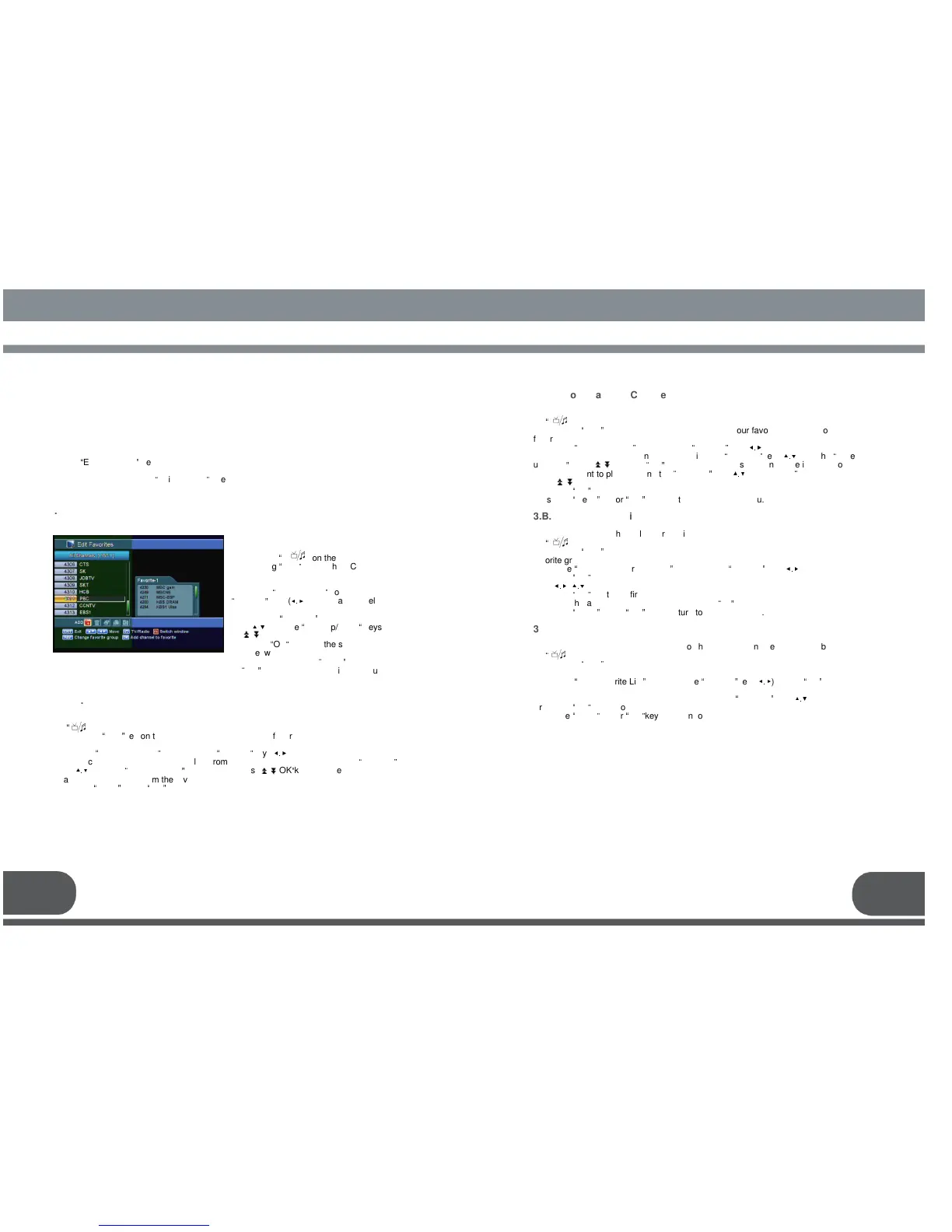
You can edit the favorite channel list, such as add/delete a channel or move its
position, which facilitates you to easily find your favorite channel from the favorite
channel list.
The favorite channel is classified into one of 8 favorite categories depending on its
genre.
Select
“
Edit Favorites
”
menu in “Channel Organization”, and you will be asked to enter
your PIN code.
You can find the following
“
Edit Favorite
”
screen by entering it.
You can choose TV channel list or Radio
channel list in an alternative way by
pressing the
“ ”
key on the RCU.
By pressing
“
FAV
”
key on the RCU, you
can choose your favorite channel group
out of 8 favorite groups.
Select the
“
Add Channel
”
icon using the
“
left/right
”
keys(
◀.▶
). Select a channel that
you want to add into the favorite channel
list using the
“
up/down
”
keys(
▲.▼
) and the
“
page up/down
“
keys (
).
Press the
“
OK
”
key, and the selected
channel will be added to the favorite
channel list. Press the
“
menu
”
key
key to return to previous menu.
3. B.1 Add Favorite Channel
3. B.2. Delete Favorite Channel
You can choose TV channel list or Radio channal list in an alternative way by pressing
the
“
”
key on the RCU.
By pressing
“
FAV
”
key on the RCU, you can choose your favorite channel group out of 8
favorite groups.
Select the
“
Delete Channel
”
icon using the
“
left/right
”
keys(
◀.▶
).
Select a channel that you want to delete from the favorite channel list using the
“
up/down
”
keys(
▲.▼
) and the
“
page up/down
”
keys( ). Press the
“
OK
”
key, and the selected
channel will disappear from the favorite channel list.
Press the
“
menu
”
key or
“
exit
”
key to return to previous menu.
3.B.3. Move Favorite Channel
You can choose TV channel list or Radio channel list in an alternative way by pressing
the
“ ”
key on the RCU.
By pressing
“
FAV
”
key on the RCU, you can choose your favorite channel group out of 8
favorite groups.
Select the
“
Move Channel
”
icon using the
“
left/right
”
keys(
◀.▶
).
Select a channel that you want to move using the
“
up/down
”
keys(
▲.▼
) and the
“
page
up/down
”
keys( ). Press
“
OK
”
key to confirm your selection. Move it to the position
where you want to place it using the
“
up/down
”
keys(
▲.▼
) or, and the
“
page up/down”
keys( ).
Press the
“
OK
”
key to confirm.
Press the
“
menu
”
key or
“
exit
”
key to return to previous menu.
3.B.4. Rename Favorite Group
You can choose TV channel list or Radio channel list in an alternative way by pressing
the
“ ”
key on the RCU.
By pressing
“
FAV
”
key on the RCU, you can choose your favorite channel group out of 8
favorite groups.
Select the
“
Rename Favorite Group
”
icon using the
“
left/right
”
keys(
◀.▶
).
Press the
“
OK
”
key and select the character which you want to edit using the browse
keys(
◀.▶
,
▲.▼
).
Press the
“
OK
”
key to confirm.
Save the character currently renamed using the
“
F2
”
key.
Press the
“
menu
”
key or
“
exit
”
key to return to previous menu.
3.B.5. Sort Channel List
You can choose TV Channel list or Radio channel list in an alternative way by pressing
the
“ ”
key on the RCU.
By pressing
“
FAV
”
key on the RCU, you can choose your favorite channel group out of 8
favorite groups.
Select the
“
Sort Favorite List
”
icon using the
“
left/right
”
keys(
◀.▶
). Press
“
OK
”
key to
confirm.
Select the sort type which you want to sort using the
“
up/down
”
keys(
▲.▼
).
Press the
“
OK
”
key to confirm.
Press the
“
menu
”
key or
“
exit
”
key to return to previous menu.
25 26



 To Next Page