5. Connecting to USB to HOST - MIDI:
This keyboard can be connected directly to a PC, for use with midi. Connect a USB A-B
cable to the keyboards USB to HOST, and the other end to the USB port on your computer.
You can now transfer midi information between keyboard and computer. You can play MIDI
files from your computer on the keyboard and from the keyboard record midi via
additional software on your computer.
III. Basic features
Basic operation
1. How to turn on the instrument
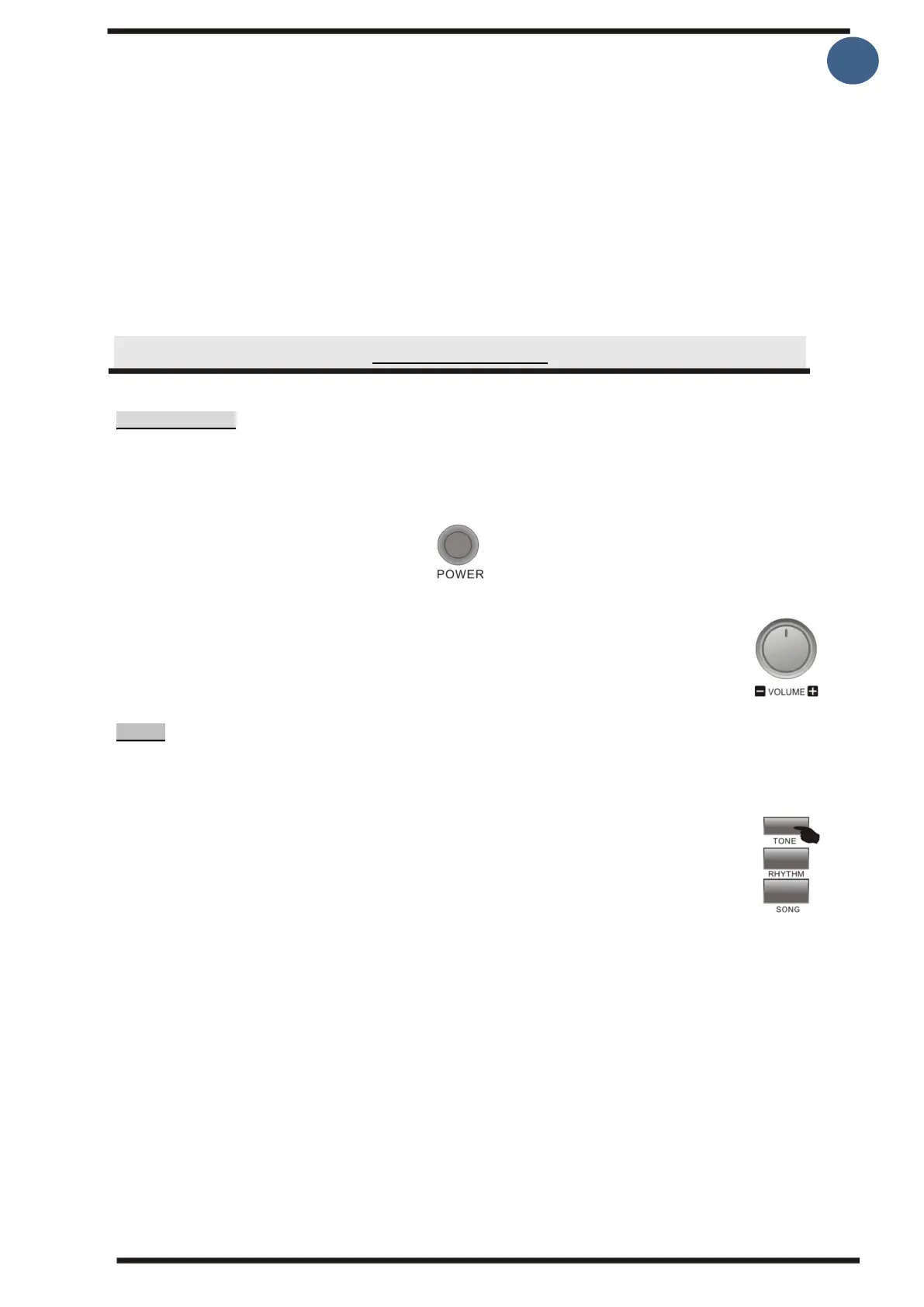
Press the [Power] button to turn on the keyboard (Make sure the power adapter is
plugged in or the batteries are installed correctly). Press the [Power] button again to turn
off.
2. Volume Adjustment
With the [Volume] dial, you can set the volume to suit your needs
Sound
1. Sound selection
This keyboard has 422 different sounds to choose (see audio map)
1. Pressing the [Tone] button activates audio selection. R1 appears on the screen
and now you can see the number and name of the sound at the top of the screen.
2. Now the different sounds can be selected with either the numeric keypad or with
the [+] / [-] buttons in the same place.
3. Now you can play with the selected sound.
Note:
If the [Dual voice] function is on, the [Tone] button can be used to select which of the 3
different options will change the sound. Options R1/R2/L They appear on the screen which
one you are in the process of changing. So if it is the primary sound (R1) you want to
select, you must have R1 on the screen.
2. Using dual sound - Dual voice
This keyboard has the Dual voice feature, which allows you to add two sounds to each
other. This can give a larger and fuller sound.
1. By pressing the [Dual] button, audio number 2 (R2) turns on and this is marked with
"DUAL" in the lower right corner of the screen. Now you see the number and name of the
sound at the top of the display.



 To Next Page