9
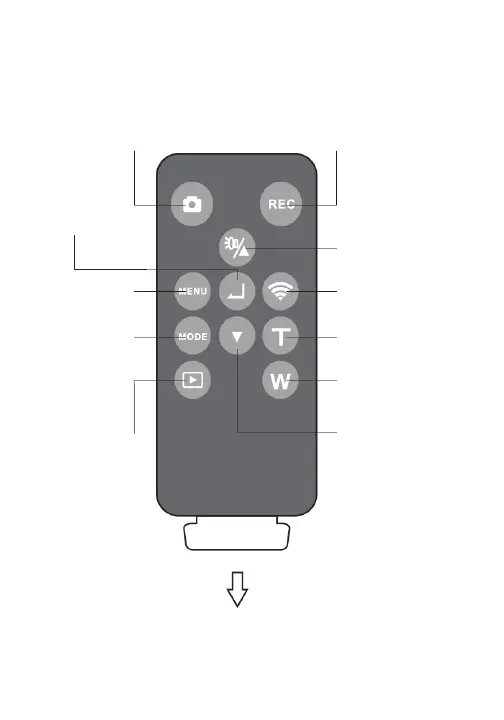
You can control your camcorder using the included remote
control. View the graphic below to see the remote’s button
Using the Remote Control
Record Button
In video mode, press to
start/stop video recording
Turns on/off night vision and
LED light.
Up arrow in settings menus.
Down arrow in settings menus.
Turns Wi-Fi on/off when in .
photo or video mode.
Zooms in (telephoto) when in
photo or video mode.
Zooms out (Wide Angle) when
in photo or video mode.
Press to enter
Playback Mode
Pull plastic tab out in order to use your remote.
Press to change modes.
Changes menus when in
a setup menu.
Press to bring up menus,
go back to a previous menu
or exit menu.
(QWHUVRUFRQ´UPV
a selection
Photo Button
In photo mode, takes photo.
In video mode, pause/continue
video recording


 To Next Page