18
Wi-Fi Connection
Wi-Fi: Ultra-HD-4K
WIFI pwd:12345678
Press DISP key to exit wifi
Wi-Fi information
Use your camcorder’s built-in Wi-Fi functionality to download
photos or video from the camcorder to your smartphone.
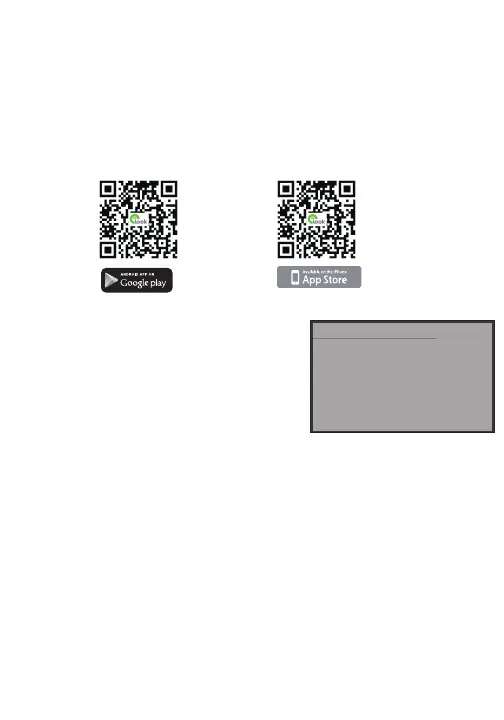
Search for “Roadcam” on Google Play (Android) or on the
Apple App Store (iOS) to download the app. The app can
also be downloaded by scanning the followng QR codes:
Download the App
Android
iOS
Once your camcorder is powered on, press
and hold the DISP/WIFI button.
The following information displays on your
camcorder’s screen:
Wi-Fi: Ultra-HD-4K
WI-FI pwd: 12345678
Press DISP key to exit wifi
Go to your phone’s settings menu, and make sure that Wi-Fi is turned on.
Connect to the network named “Ultra-HD-4K” and if prompted, enter a
password of 12345678.
Once connected, open the Roadcam app to download photos or videos.
Note that 4K videos may be too large in many instances to download over
a Wi-Fi connection. Press athe DISP/WIFI button to exit Wi-Fi mode.
IMPORTANT NOTE: When using the Roadcam app, you may be asked if you would like
the app to automatically connect to your Wi-Fi network each time you run the
application. Choose Yes when prompted, as failure to do so may cause diculty when
connecting to your camera’s Wi-Fi.
“ELooK Pro”
ELooK Pro
ELooK Pro


 To Next Page