VIVOTEK
58 - User's Manual
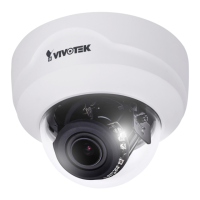
Click Viewing Window to open the viewing region settings page. On this page, you can congure
the Region of Interest and the Output Frame Size for different streams. For example, you can
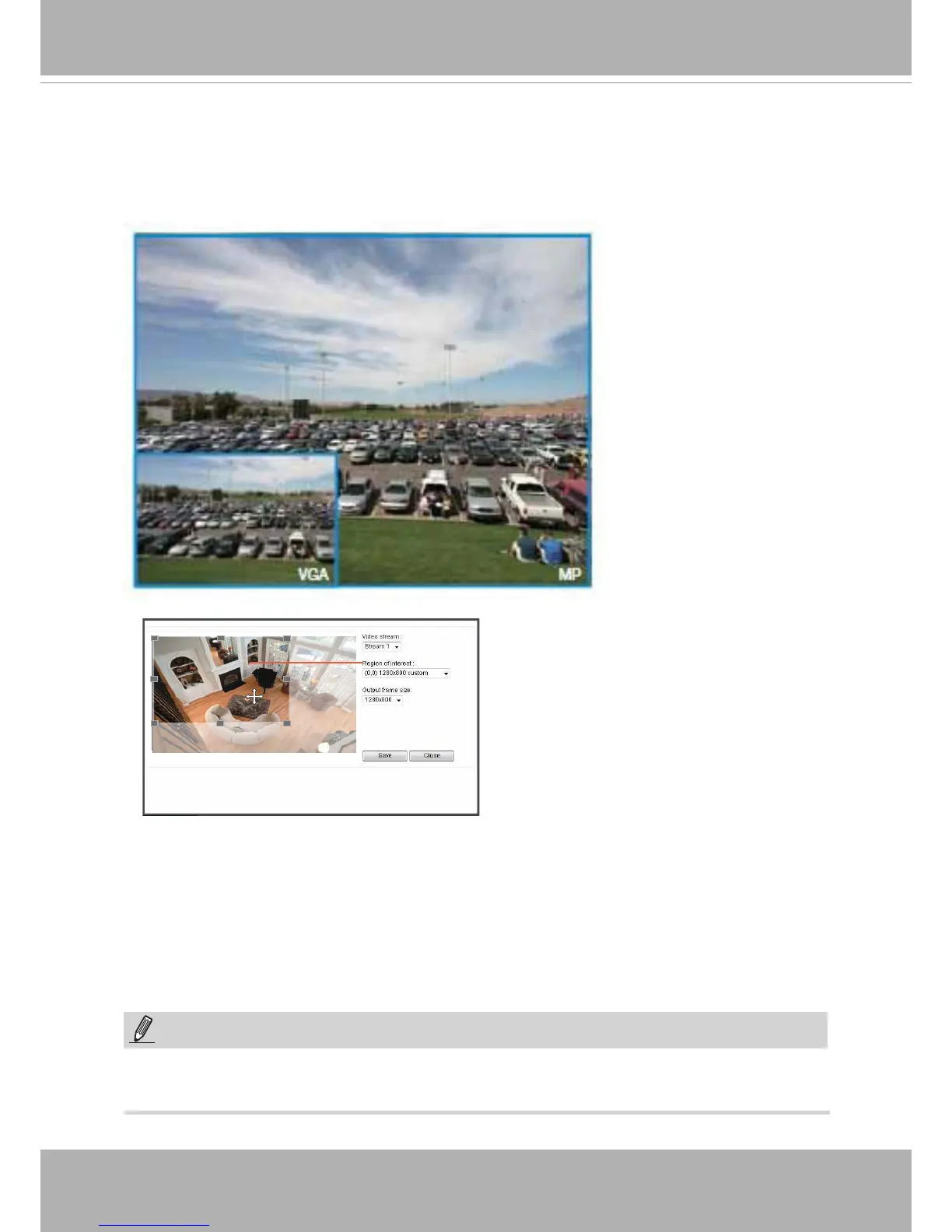
crop only a portion of the image that is of your interest, and thus save the bandwidth needed to
transmit the video stream. As the picture shown below, the area of your interest in a parking lot
should the vehicles. The blue sky is of little value for the surveillance purpose.
Media > Video
► All the items in the “Region of Interest” should not be larger than the “Output Frame Size“
(current maximum resolution).
NOTE:
Please follow the steps below to set up those settings for a stream:
1. Select a stream for which you want to set up the viewing region.
2. Select a Region of Interest from the drop-down list. The floating frame, the same as the
one in the Gloabl View window on the home page, will resize accordingly. If you want to set
up a customized viewing region, you can also resize and drag the oating frame to a desired
position with your mouse.
3. Choose a proper Output Frame Size from the drop-down list according to the screen size of
your monitoring device.



 To Next Page