VIVOTEK - A Leading Provider of Multimedia Communication Solutions
20 - User's Manual
Video title:
The video title can be congured. For more information, please refer to Video settings on page 52�
MPEG-4 protocol and media options: The transmission protocol and media options for MPEG-4 video
streaming. For further conguration, please refer to Client Settings on page 22�
Time: Display the current time. For further conguration, please refer to Video settings on page 52�
Title and time: Video title and time can be stamped on the streaming video. For further conguration,
please refer to Video settings on page 52�
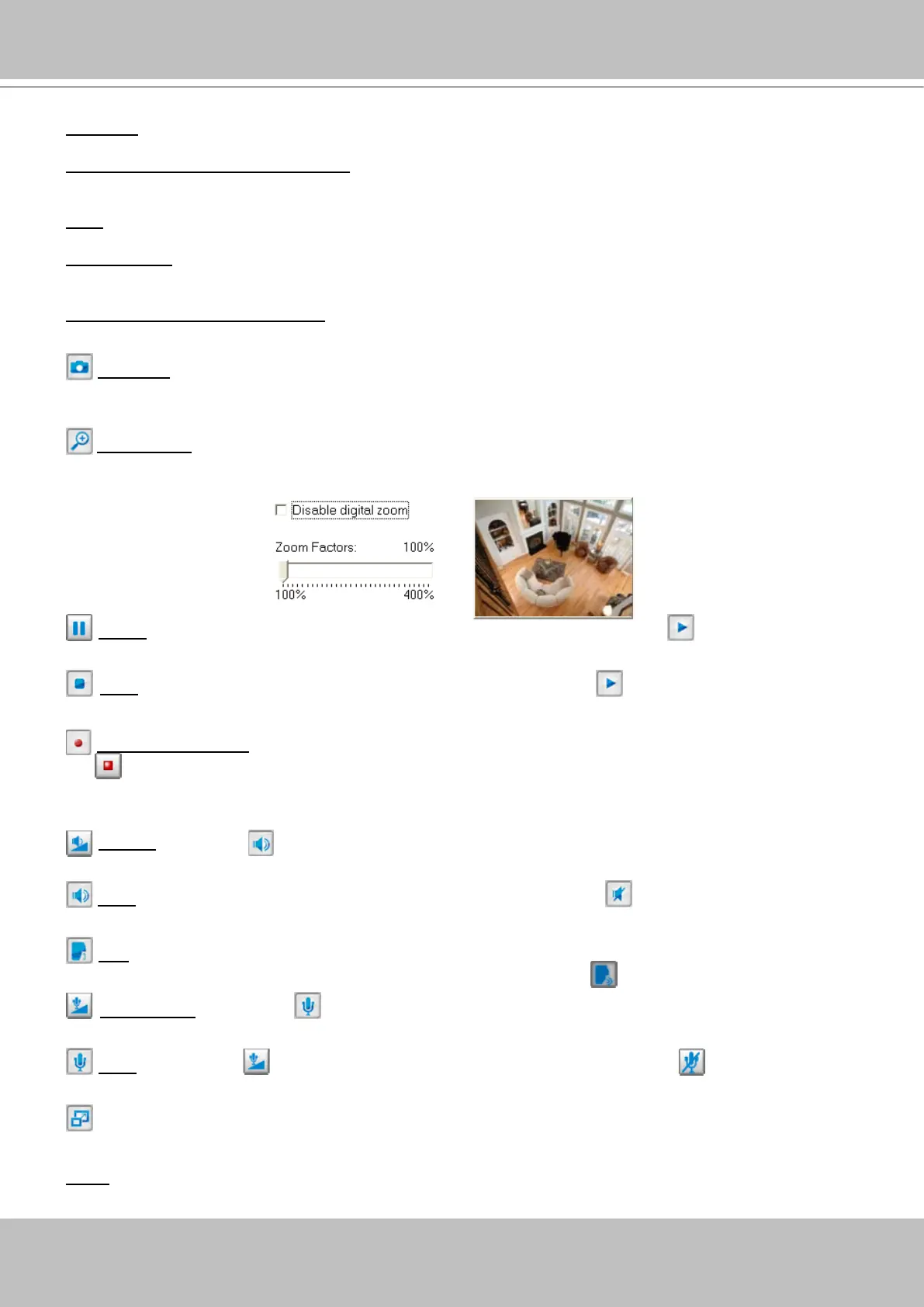
Video and audio control buttons: Depending on the Network Camera model and Network Camera
conguration, some buttons may not be available.
Snapshot: Click this button to capture and save still images� The captured images will be displayed
in a pop-up window� Right-click the image and choose Save Picture As to save it in JPEG (*�jpg) or BMP
(*�bmp) format�
Digital zoom: Click and uncheck Disable digital zoom to enable the zoom operation� The navigation
screen indicates which part of the image is being magnied. To control the zoom level, drag the slider
bar� To move to a different area you want to magnify, drag the navigation screen�
Pause: Pause the transmission of streaming media� The button becomes Resume button after
clicking the Pause button�
Stop: Stop the transmission of streaming media� Click the Resume button to continue
transmission�
Start MP4 recording: Click this button to record video clips in MP4 le format to your computer. Press
the
Stop MP4 recording button to end recording� When you quit the web browser, video recording
stops accordingly� To specify the storage destination and the file name, please refer to MP4 Saving
Options on page 23 for details�
Volume: When the Mute function is not activated, move the slider bar to adjust the volume at
local computer�
Mute: Turn off the volume at local computer� The button becomes Audio on button after clicking
the Mute button�
Talk: Click this button to talk to people around the Network Camera� Audio will come out from the
external speaker connected to the Network Camera� Click this button
again to stop talk�
Mic Volume: When the Mute function is not activated, move the slider bar to adjust the
microphone volume at local computer�
Mute: Turn off the Mic volume at local computer� The button becomes Mic on button after
clicking the Mute button�
Full Screen: Click this button to switch to full screen mode� Press “Esc” key to switch back to normal
mode�
Go to: Once the Administrator has determined the preset positions; you can aim the camera using this
control� For more information, please refer to Camera control of Conguration on page 60�


 To Next Page