Customize user options
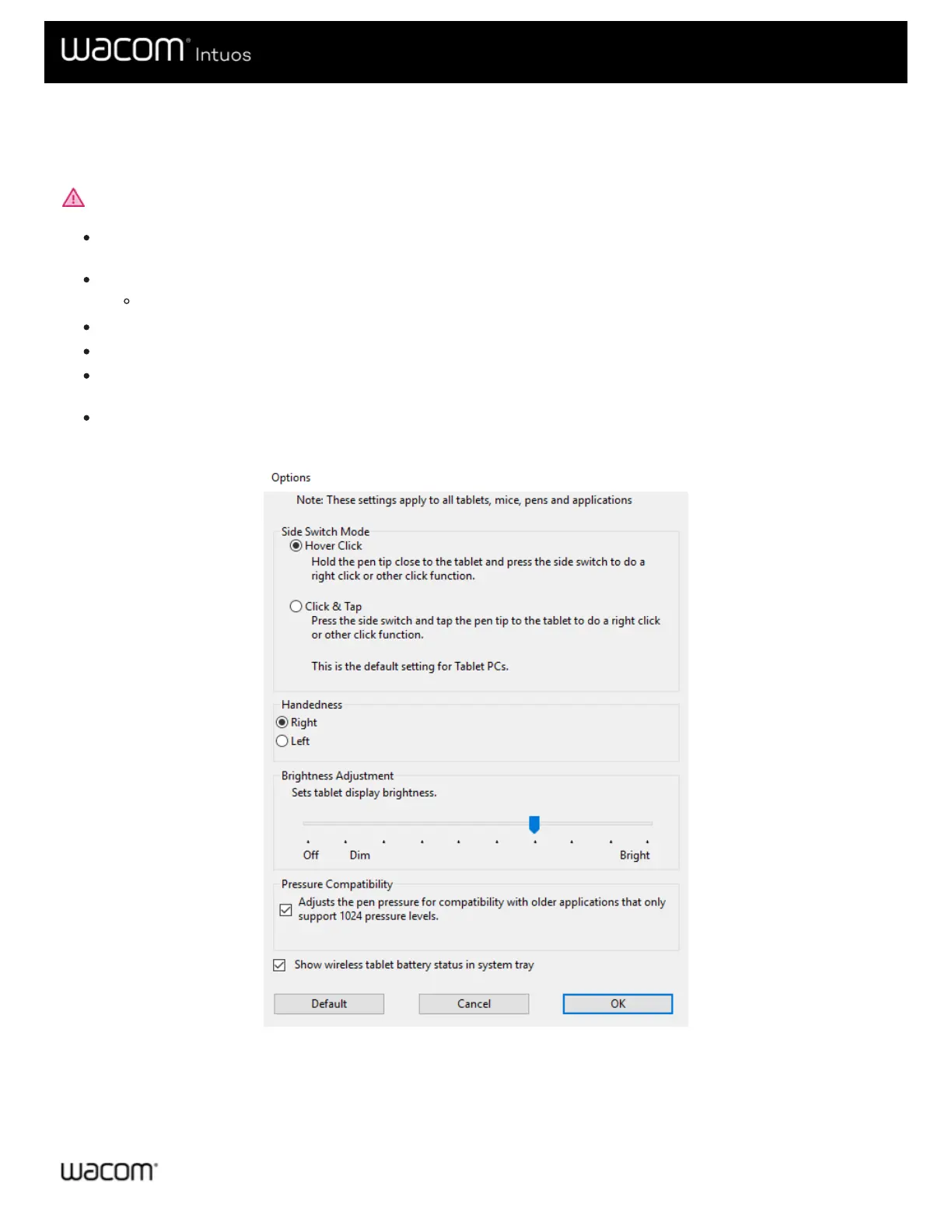
Click on Options in Wacom Tablet Properties to customize side switch mode and other preferences for your device.
Important: The available options will vary depending on your device.
Hover Click is the default and allows you to click by pressing the pen button while holding the pen tip slightly above the
device surface.
Select Click & Tap if you want to click by pressing the pen button and tapping the pen tip to the device surface.
Choose this option for more precise placement of clicks.
Move the Brightness Adjustment slider to adjust the brightness level or to turn off status LEDs and active area markers.
If you are using graphics applications that support a maximum of 1024 levels of pressure, select Pressure Compatibility.
For devices that support wireless, select Show wireless tablet battery if you want to display the battery status icon in
your system tray during wireless operation.
For devices that have ExpressKeys™ on both the right and left sides and that are connected to a macOS computer,
change the Handedness to swap the ExpressKey settings.
The above screenshot is for descriptive purposes; it may not match your screen.







 To Next Page