Use On-Screen Controls as shortcuts
On-Screen Controls are menus that display on your pen display screen or monitor. You can use On-Screen Controls as shortcuts
to the settings that you use the most.
How to create and use an On-Screen Control
1. Create a new On-Screen Control.
2. Assign settings to the Radial Menus, Screen Keys and Keypads that you created.
3. Assign the On-Screen Control to a customizable component of your device, such as an ExpressKey™ or pen button.
4. Press the button, ExpressKey™, or other component to open the On-Screen Control.
For example, if you assigned an On-Screen Control to an ExpressKey™, press the ExpressKey™ to display the On-
Screen Control.
5. Click a button or slice in the On-Screen Control to activate the setting you assigned.
For example, if you assigned Zoom In to a Screen Key, click that Screen Key to zoom in.
Tip: Instead of opening the On-Screen Control every time you need it, you can select the push pin icon to keep it open at all
times.
On-Screen Control layouts
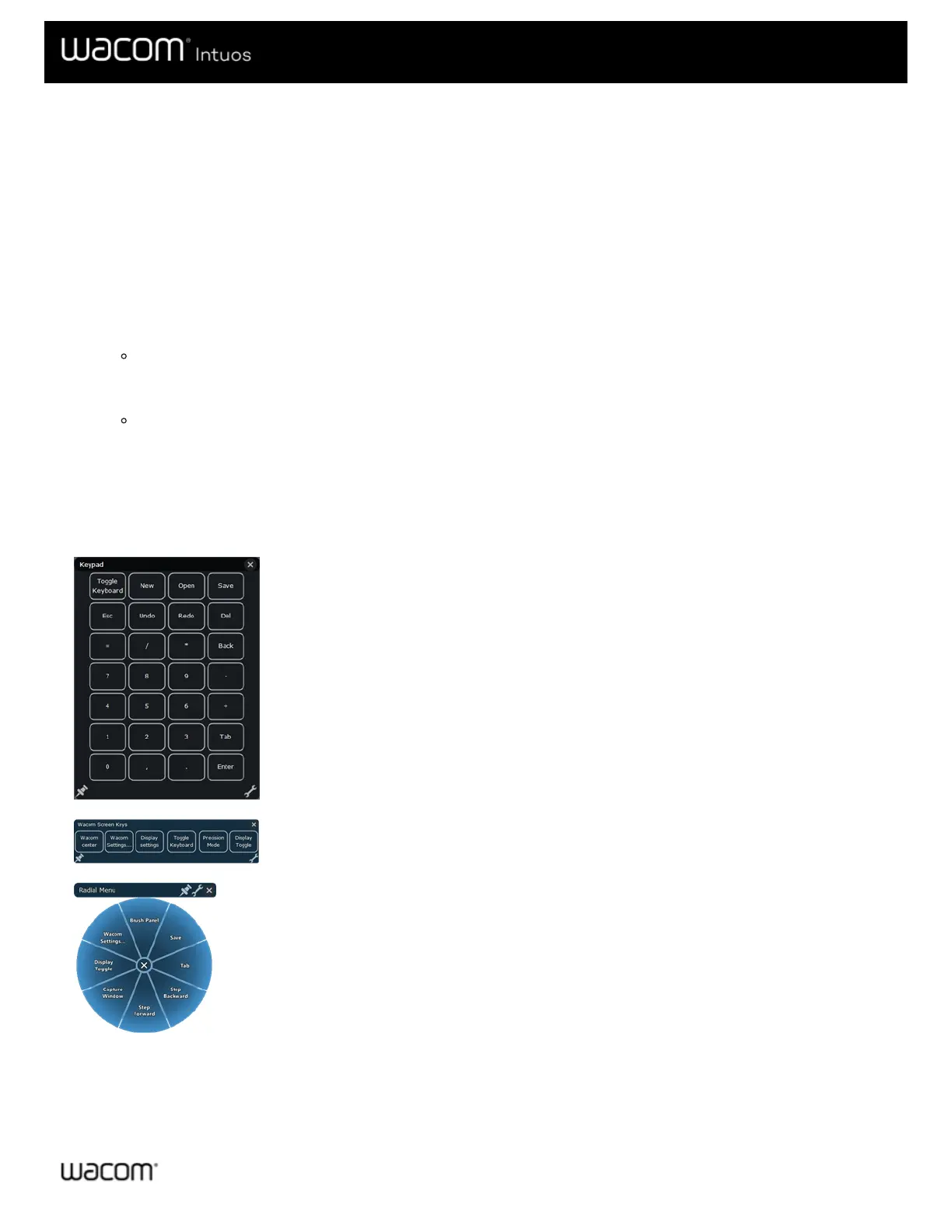
Keypad: A Keypad is a similar to your keyboard keypad, displayed on your monitor.
Screen Key panel: A Screen Key panel is a row of buttons that displays in the layout you
choose.
Radial menu: A Radial menu is a circle split into slices, and each slice has its own setting.
Tip: You can select the wrench icon to open Wacom Tablet Properties.







 To Next Page