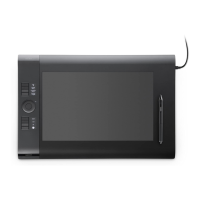
Test the ExpressKeys™ and Touch Ring
If your ExpressKeys™ or a Touch Ring do not work as you expect, check the assigned functions or reset them to their default
conditions. See Testing a pen or mouse for more information on testing your pen tablet components.
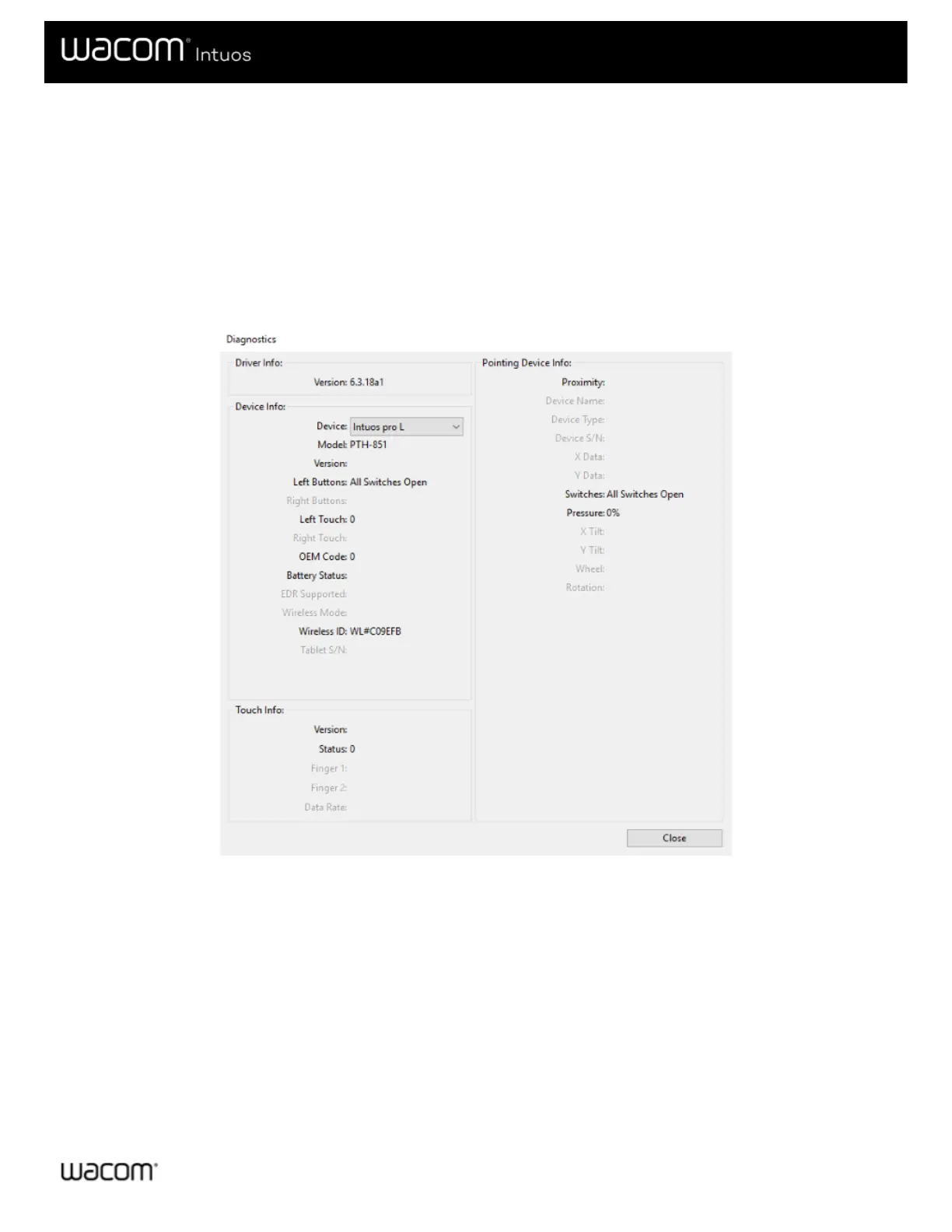
1. Open Wacom Tablet Properties and click on the About button. In the dialog that appears, click Diagnose... The
Diagnostics dialog shows dynamic information about the tablet, your tool(s), and appropriate information for touch-
sensitive tablets.
2. If more than one pen tablet is connected to your system, select the one you are testing in the Tablet Info column.
3. Use the information shown in the dialog when testing your tablet and tools.
The above screenshot is for descriptive purposes; it may not match your screen.
Testing the ExpressKeys™
1. With the Diagnostics dialog open, observe the Tablet Info column as you test each ExpressKey. Be sure you have
selected the tablet you are testing from the Tablet Info column.
2. Test the keys by pressing them one at a time. Each time you press a key, its number is shown next to the Left Buttons
category.
3. When you are done, click the Close button.
Testing the Touch Ring
1. With the Diagnostics dialog box open, observe the Tablet Info column as you test the Touch Ring. Be sure you have







 To Next Page