CURA WANHAO EDITION USER MANUEL REV.B 5 / 23
Now load the object with the Load File button as shown below and make the changes in the
parameters as shown in the image.
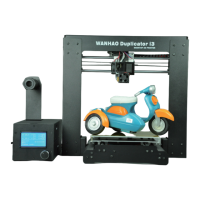
1.2 Quick Print Settings
After setting up Cura for the first time, you will be shown the main interface
screen. (Fig. 1.1)
Figure 1.1: Quick Print Settings
Selecting a Quick Print Profile
The print quality settings can be found in the top left-hand corner of the window. For most
filaments, there will be High Quality, Normal Quality, or Fast Quality options. Some of the more
exotic filaments may only have a Normal Quality profile.
High Quality
Designed to give greater detail and finer objects. This will have a smaller layer height, which will
make each layer thinner, so that curves seem more natural and walls seem less noticeable. This
setting will also require more layers to be laid down, increasing overall print time.
Medium Quality
Designed to give a medium resolution, by increasing the layer height and print speeds. This will
make the organic curves slightly more step-like than the fine setting, but will reduce printing
time.
Fast Quality
Designed for the fast prints, where overall model finish is not of concern. Most commonly used
for quick iteration of designs found in rapid prototyping.
Material Selection


 To Next Page