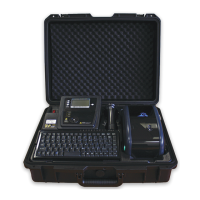
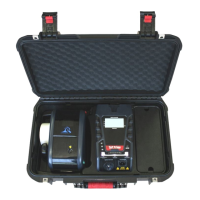
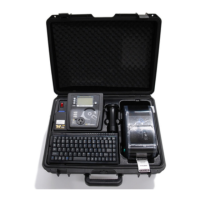
Wavecom Instruments Fully Integrated Test N Print Unit - User Manual
15
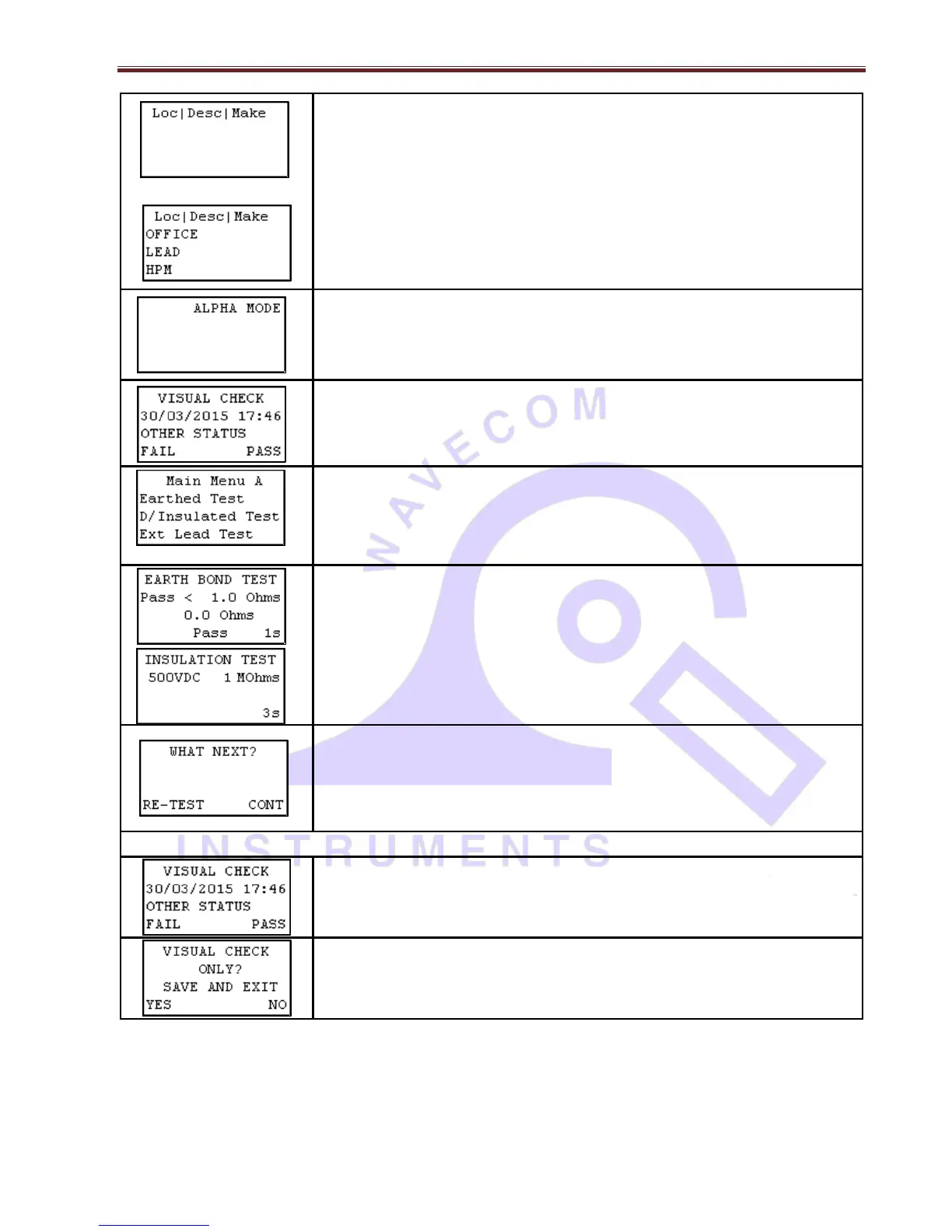
A selection of details can be entered for an item. Details include; location, description,
make, model, serial number, asset number, frequency of test and notes. Each
heading relates to an 'F'; e.g. Loc = F1, Desc = F2 and Make = F3. Only 3 items are
displayed at one time. To scroll through the various details, press enter key. By
continually pressing enter you can loop back to the first 3 items. Please make sure
location and description are filled out and check to see that the frequency is correct.
Once the details are entered, hold the enter key for 2 seconds to move on to the
visual check screen.
Entering an items details is the same process as entering sites and users, please refer
to the Adding a Site/User steps above. Ensure that test frequency for the item is set
in accordance with the AS/NZ 3760 Standard
After the item, has been visually inspected, there is 1 of 3 options that can be selected;
Out of Service (F2), Fail (F3) and Pass (enter). If Out of Service or Fail is selected
the result will be saved and the TnT will revert back to the barcode entry screen. If
you have a zebra printer a tag will be printed. If the test is a visual check only then
press (enter hold). See below for details.
If the item passes a visual inspection and pass is selected, testing can begin. Select
the correct test based on the appliance type.
TnP Testing Menus, Main Menu A and Main Menu B are explained in later
sections at page 16.
Once test has been completed the results are displayed.
To test the item again, press (F3). This will take you back to the main menu A
screen. From here you can choose a test class. You would use this for example if
testing power boards. To complete the test, press enter. This will take you back to
the new barcode screen.
If you have a zebra printer, a barcode will be printed once (enter) is pressed.
Items can be passed with a visual check only (no testing required). You must be at
the visual check screen shown on the left. To do a visual check only press and hold
(enter) for 2 seconds.
Pressing (enter) will take you back to the visual check screen. Pressing (F3) will
complete the test. Print out a tag if you have a zebra printer. Then go back to the
new barcode screen.


 To Next Page