Wavecom Instruments Fully Integrated Test N Print Unit - User Manual
36
Notes:
The battery may not be full charged for shipment and will require a complete charge before first use. Make
sure the scanner is correctly installed on the dock; connect the tester to mains power and scanner battery
will start charging automatically.
The scanner LED will be flashing RED while charging and will turn OFF when the charging process is
complete. If a charging error occurs the scanner LED will stay solid RED.
It takes approximately 3 hours for the battery to become fully charged.
Battery charging stops when the temperature drops below Oᴼ C or exceeds 40ᴼC. It is recommended to
charge the battery at room temperature (18ᴼC to 25ᴼC) for optimal performance.
When the scanner battery is fully charged remove the scanner from the stand and hold down the trigger
for approximately 2-3 seconds to turn the scanner ON. The scanner will respond with a long beep and its
LED will turn ON and OFF shortly.
To turn OFF the scanner in an emergency, remove the battery. Scanner will turn off automatically if idle for
10 minutes.
When the battery charge becomes low the scanner will be unable to emit the scan beam and its power-
on-beep will sound different to normal.
Pairing: - In some cases where the 1560/62 BT has been programmatically reconfigured it may be necessary
to re-pair (bind) the 1560/62 BT unit with the communication stand.
Pairing (sometimes refereed to binding) is the process of respectively scanning both the “Set Connection”
bar code and the “Serial No” bar code located on the communication stand using the associated 1560/62
scanner unit. A rapidly flashing blue light on the communication stand will indicate successful pairing.
The barcode reader is now ready to use, simply open the application that you require to capture the bar code data
and start scanning. For windows users, an ideal application to test the scanner is “Notepad”, a small editor
program located among Windows accessories.
Once paired, 1560/62 scanner will automatically try to establish a connection with the communication stand, each
time its powered on.
Please refer CipherLab user guide for advanced settings and setup barcodes 1560/1562 Barcode scanners. This is
available at our website and can be requested through after-sales support.
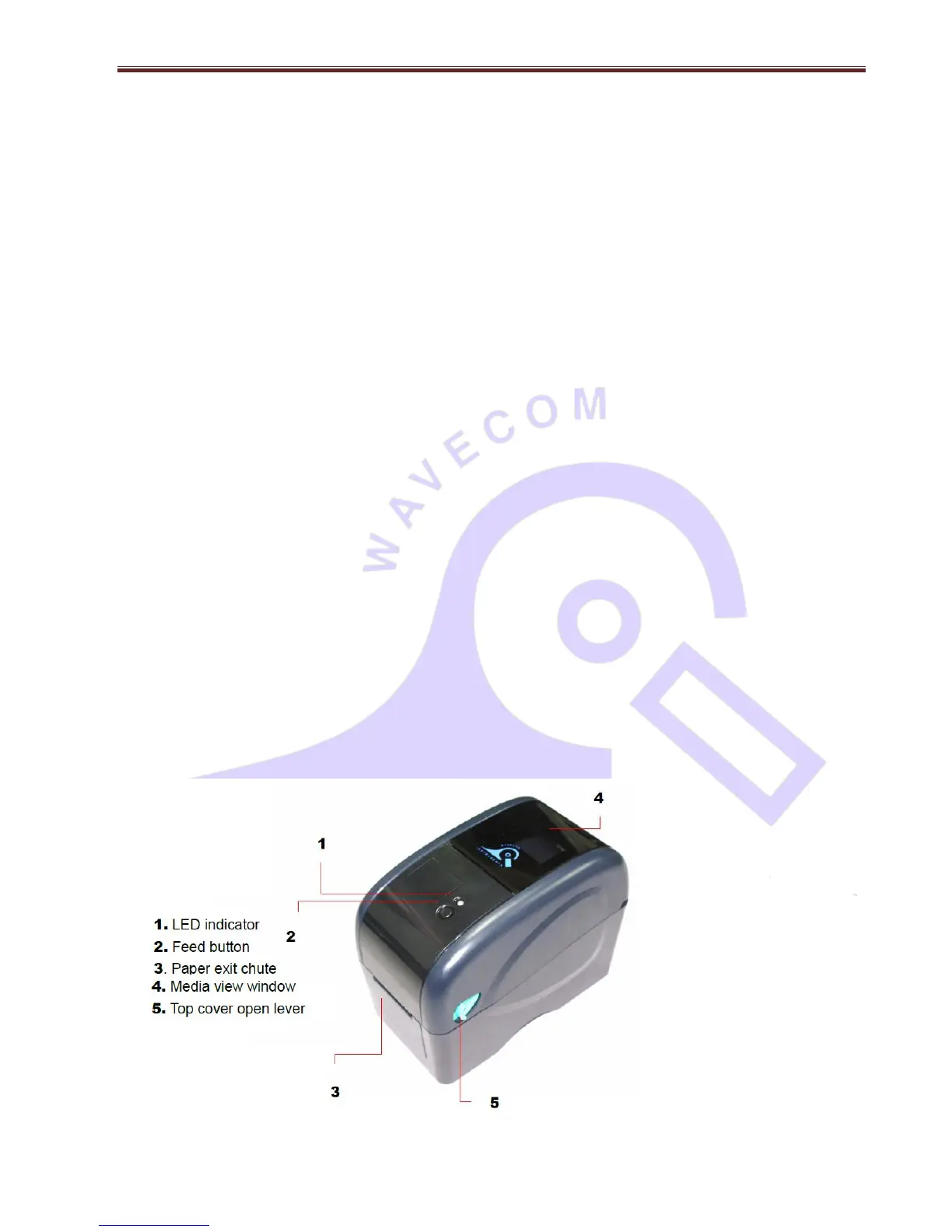
Wavecom Thermal Transfer Printer
When TT040-50 is
purchased as part of a
Wavecom Test n Print Unit,
the Printer is ready and fully
set up to use.
Owner’s Barcode Label
Artwork may be installed as
an option.
Please note that images in
this section are for
illustration purposes only.
Actual Model of Printer in
TnP may vary.


 To Next Page