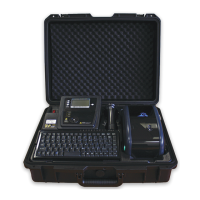
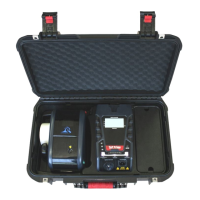
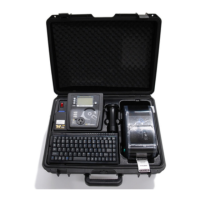
Wavecom Instruments Fully Integrated Test N Print Unit - User Manual
39
LED and Button Functions
This printer has one button and one three-color LED indicator. By indicating the LED with different color and pressing the
button, printer can feed labels, pause the printing job, select and calibrate the media sensor, print printer self-test report,
reset printer to defaults (initialization). Please refer to the button operation below for different functions.
LED Indicator
This illuminates that the power is on and the device is ready to use.
This illuminates that the system is downloading data from PC to
memory or the printer is paused.
This illuminates that the system is clearing data from printer.
This illuminates printer head open, cutter error.
This illuminates a printing error, such as head open, paper empty,
paper jam or memory error etc.
Regular Button Function
1. Feed labels
When the printer is ready, press the button to feed one label to the beginning of next label.
2. Pause the printing job
When the printer is printing, press the button to pause a printing job. When the printer is paused, the LED will be green
blinking. Press the button again to continue the printing job.
Power on Utilities
There are six power-on utilities to set up and test printer hardware. These utilities are activated by pressing FEED button then
turning on the printer power simultaneously and release the button at different color of LED.
Please follow the steps below for different power-on utilities.
1. Turn off the power switch.
2. Hold on the button then turn on the power switch.
3. Release the button when LED indicates with different color for different functions.
The LED color will be changed as following pattern:
1. Gap / black mark sensor calibration
2. Gap / black mark sensor
calibration, Self-test and enter
dump mode
3. Printer initialization
4. Set black mark sensor as media
sensor and calibrate the black mark
sensor
5. Set gap sensor as media sensor
and calibrate the gap sensor


 To Next Page