Wavecom Instruments Fully Integrated Test N Print Unit - User Manual
16
Retesting Equipment
The following must be done before retesting:
A site must exist in the tester with records. A site is usually uploaded from WinPATS.
The correct site must be displayed on the first line of the new / search barcode screen. If the incorrect site
is displayed no equipment will be reported when scanned. To change see the add sites section.
The correct user must be selected from the users list. A user is important because it give a reference to the test
results in WinPATS. It is also the user that is displayed on the tag. If there is no users create a users as described
in the add equipment section or upload the users list from WinPATS.
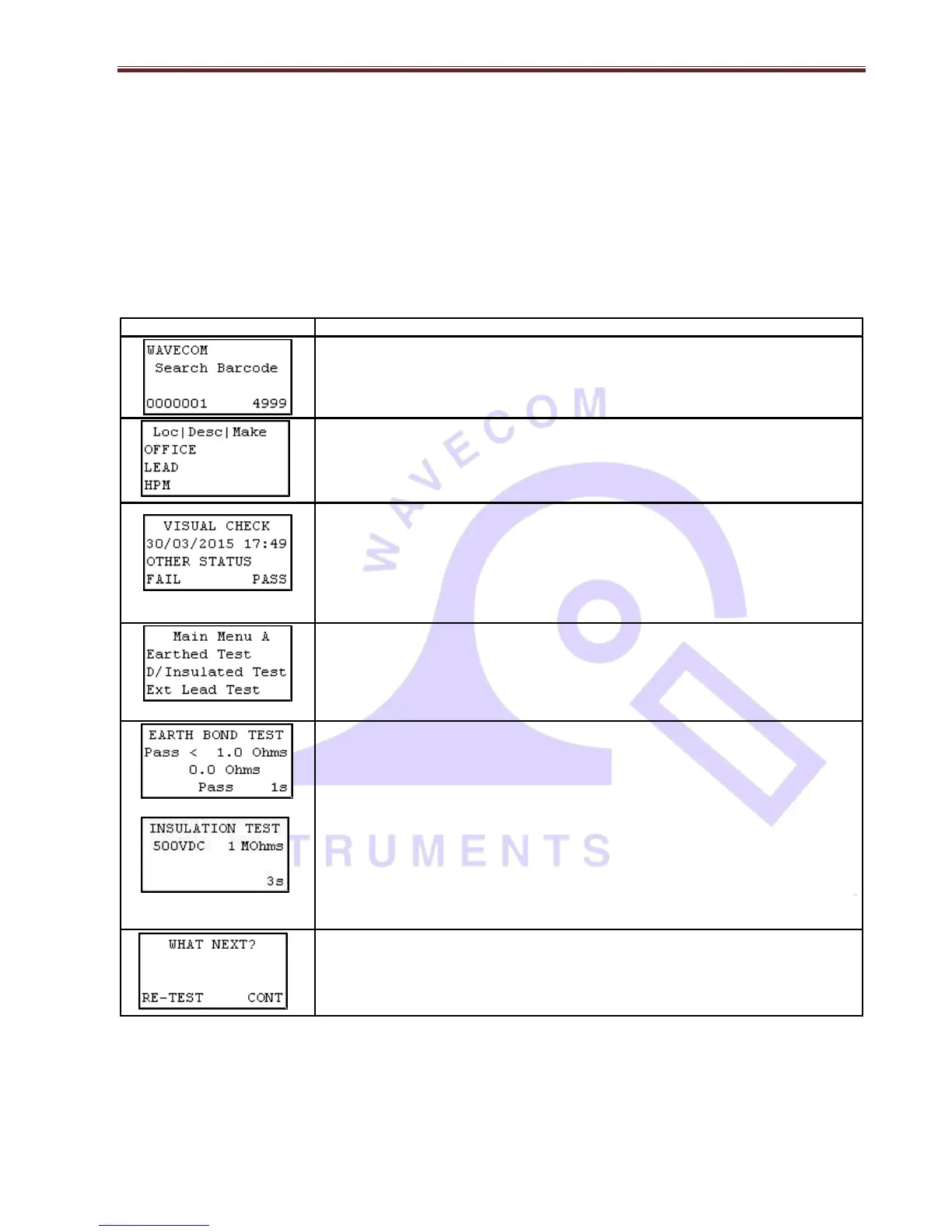
Type in or scan the barcode number to be searched and press enter. If the screen
displays new barcode press enter to switch over. The screen can only be switched if
there is no entry.
The existing record details will be shown. Any changes made here will be updated
once the site is downloaded in WinPATS. If nothing needs changing hold the enter
key to proceed to the next screen.
After all item details have been entered, hold the enter key for 2 seconds to proceed
to the Visual Check screen. After the item has been visually inspected, there is 1 of
3 options that can be selected; Out of Service (F2), Fail (F3) and Pass (enter). If
Out of Services or Fail is selected the result will be saved and the TnT will revert
back to the barcode entry screen. If you have a zebra printer a tag will be printed. If
the test is a visual check only then press (enter hold). See add equipment for
details.
If the item passes a visual inspection and pass is selected, testing can begin.
Once test has completed the results are displayed.
To test the item multiple times press (F3) this will take you back to the main menu A
screen. From here you can choose a test class. You would use this for example if
testing power boards. To complete the test press (enter). This will take you back to
the search barcode screen. If you have a zebra printer a barcode will be printed
once (enter) is pressed.
To download records using WinPATS software, please refer to the Downloading Records section of the WinPATS
manual


 To Next Page