Wavecom Instruments Fully Integrated Test N Print Unit - User Manual
17
Deleting Equipment
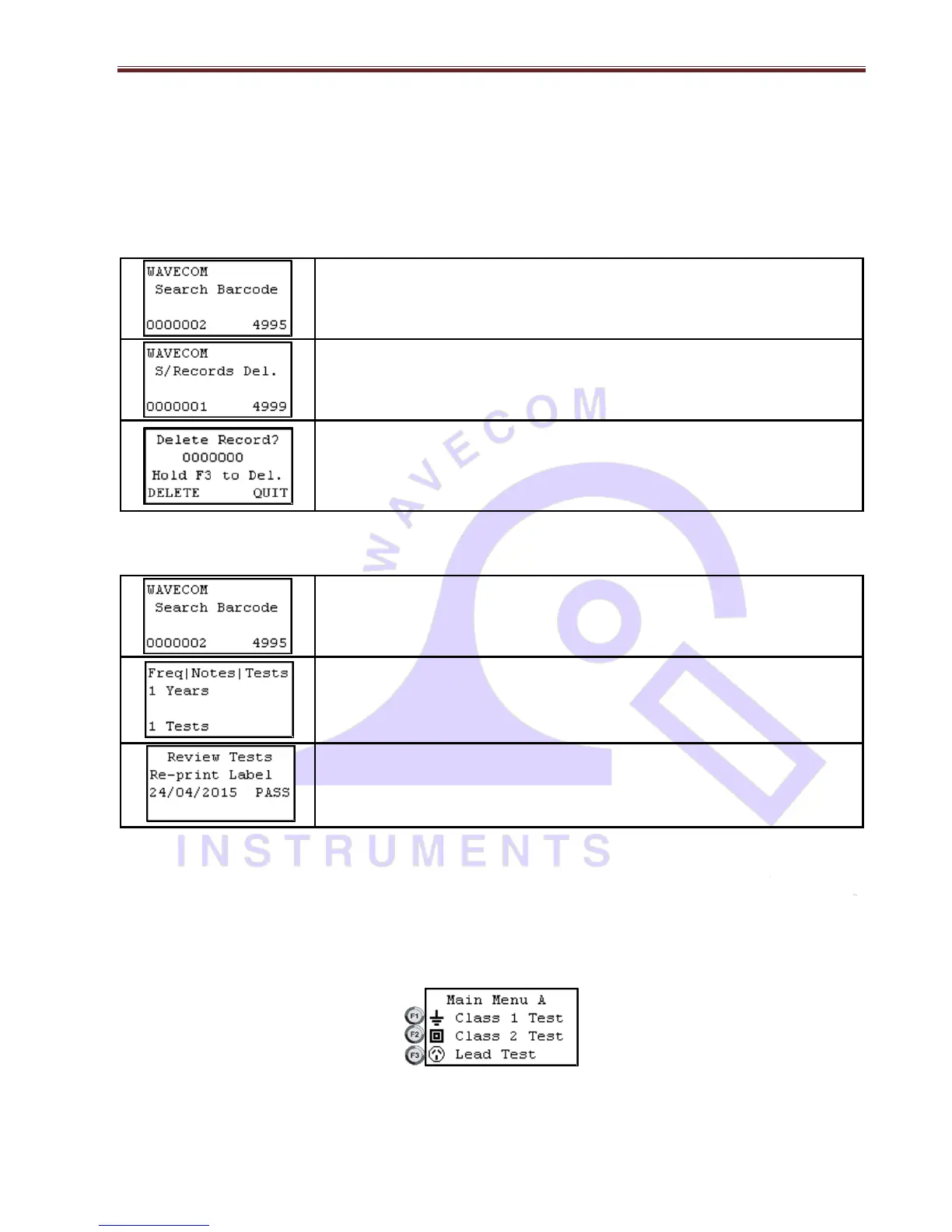
If for some reason a record needs to be deleted it can be removed from the search barcode screen. This feature
removes the whole record and not just the test results. If a record is deleted and replaced it might create a new
record when downloaded in WinPATS. This is because the record details didn't match the original ones. Multiple
items cannot be deleted at the same time. It is recommended to use Winpats for deleting equipment, as it is
very easier that way. In TnPB series, records can be deleted through WinPATS software only. Deleting records
through TnP is not recommended.
From the search barcode screen press and hold the enter key. Then press the F1
key. The feature cannot be selected when new barcode is displayed.
The search barcode will change to S/Record Del. Scan or type the barcode that
needs to be deleted. If the record does not exist or is in the wrong site a message
will be displayed saying nothing was found.
When a match is found a last warning message will be displayed. To delete the
record hold the F3 key for 2 seconds. To cancel press enter.
Reprint Tag without testing
From the search barcode screen, enter barcode to search (From settings, advanced
search options can be enabled). Select the Select the record. Press and hold Enter
till screen with Loc | Desc | Make, press Enter, Model | SN | Asset, Press Enter one
more time to bring Freq | Notes | Tests;
The search barcode will change to S/Record Del. Scan or type the barcode that needs
to be deleted. If the record does not exist or is in the wrong site a message will be
displayed saying nothing was found. Press F3
Press re-print the label.
Use Esc key to get back to previous menu when printing is done
TnP Testing Menu – Main Menu A & Main Menu B
Use enter button to switch between Menu A and Menu B.
Test Menu A – Function Flow Chart


 To Next Page