And if already ENTER is pressed use CANCEL to cancel the
entry.
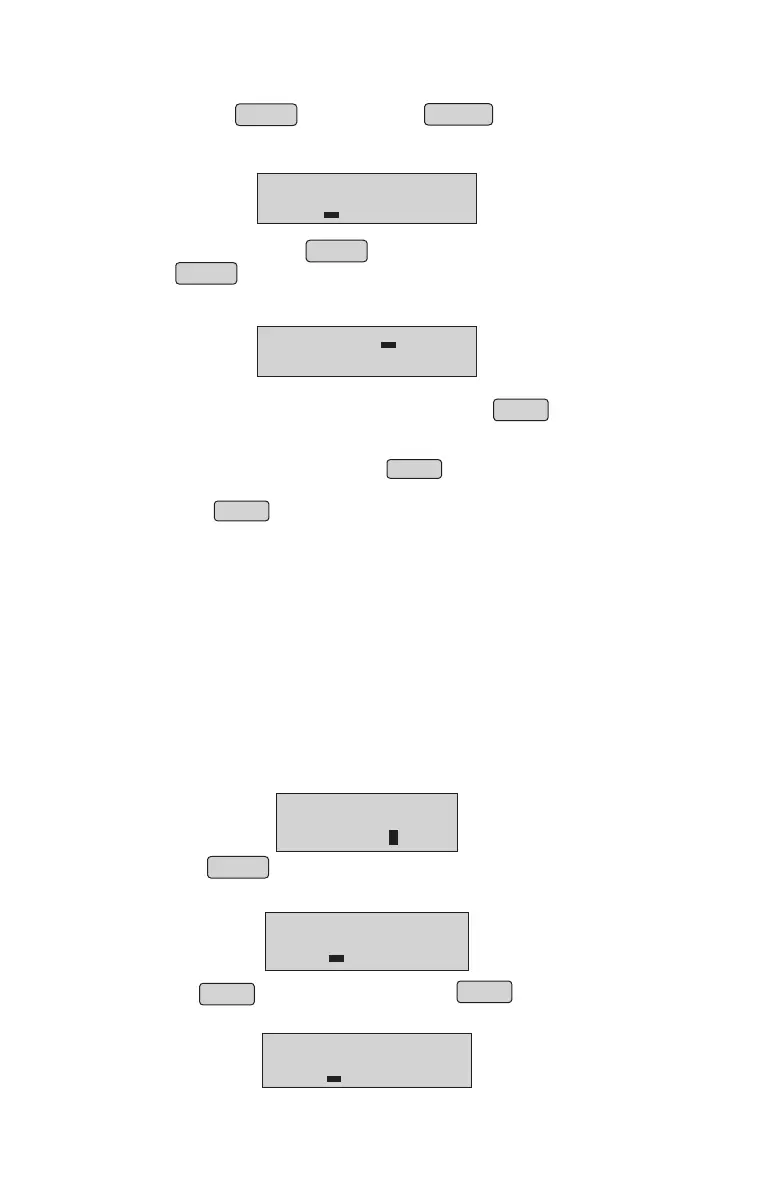
• Item name Qty and cost will be displayed. Cursor will blink at Quantity
position
• Enter quantity and press ENTER
• Press ENTER to proceed further.
• Cursor will be blinking at first position, it is ready to accept the next Item.
• Repeat the above steps for required items
• Once you have entered all items to be billed, Press PRINT to take print-
out of the bill.
Note 1: * Changing the price change in bill/cash reception/service tax option
can be enabled or disabled through MENU
* Different type of Round off/Discount option can be selected
through MENU
* For quantity, 3 digits are allowed in fraction part.
Note 2: * If in Data Base, discount is entered, while printing Bill it prints the real
value on the Bill & shows discount separately, also
TAXwill be after discount.
* In Billing it will show the real value only.
* For item with Price 10Rs. Discount 10% and VAT10%, If we bil for1
qty it will display amount 10 Rs. only, but in TOTAL amount it will
show
Value including VAT/TAX and DISCOUNT.
Billing Option 2 : Rupee Billing option
•
RICE
1.000 Kg20.00
Total amount will be displayed on Display.
ITEM NO:
TOTAL : 20.00
• Enter the item number, item name will be displayed next to the number
and press ENTER to proceed
ITEM NO:1
RICE
• Press Enter when “REGISTER” is displayed on the display.
• Now press MENU for Rs Billing. On pressing MENU ‘Kg’ changes to
‘Rs’ as below.
• Item name, Qty and cost will be displayed. Cursor will blink at Quantity position.
ITEM NO : 1
Kg 20.001.000
ITEM NO : 1
AMT :
7


 To Next Page