Printing day wise report
• From Menu, select “DAY WISE REPORT” option
(Refer Menu structure for more details)
• Enter the Start date and End date like
• “DD/MM/YY” to “DD1/MM1/YY1”
• Press ENTER to print Day wise report.
8
• Select the current or previous day using up↑or down ↓ arrows.
• Press ENTER to print current or previous day Taxwise day report.
Note: TAX report contains “AMOUNT, TAX% and TAX AMOUNT “
corresponding to that TAX (supporting up to “.1”difference)
For item with “0” TAX it will count as one TAX slab (if there is TAX slab
for item other than “0”) but will not print in report .
Max 5 slabs, zero % TAX will be considered as one slab.
DAY WISE RPT
FROM : 27/01/21_
SUMMARY REPORTS
Printing Monthly report
• From menu, select “MONTHLY REPORT” option
(Refer Menu structure for more details).
MONTHLY REPORT
FROM : 01/21_
• Enter the Month and Year like
“MM/YY” to “MM1/YY1”
• Press ENTER to print Monthly sales report.
Printing Yearly report
• From menu, select “YEARLY REPORT” option
(Refer Menu structure for more details).
• Enter the Year like “YY”
• Press ENTER to print Yearly sales report.
Note : Total amount in reports are excluding TAX & discount included
in amount.
YEARLY REPORT
YEAR:2021
CSV REPORTS
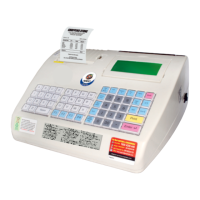
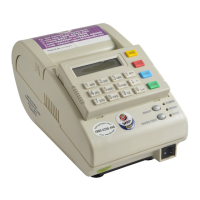
• Connect Pen Drive with USB host port of BP- JOY Pro, panel will display;
CONTINUE?
NO YES
• To continue press ENTER at YES option, panel will display.
16


 To Next Page