GETTING STARTED
11
WD CLOUD USER MANUAL
7. To complete your cloud setup, read the email sent to the email address you entered in
step 5,
and create a password for remote access.
Getting Started Using a Web Browser
Use the following steps to set up your device using your web browser (for browser
requirements, see “Web Browsers” on page 3).
1. Open a browser and enter your device URL
(see “Appendix D: WD Cloud Device URLs and
Names” on page 95 for a list of device URLs)
, then click Enter.
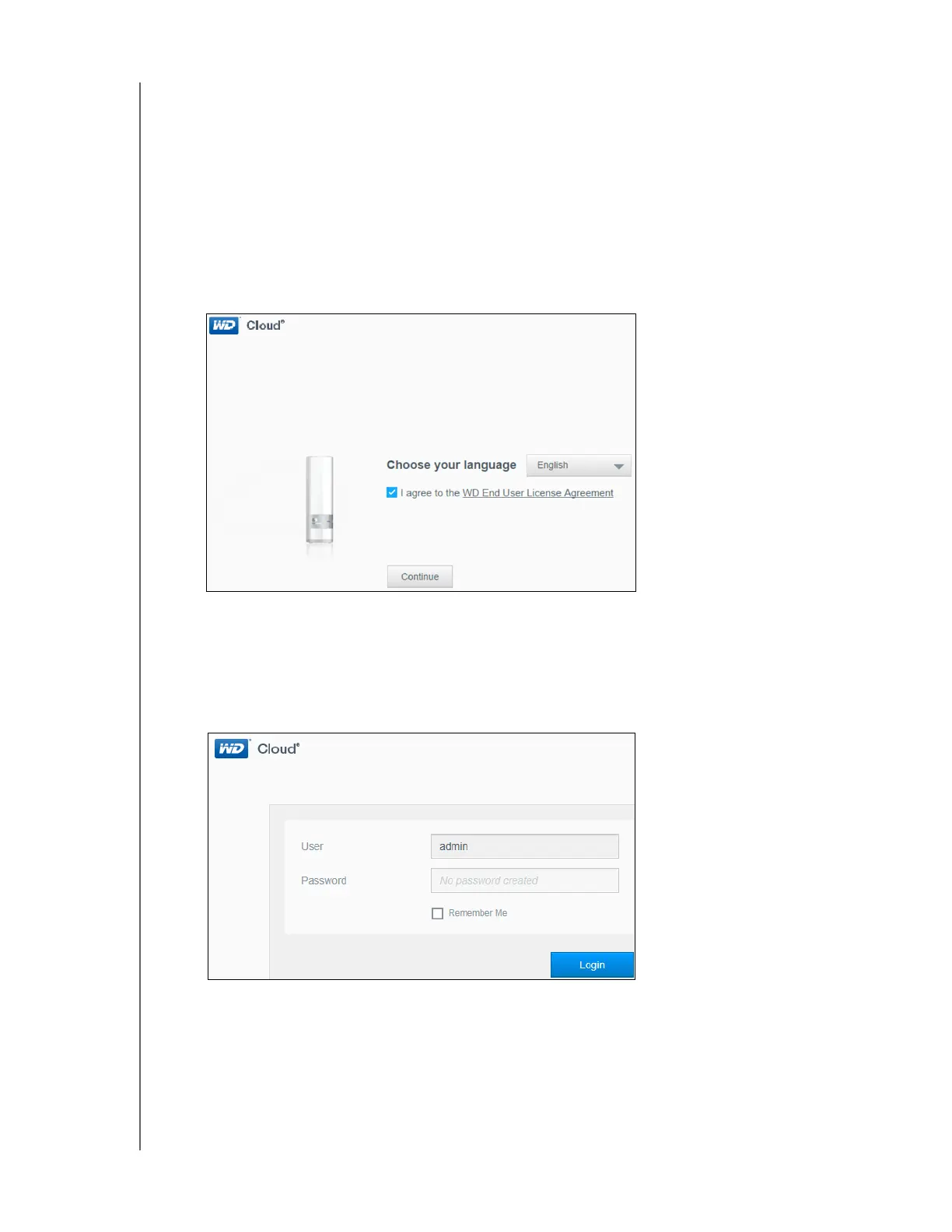
The Choose your language screen appears:
2. Select the language you’d like to use for the user interface from the drop-down list.
3. Click the WD End User License Agreement link to read the End User License
Agreement.
If you agree, click the I agree check box, and click Continue.
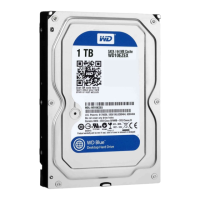
The WD Cloud login screen appears:
4. Click Login. You do not need to enter a password because you haven’t set one up yet.




 To Next Page