THE DASHBOARD AT A GLANCE
21
WD CLOUD USER MANUAL
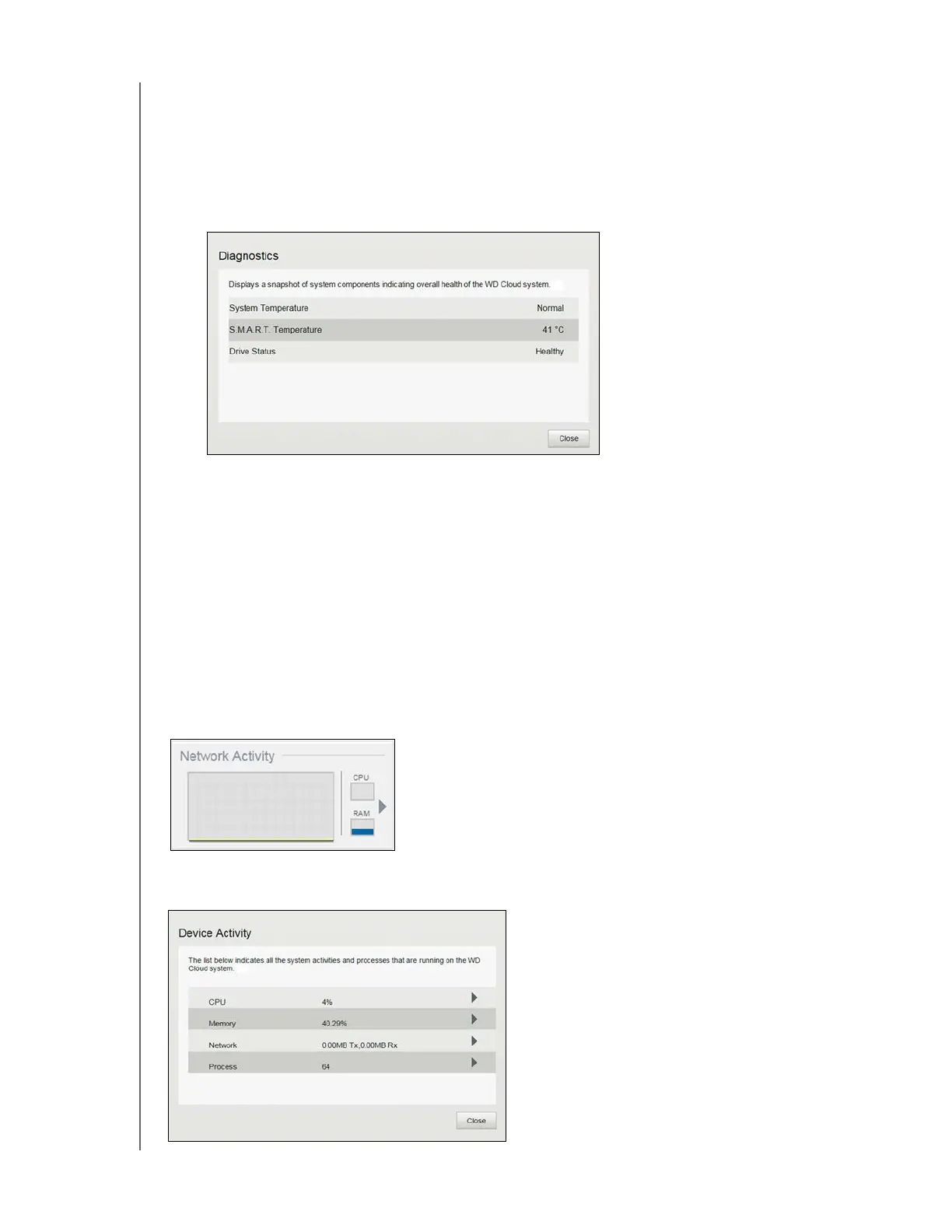
Diagnostics
The Diagnostics section displays a snapshot of the system’s components and identifies the
overall health of the WD Cloud device.
1. To see details about the status of system’s components, click the arrow in the
Diagnostics field.
2. To return to the Home page, click
Close.
Firmware
The Firmware section displays the current firmware version loaded on your WD Cloud
device. A green check mark indicates that your firmware is up-to-date.
1. To view whether an updated version of the firmware is available, click the arrow to the
right of Firmware to display firmware availability.
2. If an update is available, click Install and Reboot to update your device.
3. To return to the Home page, click OK
or Cancel.
Network Activity
The Network Activity panel displays the system activities and processes that are running on
your WD Cloud device. At a glance, you can see the network, CPU, and RAM activity.
To view a list of all device activities and processes running on your WD Cloud device, click
the arrow in the Network Activity area. N




 To Next Page