ACCESSING YOUR CLOUD REMOTELY
43
WD CLOUD USER MANUAL
Installing the WD Cloud Mobile App
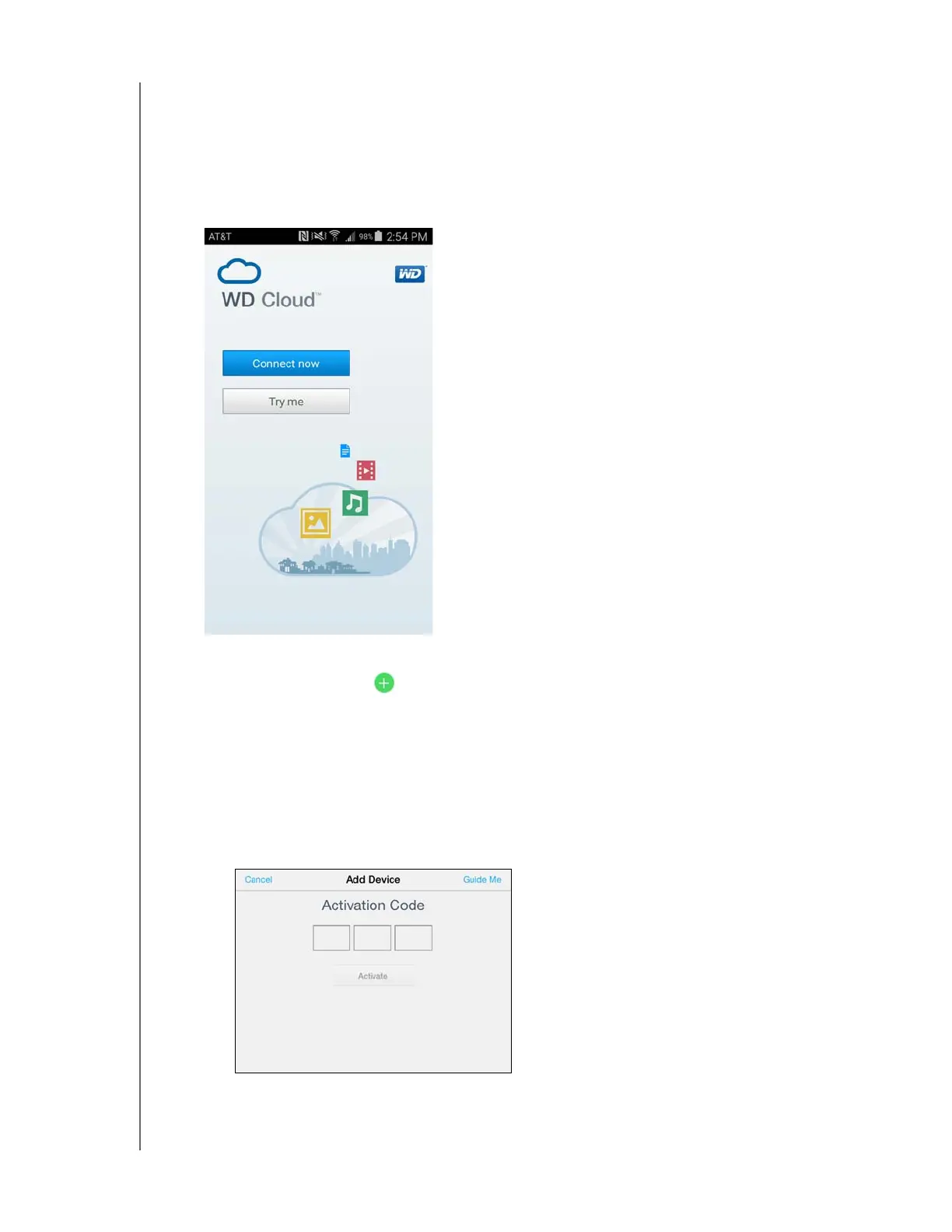
1. Download the WD Cloud mobile app from the Apple App Store, Google Play store, or
Amazon App store for Android, and install it on your mobile device.
2. Launch the app.
3. Review the Western Digital End User License Agreement, then click Accept.
4. Tap Connect Now.
5. Select one of the following WD Cloud device connection options:
Cloud Sign in: Tap and sign into your dice using your WD Cloud or other public
cloud accounts.
Add Manually: If the mobile device is not on the same LAN or Wi-Fi network as the
WD Cloud device:
- In the Add Manually section, tap WD Device.
- Enter the activation code generated on you WD Cloud and tap Activate. (For infor-
mation on obtaining an activation code, see “Configuring Cloud Access for a User”
on page 41.)
Note: You must generate one code for each device you want to activate. Codes are
valid for 48 hours from the time of request and can be used one time only.




 To Next Page