EN-32
Pulse HR
v1.0 | November, 2018
Checking my progress
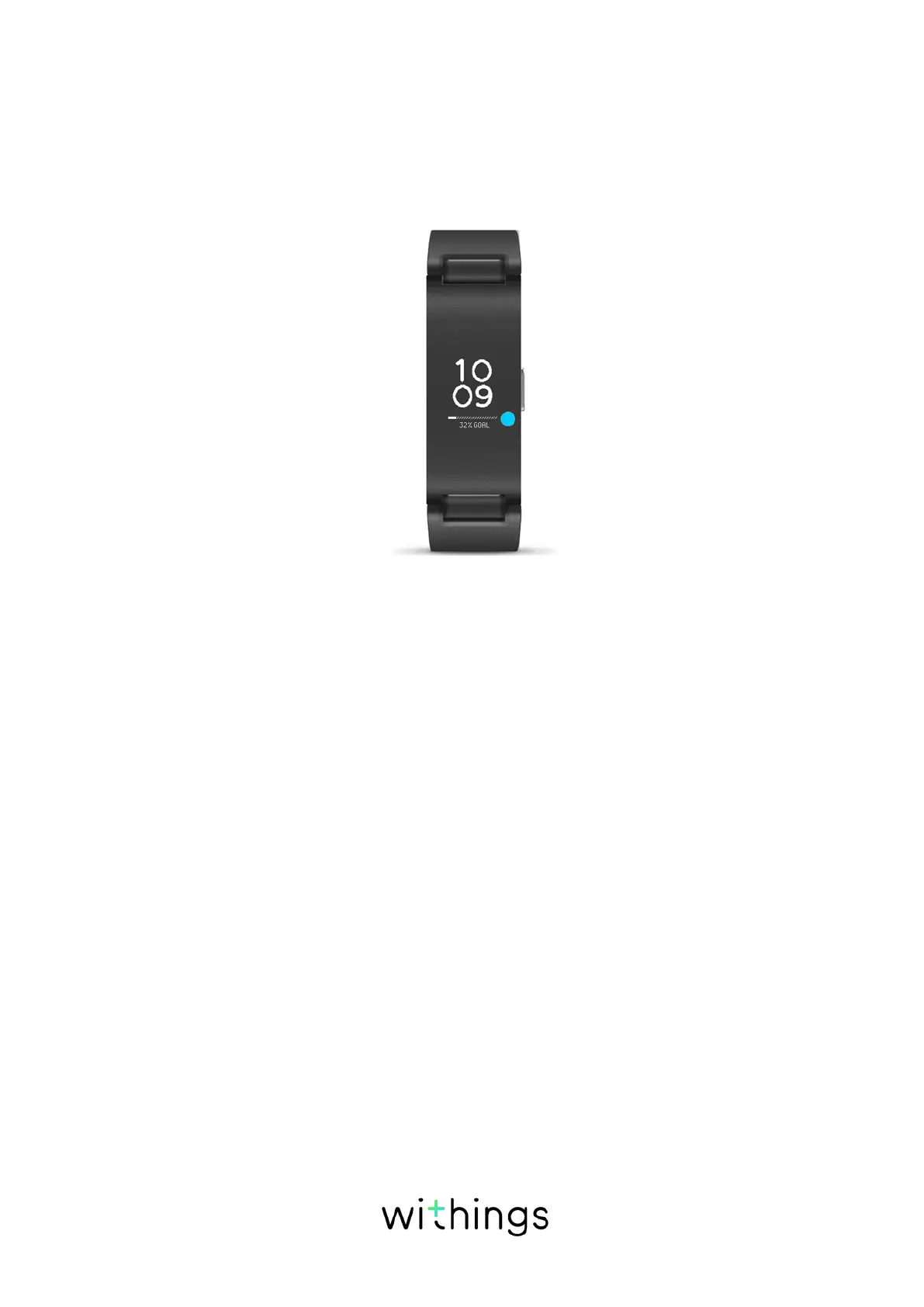
In order to check your progress in terms of number of steps, all you have to do is
have a look at the progress bar on the home screen of your Pulse HR. Once you
reach your activity goal, Pulse HR vibrates and the cycle starts all over again, from
0% to 100%.
To get more information (such as the exact number of steps, the distance, or the
calories you have burned), simply press the button located on the right-hand side.
The dierent screens of your Pulse HR will be displayed one after the other.
To get even more details, simply log in to the Health Mate app. The app oers
many graphs that allow you to easily see your history and your progress from the
very first time you use it.
Changing my activity goal
This feature allows you to set a custom daily step goal. To change your daily step
goal, perform the following steps:
1. Open the Health Mate app.
2. Tap on a Daily steps item in your Timeline.
3. Tap on the three dots at the top of the screen.


 To Next Page