WLKATA Mirobot Manipulator User Manual
Document version 1.0 User Manual Copyright© Beijing Tsinew Technologies Co., Ltd.
In the decompressed package, double-click to open the Wlkata studio.exe. If the Wlkata
Studio software can be opened correctly, it means that the WLKATA Studio software is
running successfully.
3.Verifying the device connection
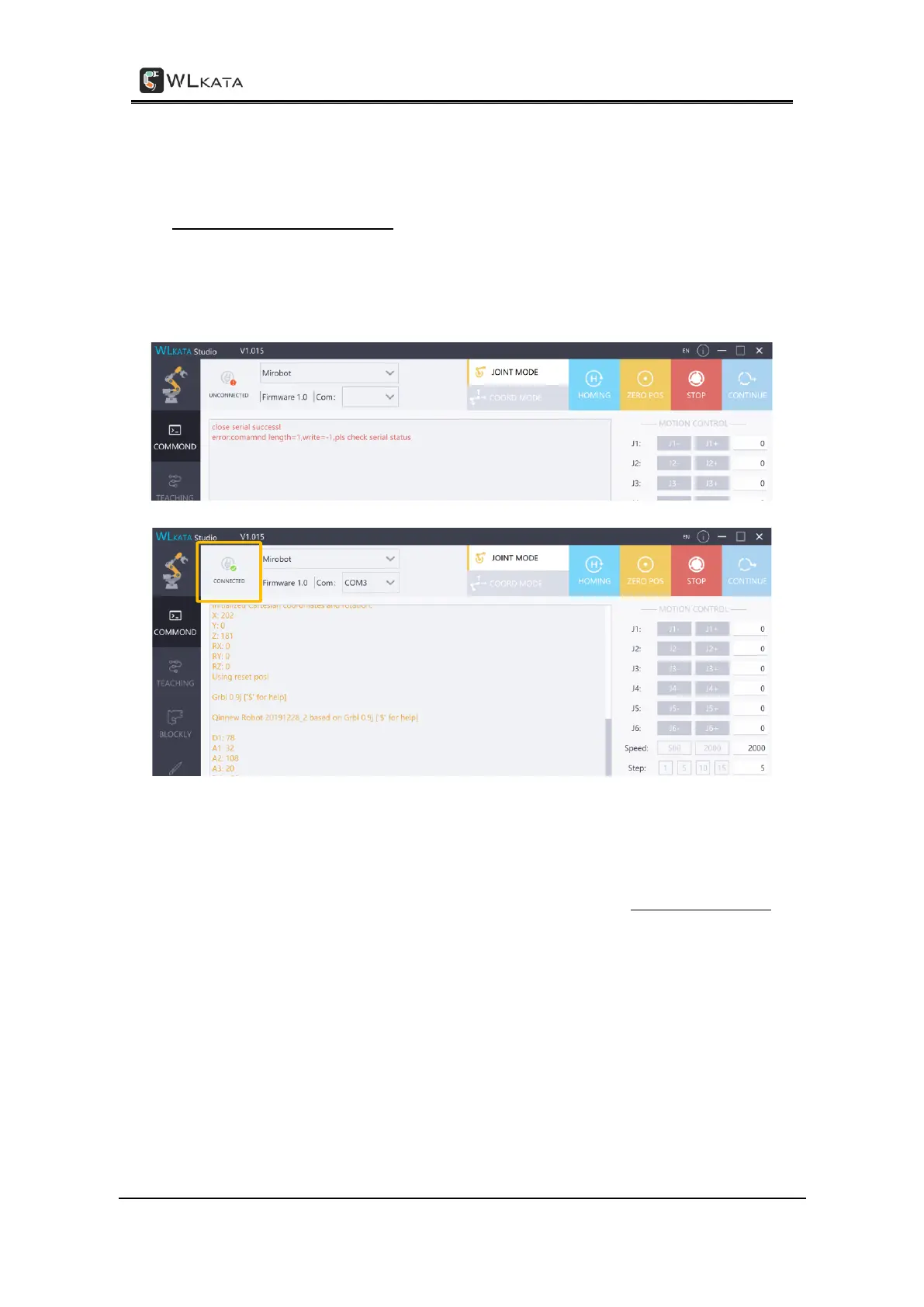
(1) Open the Wlkata Studio.exe. The software should automatically search and connect to
the manipulator after a few seconds. When successfully connects to the manipulator, the
upper left corner of the WLKATA Studio interface should display the CONNECTED blue icon.
WLKATA Studio can search and connect to the manipulator automatically
(2) If the software did not connect to the manipulator automatically, please manually
connect the manipulator by click SETTING to set "Port" and "Baud Rate". Enter the correct
serial port COM_ number ( as found in the step (2) in the content of 2.Verifying the driver ).
After clicking "OK", there will be "Connected" displayed in the upper left corner.


 To Next Page