WLKATA Mirobot Manipulator User Manual
Document version 1.0 User Manual Copyright© Beijing Tsinew Technologies Co., Ltd.
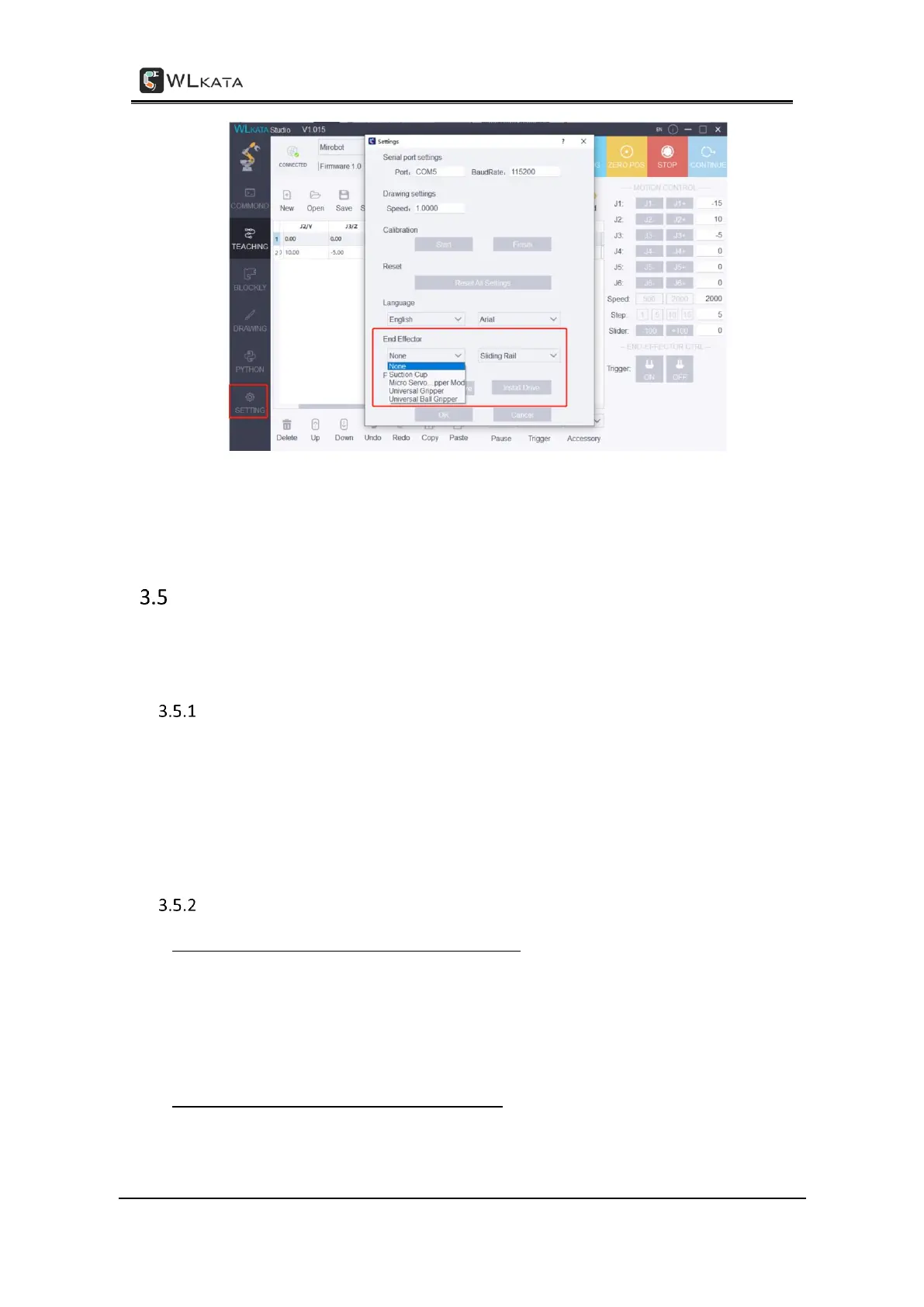
(7)Firmware: update the firmware, refer to "Mirobot Firmware Upgrade Tutorial" for
detailed operation.
Start using the manipulator
This chapter describes the essential control operation of this manipulator by using the
WLKATA Studio software.
Prerequisite
• The driver and WLKATA Studio software have been installed successfully. For details,
please refer to the 3.2 Installing the driver and WLKATA Studio software.
• The manipulator has been correctly connected to the computer, and the power supply
of the manipulator has been turned on. Please refer to 3.3 Powering on and off WLKATA
Mirobot for detailed operation.
Preparing operation steps
1. Connecting WLKATA studio with the manipulator
Double click the Wlkata Studio.exe in the directory, and the Mirobot Studio interface
should pop up. Then please follow the steps of 3.3.4 to verify the driver and connection.
When the connection is succeeded, the CONNECTED blue icon should be displayed in the
upper left corner of the WLKATA Studio interface.
2. HOMING the manipulator before any operation


 To Next Page