HANGZHOU WORLDE DIGITAL PIANO CO.,LTD HANGZHOU WORLDE MUSIC ELECTRONIC CO., LTD
WEBSITE: WWW.WORLDE.COM.CN EMAIL:SALES@WORLDE.COM.CN TEL:86 571 88730848
- 12 -
3.1.9 Velocity button
Every time you press a key, a MIDI note message is sent with a velocity value between 0 and the maximum; this value
specifies how hard you pressed the key. Since different people have different playing styles, your Orca PAD48 offers a
number of different velocity curves. You should experiment with the different velocity curves to find the curve that best suits
your playing style.
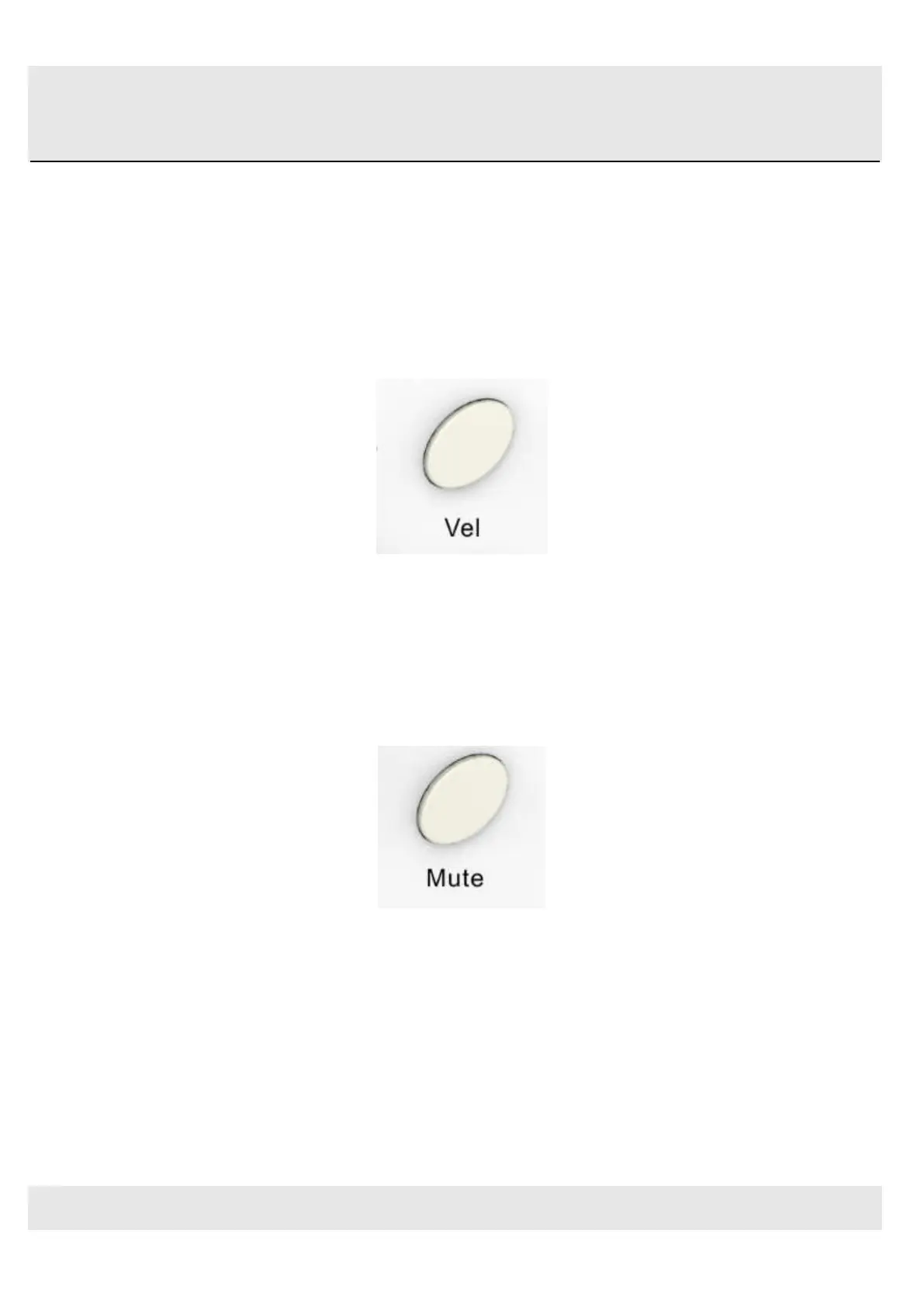
Click the velocity button to start the velocity selection function, the medium(or normal) velocity is on when the LED color of
velocity button is green, heavy velocity is on when it’s in red color, and blue for constant velocity.
Velocity button
3.1.10 Mute button
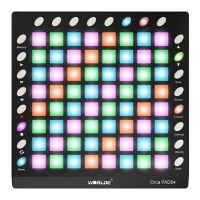
Mute ON/OFF button. Click mute button will start the mute function. No message will be transmitted under Mute mode.
Mute button
3.1.11 Demo button
Demo ON/OFF button. Click demo button will start the demo function. Orca PAD48 also has the preset lighting effect
show. Holding the [PLAY] button and press the ON/OFF button to start the Lighting effect show mode. Then Orca PAD
will display the preset lighting effect automatically.


 To Next Page