HANGZHOU WORLDE DIGITAL PIANO CO.,LTD HANGZHOU WORLDE MUSIC ELECTRONIC CO., LTD
WEBSITE: WWW.WORLDE.COM.CN EMAIL:SALES@WORLDE.COM.CN TEL:86 571 88730848
- 8 -
7. [Channel] button
Click the channel button to start the channel function, use+/-button to select the channel. The initial setting is 1,
adjusting scale is 1~16.
8. [Velocity]button
Click the velocity button to start the velocity selection function, the medium(or normal) velocity is on when the LED
color of velocity button is green, heavy velocity is on when it’s in red color, and blue for constant velocity.
9.[Mute] button
Mute ON/OFF button. Click mute button will start the mute function. No message will be transmitted under Mute mode.
10.[Demo] button
Demo ON/OFF button. Click demo button will start the demo function.
11. [MMC] button
There are 6 buttons used for MMC-[|<<],[<<],[>>],[O],[stop],[play].It is common to set the 6 buttons as Sequencer
remote control buttons, it needs to be working with sequencer software.
12.[Memory] button
Holding the memory button and pressing one of the pads to recall the parameters in Memory area.
Press the MEMORY button. The system enters the storing state, it stores 6 groups setup value.
13. [<] and [>] button
These buttons are used for navigating through fields of menus and options.
14. Full Sized USB connector
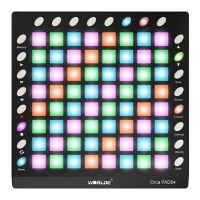
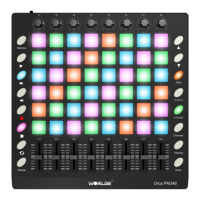
Connect the Orca PAD48 to your computer with a USB cable via this port.
15. [MIDI OUT] Connector
Use a five-pin MIDI cable to connect the MIDI OUT of the Orca PAD48 to the MIDI IN of an external device.
16. [MIDI IN] Connector
Use a five-pin MIDI cable to connect the MIDI OUT of an external MIDI device to the MIDI IN of the Orca PAD48.


 To Next Page