EasyManua.ls Logo

X-Rite RapidMatch GO - User Manual

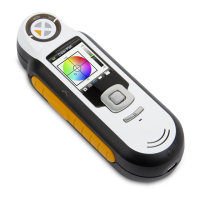
X-Rite RapidMatch GO
21 pages
Print Icon
To Next Page IconTo Next Page
Loading...
User Guide

Questions and Answers

X-Rite RapidMatch GO Specifications

General IconGeneral
BrandX-Rite
ModelRapidMatch GO
CategoryMeasuring Instruments
LanguageEnglish

Summary

Compliance Information

CE Declaration

Declares compliance with EU directives EMC, LVD, and RoHS.

FCC Notice

Equipment tested per FCC rules for Class A digital devices.

Industry Canada Compliance

WiFi Model Compliance

Specific compliance statements for WiFi models under Canadian regulations.

Regulatory Approvals

Japanese MIC and Equipment Info

Japanese regulatory approval and general equipment operating instructions.

Transportation & Disposal Guidance

Guidance on shipping lithium-ion batteries and proper disposal of WEEE.

Firmware Software Licenses

Legal terms for firmware usage and redistribution.

Packaging Contents

Included Items List

List of items included with the RapidMatch™ GO instrument.

Powering On and Charging

Instrument Power On

Instructions for turning the instrument on using the power/measure button.

Battery Charging Procedure

Steps and recommendations for charging the instrument's battery.

Core Operation

Measure Button Functionality

Using the measure button for power and measurement initiation.

Battery Status Indicators

Explanation of battery icons and their meaning on the screen.

Device Feedback and Interface

Contact Sensors and LEDs

Understanding contact sensor indicators and multi-color LED feedback.

Home Screen Overview

Introduction to the main home screen and selecting modes.

Screen Navigation

Touchscreen Navigation Basics

How to navigate the instrument's graphical touch screen interface.

Menu Scrolling Techniques

Using up/down arrows and swiping to view settings and jobs.

Connectivity and Settings

WiFi Mode Setup

Connecting the instrument to available WiFi networks.

Settings Mode Access

Accessing and adjusting instrument configuration options.

Instrument Settings

Self Test & Measurement Options

Performing self-tests and configuring measurement modes.

Dark Mode & Speaker Options

Adjusting dark mode for low noise and enabling/disabling speaker.

WiFi Option Configuration

Enabling WiFi and setting up network connections.

System Settings

Language & Measurement Number

Setting display language and default measurement count.

Device Info & Power Off

Viewing instrument details and powering down the device.

Date;Time & LCD Color

Adjusting system clock and customizing screen background color.

Calibration and Reset

Factory Reset Procedure

Resetting the instrument to factory default settings.

Calibration Process

Step-by-step guide to calibrate the instrument using the white tile.

Cleaning Calibration Reference

Proper cleaning for the calibration reference white tile.

Measurement Procedures

Measurement Safety Precautions

Important safety notes and precautions during measurement.

Preparing for Measurement

Steps for selecting a job and preparing for sample measurement.

Taking Measurements

Sensor Activation and Positioning

Positioning instrument and ensuring contact sensor activation for measurement.

Initiating and Completing Measurements

Taking measurements and assessing quality.

Job Management

Editing Job Names

How to edit and save job names created on the instrument.

Deleting Jobs and Data

Procedures for deleting single jobs or all job data.

Maintenance and Specifications

Instrument Cleaning Guidelines

Guidelines for cleaning the instrument exterior and important notes.

Environmental & Battery Specs

Operating environment, humidity, storage, and battery type details.

Troubleshooting

Screen Display Issues

Solutions for dark screen or screen instability.

Battery Related Problems

Troubleshooting low battery and defective battery issues.

Advanced Troubleshooting

Frozen Screen & Measurement Errors

Resolving frozen screens and inaccurate measurement results.

Calibration & Communication Issues

Troubleshooting calibration and USB communication problems.

Sensor Contact & Calibration Failures

Addressing sensor contact problems and calibration failures.

Error Handling & Support

Specific Error Messages

Handling shutter errors, multiple messages, and date/time errors.

Service & Replacement Parts

Information on contacting service and ordering replacement parts.

Related product manuals