EasyManua.ls Logo

Xerox DocuMate 700 - User Manual

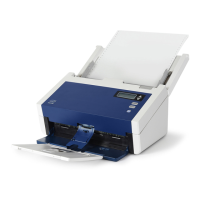
Xerox DocuMate 700
108 pages
Print Icon
To Next Page IconTo Next Page
Loading...
DocuMate 700
One Touch 4.0
January 2009
05-0782-000
User’s Guide

Table of Contents

Questions and Answers

  • S
    stevenmckenzieAug 14, 2025
    What to do if my Xerox Scanner causes 'out of hard drive space' errors?
    • R
      rrobinsonAug 14, 2025
      If your computer is displaying out of hard drive space error messages when using the Xerox Scanner, you should free up space on your hard drive. This will allow the software to save the scanned images.
  • A
    Ashley PottsAug 18, 2025
    What to do if Xerox DocuMate 700 Scanner shows 'PaperPort cannot allocate enough memory' error?
    • S
      Susan RubioAug 19, 2025
      If you receive an error message stating that PaperPort cannot allocate enough memory to perform internal critical operations while using the Xerox Scanner, close any other active applications. This will free up additional memory.
  • N
    Nathaniel RogersAug 23, 2025
    What to do if Xerox Scanner doesn't reconnect after USB disconnection?
    • M
      Martha LeeAug 25, 2025
      If the Xerox Scanner doesn't reconnect after the USB cable is reconnected during a scan, try these steps: 1. Unplug the power cable from the scanner, and then plug it back in. 2. After the restart is complete, plug the power cable back in.
  • A
    Ashley CardenasAug 29, 2025
    What to do if the lamp in my Xerox DocuMate 700 malfunctions?
    • K
      Kaitlyn TaylorAug 29, 2025
      If the lamp in your Xerox Scanner has malfunctioned, which often happens if the power was disconnected during a scan, turn the scanner off, then back on again.
  • R
    rodneyjacobsSep 3, 2025
    What to do if an internal part in my Xerox Scanner malfunctioned?
    • W
      Wesley BridgesSep 3, 2025
      If an internal part in your Xerox Scanner may have malfunctioned, turn off the power to your scanner, then turn it back on.
  • K
    Kyle WilsonNov 8, 2025
    How to troubleshoot a Xerox DocuMate 700 Scanner that won't scan?
    • L
      lawsondanielNov 8, 2025
      If your Xerox Scanner won't scan, there might be several reasons: * A cable may be loose or not plugged in securely. Inspect all cable connections to ensure they are properly connected. * The scanner's status light might not be on. Turn on the scanner's power. If the light remains off, try plugging the power supply into a different electrical outlet. * The scanner's locking tab could be in the locked position. Slide the locking tab to the unlocked position. If you tried to scan while it was locked, turn the scanner off and then on again. * You may not have restarted your computer after installing the software. Restarting ensures all software files are loaded correctly. * The scanner might be plugged into a USB hub. Try plugging it directly into a USB port on your computer. * A...

Xerox DocuMate 700 Specifications

General IconGeneral
Optical Resolution600 dpi
InterfaceUSB 2.0
Automatic Document FeederYes
ADF Capacity50 sheets
Color Depth24-bit
Grayscale Depth8-bit
Software IncludedNuance PaperPort
Duty Cycle3000 pages per day
Scanning TechnologyCIS
Supported Operating SystemsWindows

Related product manuals