EasyManua.ls Logo

Xerox DocuMate 742 - User Manual

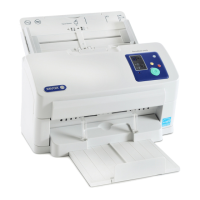
Xerox DocuMate 742
98 pages
Print Icon
To Next Page IconTo Next Page
Loading...
DocuMate 742
One Touch 4.0
June 2009
05-0784-000
User’s Guide

Table of Contents

Other manuals for Xerox DocuMate 742

Questions and Answers

  • B
    Brian JacksonAug 15, 2025
    How to fix a Xerox DocuMate 742 that won’t scan?
    • A
      Angela FarrellAug 16, 2025
      If your Xerox Scanner won’t scan, first, inspect all cable connections to ensure they are securely plugged in. Next, turn on the scanner's power; if the status light remains off, try plugging the power supply into a different electrical outlet. If issues persist, restart your computer to ensure all software files have loaded. Also, try plugging the scanner directly into a USB port on your computer. Finally, verify that 'TWAIN:Xerox DocuMate 742' is selected as your scanner.
  • A
    Ann WelchAug 18, 2025
    Why Xerox DocuMate 742 is not communicating with the computer?
    • S
      Shelly DurhamAug 18, 2025
      If your Xerox scanner is not communicating with the computer, especially if the USB cable is plugged into a USB hub, try plugging the USB cable directly into the back of the computer. If it's already plugged directly into the computer, try another USB port. If the problem persists, consider replacing the USB cable, ensuring it is no more than 6 feet long.
  • A
    Alexandra ThomasAug 21, 2025
    Why Xerox DocuMate 742 scanner installation will not complete successfully?
    • R
      Rebecca ThompsonAug 21, 2025
      If the installation of your Xerox DocuMate 742 scanner is not completing successfully, it might be due to existing driver programs for another scanner on your computer. Remove those other drivers and then reinstall your Xerox DocuMate 742 scanner. If issues persist, after uninstalling the other scanner’s driver programs, uninstall One Touch 4.0 and then reinstall it.
  • C
    Charles HarrisAug 25, 2025
    What to do if Xerox DocuMate 742 produces blank pages with AutoCrop to Original?
    • J
      Jason SmithAug 26, 2025
      If you are getting blank pages or pages with lines when AutoCrop to Original is selected on your Xerox scanner, it's likely that the pages were scanned in crooked or skewed. To resolve this, adjust the paper guides on the scanner to ensure pages feed in straight.
  • R
    Robin FriedmanAug 28, 2025
    What to do if Xerox Scanner doesn't reconnect after USB disconnection?
    • M
      Michael BakerAug 28, 2025
      If the USB cable of your Xerox scanner is disconnected during a scan, and the scanner doesn't reconnect when you plug it back in, try these steps: First, unplug the power cable from the scanner, and then plug it back in. If that doesn't work, restart your computer. After the restart, plug the power cable back into the scanner.
  • S
    Shelley JimenezAug 31, 2025
    What to do if the lamp in Xerox scanner body or lid has malfunctioned?
    • S
      Sean HensleyAug 31, 2025
      If the lamp in your Xerox scanner body or lid has malfunctioned, especially if the power was disconnected during a scan, try turning the scanner off, and then back on again. If the problem persists, turn off the scanner, restart the computer, and then turn the scanner back on.
  • M
    Margaret MurphySep 2, 2025
    Why my computer keeps giving me out of hard drive space error messages when using Xerox DocuMate 742?
    • A
      alejandra09Sep 2, 2025
      If your computer keeps displaying 'out of hard drive space' error messages, you need to free up some space on your hard drive. This will allow the Xerox scanner software to save the scanned images properly.
  • K
    Katherine CollierSep 5, 2025
    What to do if an internal part in Xerox DocuMate 742 may have malfunctioned?
    • P
      pbarrettSep 5, 2025
      If an internal part in your Xerox scanner may have malfunctioned, try turning the power off to your scanner and then turning it back on. If the problem persists, reboot your computer. If the problem still persists, contact Xerox Technical Support.
  • J
    Jim StewartSep 8, 2025
    How to remove paper jam in Xerox DocuMate 742?
    • J
      Jesus MillerSep 8, 2025
      If you're experiencing paper jams with your Xerox scanner, open the ADF cover and carefully remove the jammed page.
  • G
    Gloria LoganSep 12, 2025
    Why is the ADF open on my Xerox Scanner?
    • J
      jasoningramSep 12, 2025
      If the ADF is open on your Xerox scanner, it means the ADF door is not closed all the way. Open the scanner, then close it again, pushing down on the lid until it locks into place.

Xerox DocuMate 742 Specifications

General IconGeneral
BrandXerox
ModelDocuMate 742
CategoryScanner
LanguageEnglish

Related product manuals