EasyManua.ls Logo

Xerox DocuMate 4830 - User Manual

Xerox DocuMate 4830
204 pages
Print Icon
To Next Page IconTo Next Page
Loading...
Xerox
®
DocuMate
®
4830
One Touch 4.6
May 2012
05-0861-000
User’s Guide

Table of Contents

Questions and Answers

  • D
    dpayneAug 20, 2025
    What to do if my Xerox DocuMate 4830 Scanner doesn't work after a Windows system restore?
    • R
      rodriguezangelaAug 20, 2025
      If your Xerox Scanner stops functioning after a system restore on Windows, it's possible that the driver components have been corrupted during the restore process. Reinstalling your scanner driver is recommended.
  • S
    Shane WeaverAug 22, 2025
    How to troubleshoot a Xerox DocuMate 4830 Scanner that won't scan?
    • S
      Steven ColonAug 22, 2025
      If your Xerox Scanner isn't scanning, here are a few things to try: * Check the cable connections to ensure they are secure. * Turn on the scanner's power and, if the status light doesn't come on, try another electrical outlet. * Restart your computer and power cycle the scanner. * Plug the scanner's USB cable directly into the back of the computer. * Ensure the USB cable is 6’ or less. * Make sure Xerox[®] DocuMate[®] 4830 is selected as the scanner.
  • K
    Kristine SmithAug 25, 2025
    Why are my Xerox DocuMate 4830 Scanner buttons not working after scanning with WIA?
    • H
      higginsbrendaAug 25, 2025
      If your scanner buttons aren't working after scanning with the Windows Image Acquisition (WIA) interface, you must close the application you were using before attempting to scan with the buttons on the scanner.
  • E
    Emily ChangAug 26, 2025
    Why does my Xerox DocuMate 4830 stop working after my computer has been idle?
    • K
      Kerry RojasAug 26, 2025
      If your scanner stops working after the computer has been idle for several hours, it might be due to power fluctuations during the computer’s hibernation period, which can cause the scanner to lose communication. Simply turn the scanner off and then back on.
  • P
    pspencerAug 27, 2025
    How to fix Xerox DocuMate 4830 Scanner installation issues and OneTouch problems?
    • P
      Penny LeonardAug 28, 2025
      If the installation does not complete successfully, or the scanner’s OneTouch options do not seem to work properly, it might be because some driver programs are already installed on your computer for another scanner. Remove those other drivers and re-install your Xerox[®] scanner.
  • J
    Joseph LopezAug 29, 2025
    Why does paper jam in the ADF of my Xerox DocuMate 4830?
    • R
      rbrewerAug 29, 2025
      Paper jams in the ADF can occur if paper is fed at an angle. To resolve this, smooth and straighten the paper before scanning. Also, adjust the paper guides to match the paper size.
  • E
    Elizabeth DavisAug 31, 2025
    How to fix a Xerox Scanner ADF that won’t feed pages properly?
    • N
      Nathan WilsonAug 31, 2025
      If the ADF isn't feeding pages correctly, it may be due to a dirty or worn ADF pad assembly, or dirt on the roller. Try cleaning the roller first to see if that resolves the issue.
  • P
    Paula RaymondSep 2, 2025
    How do I fix crooked scans from the ADF on my Xerox DocuMate 4830?
    • M
      Matthew HendersonSep 2, 2025
      To correct crooked scans from the ADF, make sure to align the paper guides to the edges of the paper.
  • R
    Randy HallSep 4, 2025
    What to do if my Xerox Scanner causes 'out of hard drive space' errors?
    • S
      Sabrina SmithSep 4, 2025
      The 'out of hard drive space' error messages may appear because the installation of the scanner driver and basic, low resolution, scanning requires a minimum amount of free hard drive space. Free up some space on your hard drive, so the software can save the scanned images.
  • J
    jrodriguezSep 6, 2025
    What causes a Double Feed error on my Xerox DocuMate 4830 with only one page?
    • D
      David BeasleySep 6, 2025
      If your scanner reports a Double Feed error even when there is only one page, dust on the sensor may be the cause. Try cleaning the double feed detection sensor.

Summary

Safety

Safety Introduction

Provides guidance on safe operation and testing of Xerox products.

Operational Safety Information

Details safety guidelines for operating Xerox equipment, including do's and don'ts.

Electrical Information

Covers electrical safety, power supply requirements, and grounding for the scanner.

Emergency Power Off

Outlines procedures for immediate shutdown and when to contact service.

Maintenance Information

Describes general maintenance rules and what is not permitted.

Product Safety Certification

Lists safety standards and agencies certifying the product.

Environmental Health and Safety Contacts

Provides contact information for safety inquiries in USA and Europe.

Welcome

What’s in the Box

Lists all components included with the Xerox DocuMate 4830 scanner.

System Requirements

Specifies the hardware and software needed to operate the scanner.

Documentation

Details the various user guides and documentation provided with the scanner.

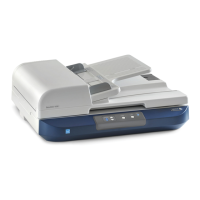
The Xerox DocuMate 4830 Scanner

Provides an overview and labeled diagram of the scanner's parts.

Scanner Setup

Unpack and Assemble the Scanner

Step-by-step instructions for unboxing and preparing the scanner for use.

Connect the Scanner Power Cord

Guides on how to connect the scanner's power supply and cord.

Installation

Before You Begin

Important considerations and prerequisites before starting software installation.

Install the Software and Connect the Scanner

Instructions for installing scanner drivers and software from the installation disc.

Register Your Scanner

Explains the process and benefits of registering the scanner online.

Installing Additional Applications

Details on how to install extra software applications provided with the scanner.

View the User Guides

Guidance on accessing and viewing the scanner and software user guides.

Loading Documents to Scan

Scanning from the Automatic Document Feeder (ADF)

Instructions on preparing and loading documents into the ADF for scanning.

Scanning from the Flatbed Glass

Steps for scanning single items or items not suitable for the ADF.

Scanning Interfaces

Overview of different scanning methods like One Touch, TWAIN, and ISIS.

Scanning and Configuring One Touch

Default One Touch Settings

Explains the initial factory settings for One Touch buttons and customization options.

Changing the Button Settings

Describes how to customize One Touch button destinations, formats, and configurations.

Scan Configurations

Details on creating, editing, and managing scan settings profiles.

File Formats

Explains available file formats (BMP, TIFF, JPG, PDF, TEXT) and their properties.

Transfer to Storage

Guides on scanning documents and saving them directly to a folder or network location.

Scanning with Optical Character Recognition (OCR)

Instructions on using OCR to convert scanned text into editable formats.

Scanning from TWAIN and WIA

Accessing the Scanner Interface

How to initiate scans from various applications using TWAIN or WIA interfaces.

Scanning

Basic steps for performing a scan using the scanner interface.

Using the Preview Window

Guide on using the preview feature to adjust scan settings before scanning.

Document Source Configuration

Options for configuring basic and advanced document source settings.

Document Settings

Details on main, advanced, and scanner model-specific document settings.

Image Enhancements

Options for adjusting image quality like brightness, contrast, and despeckle.

Driver Configuration

How to configure add-on modules and scanner hardware properties.

Hardware Properties and Interface Behavior

Information on scanner details, power settings, and driver behavior options.

Scanning from ISIS

Accessing the ISIS Interface in QuickScan

Steps to access and use the scanner's ISIS driver via QuickScan software.

Maintenance

Safety Precautions

Essential safety guidelines to follow when servicing the scanner.

Clearing Paper Jams

Procedure for removing paper jams from the Automatic Document Feeder.

Cleaning the Scanner

Instructions for routine cleaning of the scanner and ADF components.

Replacing the ADF Pad Assembly

Step-by-step guide for replacing the user-replaceable ADF pad.

Replacing the Roller Assembly

Instructions on how to replace the scanner's feed roller assembly.

Troubleshooting

Common problems and their solutions, including scan errors and software issues.

Uninstalling Your Scanner

Steps to remove scanner software and related applications.

Xerox DocuMate 4830 Scanner Specifications

Technical specifications of the scanner model.

Xerox DocuMate 4830 Parts List

List of common replacement parts with their part numbers.

Regulatory Information

Basic Regulations

Information on FCC regulations for the US and EU directives for electromagnetic compatibility.

Copy Regulations

Details on prohibited reproduction subjects in the United States and Canada.

Compliance Information

Product Recycling & Disposal

Guidance on responsible disposal and recycling of the Xerox product.

Energy Star for the USA

Information on the scanner's ENERGY STAR qualification and energy efficiency.

Xerox DocuMate 4830 Specifications

General IconGeneral
Film scanning-
Color scanningYes
Maximum scan size297 x 2997 mm
Output color depth24 bit
ADF scan speed (b/w, A4)50 ppm
ADF scan speed (color, A4)30 ppm
Optical scanning resolution600 x 600 DPI
Duplex ADF scan speed (b/w, A4)100 ipm
Duplex ADF scan speed (color, A4)60 ipm
Scanner typeFlatbed & ADF scanner
Product colorBlue, Grey
Built-in displayNo
Sensor typeCIS
Scan driversISIS, TWAIN, WIA
Daily duty cycle (max)3000 pages
Auto document feeder (ADF) input capacity75 sheets
Maximum ISO A-series paper sizeA3
Auto Document Feeder (ADF) media weight75 - 80 g/m²
USB version2.0
Standard interfacesUSB 2.0
Input voltage100-240 V
Power supply typeAC
Power consumption (standby)15 W
Power consumption (typical)30 W
Minimum RAM2048 MB
Minimum storage drive space350 MB
Cables includedAC, USB
Harmonized System (HS) code84716070
Weight and Dimensions IconWeight and Dimensions
Depth499 mm
Width581 mm
Height194 mm
Weight12000 g

Related product manuals