EasyManua.ls Logo

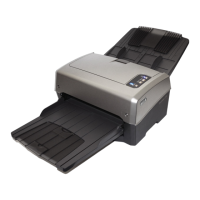
Xerox DocuMate 4440 - User Manual

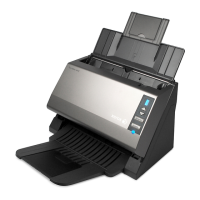
Xerox DocuMate 4440
181 pages
Print Icon
To Next Page IconTo Next Page
Loading...
Xerox
®
DocuMate
®
4440
One Touch 4.6
March 2011
05-0816-000
User’s Guide

Table of Contents

Other manuals for Xerox DocuMate 4440

Questions and Answers

  • R
    Richard FernandezSep 4, 2025
    What to do if paper jams when scanning from the input tray of a Xerox DocuMate 4440 Scanner?
    • O
      obrownSep 4, 2025
      If paper jams when it begins scanning from the input tray of your Xerox scanner, make sure the front feed tray is closed, and that an item isn’t already in the scanner fed in from the front.
  • H
    harrisstaceySep 18, 2025
    Why am I getting blank pages with AutoCrop on my Xerox DocuMate 4440 Scanner?
    • A
      Arthur KellySep 18, 2025
      If, with AutoCrop to Original selected on your Xerox scanner, you sometimes get blank pages, or pages with lines, adjust the paper guides on the scanner so pages feed in straight. The pages were probably scanned in crooked, or skewed.
  • N
    nicholasvaughanSep 16, 2025
    How to fix One Touch when it no longer functions after installing Internet Explorer 7 on Windows XP for Xerox Scanner?
    • M
      Michelle BrownSep 16, 2025
      To resolve the issue of One Touch no longer functioning after installing Internet Explorer 7 on Windows XP with your Xerox scanner, uninstall Internet Explorer 7 and then uninstall One Touch. This is a known issue where One Touch stops responding when Internet Explorer 7 is installed after the scanner.
  • S
    Steven ThomasSep 14, 2025
    Why are there still blank pages after selecting 'Skip Blank Originals' on my Xerox DocuMate 4440?
    • L
      Larry LongSep 14, 2025
      If you have selected "Skip Blank Originals" on your Xerox scanner, but not all of the blank pages have been removed, the "Skip Blank Originals" result will vary based on the DPI range and paper weight. If you are scanning light weight paper, such as 16lb or 18lb printer paper, the scanner may be picking up faint images through the paper.
  • M
    Michele HartSep 12, 2025
    What to do if my Xerox DocuMate 4440 gives out of hard drive space error messages?
    • S
      sperezSep 12, 2025
      To address the problem of your Xerox scanner giving you out of hard drive space error messages, free up some space on your hard drive for the software to be able to save the scanned images.
  • P
    penacharlesSep 12, 2025
    What to do if Xerox DocuMate 4440 scanned images are of poor quality?
    • K
      Kimberly LawrenceSep 12, 2025
      To resolve the issue of poor quality scanned images with your Xerox scanner, try scanning from the Kofax Virtual ReScan (VRS™) software. Also, try cleaning the scanner.
  • J
    Jessica CurtisSep 9, 2025
    Why does OCR fail when scanning with One Touch on my Xerox DocuMate 4440 Scanner?
    • U
      uwuSep 9, 2025
      If you are getting an error message that OCR fails every time you try to scan using the OCR features from One Touch on your Xerox scanner, it is recommended that you temporarily disable or suspend the automatic protection feature during scanning. Anti-SpyWare software that is set to always run may interfere with the driver functionality.
  • M
    Michael LeeSep 7, 2025
    What to do if Xerox Scanner doesn't reconnect after USB disconnection?
    • J
      Jeffrey AllenSep 7, 2025
      If the USB cable is disconnected during a scan, and the Xerox scanner does not reconnect when the USB cable is plugged back in, unplug the power cable from the scanner, and then plug it back in.
  • S
    sfordSep 5, 2025
    Why won’t my Xerox DocuMate 4440 Scanner buttons work after scanning with WIA?
    • B
      Brett SimonSep 6, 2025
      If your Xerox scanner buttons don’t work after scanning with Windows Image Acquisition (WIA), you must close the application you were using before scanning with the buttons on the scanner.
  • V
    virginia78Aug 21, 2025
    Why is my Xerox DocuMate 4440 installation not completing or One Touch options not working?
    • R
      rebeccathomasAug 21, 2025
      If the installation of your Xerox DocuMate 4440 scanner doesn't complete successfully, or the One Touch options don't work, it's likely due to existing driver programs for another scanner on your computer. Remove those other drivers and reinstall your Xerox DocuMate 4440 scanner.

Summary

Safety

Electrical Information

Covers electrical safety warnings, grounding, and power connection requirements.

Emergency Power Off

Instructions on how to turn off the machine immediately in emergencies.

Scanner Setup

Unpack and Assemble the Scanner

Provides instructions for unpacking and assembling the scanner unit.

Connect the Scanner Power Cord

Guides users on how to connect the scanner's power cord and supply.

Installation

Install the Software and Connect the Scanner

Details the process of installing scanner software from the provided disc.

Loading Documents to Scan

Scanning from the Automatic Document Feeder (ADF)

Instructions on preparing and loading documents into the Automatic Document Feeder for scanning.

Scanning and Configuring One Touch

Changing the Button Settings

Explains how to modify One Touch button configurations, destinations, and file formats.

Scan Configurations

Covers creating, editing, and deleting scan configurations with various settings.

Scanning with Optical Character Recognition (OCR)

Explains how to use OCR to convert scanned text into editable format.

Scanning from TWAIN

Scanning with the TWAIN Interface

Provides step-by-step instructions for performing scans using the TWAIN interface.

Maintenance

Clearing Paper Jams

Provides steps to clear paper jams from the Automatic Document Feeder.

Troubleshooting

Offers solutions for common scanner issues like not scanning or poor image quality.

Xerox DocuMate 4440 Specifications

General IconGeneral
BrandXerox
ModelDocuMate 4440
CategoryScanner
LanguageEnglish

Related product manuals