EasyManua.ls Logo

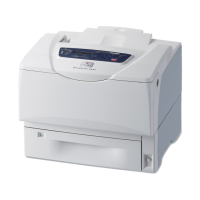
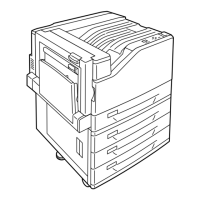
Xerox DocuPrint 2065 - User Manual

Xerox DocuPrint 2065
240 pages
Print Icon
To Next Page IconTo Next Page
Loading...
DocuPrint 3055/2065
User Guide

Table of Contents

Other manuals for Xerox DocuPrint 2065

Questions and Answers

  • C
    Carlos BrownSep 8, 2025
    What to do if Xerox Printer display is blank?
    • T
      Tracy JordanSep 8, 2025
      If the display on your Xerox printer is blank: * The printer may be in Power Saver mode. Press the button on the control panel to exit this mode. * Check if the power cord is firmly plugged into the power outlet, and reboot the printer. * If the problem still persists, the printer may be at fault. Contact our Customer Support Center or your dealers.
  • C
    Christina RiosSep 7, 2025
    How to fix Xerox DocuPrint 2065 Printer when printing takes too much time?
    • W
      wesley31Sep 7, 2025
      If printing with your Xerox printer is taking too long, consider these solutions: * If the [Graphics] tab > [Print Mode] on your print driver is set to [High Quality], changing it to [Standard] may improve print speed. * Change the printing method for TrueType fonts under the [Detailed Settings] tab > [Font Settings] on your print driver. * For large data or slow printing, enabling [Print Page Mode] on your print driver may help. To use [Print Page Mode], install additional memory to the printer.
  • D
    debra58Aug 22, 2025
    How to fix paper jams inside Xerox Printer?
    • M
      Michael DanielAug 22, 2025
      To address paper jams inside your Xerox Printer, adhere to the guidance displayed in the error message to access the relevant cover and pinpoint the precise location of the jam. Clear any paper present in the bypass tray, ensuring to properly close the bypass tray cover. Extract the obstructed paper by following the designated procedure for each specific jammed area.
  • E
    Elizabeth JacksonSep 4, 2025
    How to resolve streaks appear inside or outside of halftone images on Xerox Printer?
    • M
      michael62Sep 4, 2025
      If streaks appear inside or outside of halftone images, or if a shadow is printed around solid-filled images from your Xerox printer: * The paper that had been stored unwrapped for an extended period of time (especially in low humidity condition) may be used. Load fresh paper. * The paper might not be appropriate for the printer. Load appropriate paper.
  • B
    Barbara DiazSep 3, 2025
    What to do if Xerox Printer does not feed paper from the bypass tray?
    • D
      Daniel RubioSep 3, 2025
      If your Xerox printer is not feeding paper from the bypass tray, it might be because the [Paper/Output] tab > [Paper Source] is set to [Auto]. The bypass tray cannot be auto-selected by the printer.
  • R
    Robert DavidsonSep 2, 2025
    What to do if Xerox Printer prints 1-sided when 2-sided printing is requested?
    • C
      cmedinaSep 2, 2025
      If your Xerox printer prints only on one side when you've requested 2-sided printing, the duplex unit (optional) may not be installed properly. Check if the duplex unit is plugged correctly into the connector on the printer.
  • J
    James ReyesAug 31, 2025
    How to resolve equally spaced smears appear on Xerox Printer output?
    • J
      jennifer59Aug 31, 2025
      If you notice equally spaced smears on your Xerox printer's output, consider these solutions: * The paper path may not be clean. Print a couple of sheets to remove dirt from the paper path. * The interior of the printer may not be clean. Clean the interior of the printer. * The print cartridge or fuser unit may be damaged or deteriorated and might need replacement.
  • C
    Cory BrownAug 30, 2025
    What to do if there is a risk of injury or burns when removing jammed paper in Xerox DocuPrint 2065?
    • J
      Jeffrey JonesAug 30, 2025
      To prevent injury or burns when removing jammed paper from your Xerox Printer, avoid reaching deep inside the machine to remove paper or paper pieces. Also, do not attempt to remove paper wrapped around the heat roller. Immediately turn off the printer and contact your local Xerox representative for assistance.
  • T
    Travis ChristianAug 29, 2025
    What to do if Xerox DocuPrint 2065 Printer output is partially blanked-out?
    • K
      Kristine SheaAug 29, 2025
      If your Xerox printer's output is partially blanked-out or vertical white streaks appear, consider these potential causes: * The paper might not be appropriate for the printer. Load appropriate paper. * The paper might be damp. Load fresh paper. * The print cartridge or feed rolls might not be installed correctly. Correctly install these components. * The printer's interior may not be clean. Clean the interior of the printer. * Dew condensation may have formed in the printer. On the control panel, set the interval that the printer switches to the Sleep mode to more than 60 minutes, and let the printer stand with its power on.
  • M
    Michael WadeAug 27, 2025
    What to do if Xerox DocuPrint 2065 output is blank?
    • A
      aguilarnicholasAug 27, 2025
      If your Xerox printer's output is blank, consider the following: * Multiple sheets might have been fed at once. Fan the paper and reload it in the tray. * The print cartridge might be damaged or deteriorated and may need replacement. * The high-voltage power supply may be at fault. Contact our Customer Support Center or your dealers.

Summary

Preface

Using This Guide

Printer Environment Settings

Details on local and network connection methods supported by the printer.

Basic Operation

Identification and description of the printer's main components and parts.

Printing

Basic procedure for sending print jobs from Windows applications.

Paper

Table listing supported paper sizes, types, and tray capacities.

Control Panel Menus

Explanation of the common and mode menu structures and their organization.

Troubleshooting

Instructions and diagrams for clearing paper jams in various printer areas.

Maintenance

Information on printer consumables, handling, and replacing the print cartridge.

Appendix

Technical specifications of the printer, including speed, resolution, and dimensions.

Conventions

Safety Notes

Electrical Safety

Instructions for safe electrical connection and operation of the printer.

Machine Installation

Guidelines and precautions for safely installing the printer unit.

Operational Safety

Precautions for safe operation and maintenance of the printer.

Consumable Safety

Precautions for handling and storing printer consumables like toner cartridges.

About License

Illegal Copies and Printouts

Printer Environment Settings

Supported Operating Environments

Details on local and network connection methods supported by the printer.

Connecting a Cable

Instructions for connecting the printer via parallel or USB cable.

Setting the Network Environment

Configuring IP address, subnet mask, and gateway for TCP/IP communication.

Enabling Ports

Steps to enable specific ports like IPP on the printer's control panel.

Configuring CentreWare Internet Services

Using web browser for printer management, configuration, and online help.

Installing and Uninstalling Software

Instructions for installing print drivers and uninstalling printer software.

Basic Operation

Main Unit Overview

Identification and description of the printer's main components and parts.

Control Panel Functions

Explanation of the control panel buttons, lamps, and LCD display.

Switching Power On and Off

Procedure for turning the printer's power on and off safely.

Printing

Printing from a Computer

Basic procedure for sending print jobs from Windows applications.

Printing on Envelopes

Instructions for loading and printing on envelopes using various trays.

Printing on Transparencies

Instructions for loading and printing on transparencies using various trays.

Printing on Non-standard Size Paper

Instructions for loading and registering custom paper sizes in the printer and driver.

Secure Print Feature

Using Secure Print for password-protected confidential document printing.

Sample Print Feature

Using Sample Print to print a proof copy before the full set.

Printing PDF Files Directly

Direct PDF printing using PDF Bridge feature or commands.

Printing Using E-mail (E-mail Print)

Sending emails with commands to print text or attached PDF files.

Paper

Supported Paper

Table listing supported paper sizes, types, and tray capacities.

Unsupported Paper Types

List of paper types and media that should not be used to avoid jams or failure.

Loading Paper

Instructions for loading paper into bypass tray and paper trays 1-4.

Setting Paper Sizes and Types for Trays

How to set paper sizes and types for trays via control panel or print driver.

Control Panel Menus

Menu Structure Overview

Explanation of the common and mode menu structures and their organization.

Overview of Common Menus

Description and reference for common menu items like Print Language, Report/List, Meter Reading, Admin Menu.

Changing and Resetting Settings

Basic procedure for changing settings and resetting values to their defaults via the control panel.

Troubleshooting

Clearing Paper Jams

Instructions and diagrams for clearing paper jams in various printer areas.

Hardware Problems

Troubleshooting common hardware issues like power failure, odd noises, and dew condensation.

Printing Problems

Troubleshooting issues like error lamps, no ready light, and printer not printing.

Print Quality Problems

Solutions for common print quality issues like light output, smears, and smudges.

Paper Feeding Problems

Troubleshooting issues with paper not feeding, jams, multiple sheets, skewing, or wrinkling.

Error Messages and Codes

List of error messages and their corresponding causes and resolvable error codes.

Network-related Problems

Troubleshooting issues with CentreWare Internet Services, E-mail Print, and StatusMessenger.

Maintenance

Replacing Consumable

Information on printer consumables, handling, and replacing the print cartridge.

Printing Reports and Lists

How to print various reports and lists like Job History, Printer Settings, etc.

Monitoring and Managing via Web Browser

Using CentreWare Internet Services to monitor and remotely configure the printer over a network.

Checking Printer Status via E-mail

Using StatusMessenger for printer status notifications and sending status requests via email.

Security Features

Configuration of SSL encryption, Secure Print, IP filtering, control panel lock, and authentication.

Checking Meter Reading

How to check printer meter readings on the control panel and via computer.

Authentication and Auditron Administration

Enabling and configuring user authentication and usage administration features.

Cleaning the Printer

Instructions for cleaning the printer's exterior, rib plate, and feed rolls.

Appendix

Main Specifications

Technical specifications of the printer, including speed, resolution, and dimensions.

Optional Accessories

List of available printer accessories, their product codes, and descriptions.

Consumable and Replacement Part Life

Information on consumable page yield and regular replacement part life.

Obtaining Product Information

Instructions for downloading drivers and updating printer firmware from the website.

Installing Additional Memory

Procedure for installing additional memory modules into the printer.

Installing Internal Hard Disk

Procedure for installing the internal hard disk for Secure/Sample Print features.

Installing Chinese Font Kit

Procedure for installing the Chinese font ROM kit into the printer.

Installing KR Font Kit

Procedure for installing the KR font ROM kit into the printer.

Notes and Restrictions

Important notes and restrictions regarding hard disk, accessories, and meter counts.

Glossary

Definitions of technical terms used in the manual.

Control Panel Menu Tree

Administrator Menus Overview

Overview of administrator menus, including network, system, printer settings, and maintenance.

Xerox DocuPrint 2065 Specifications

General IconGeneral
BrandXerox
ModelDocuPrint 2065
CategoryPrinter
LanguageEnglish

Related product manuals