EasyManua.ls Logo

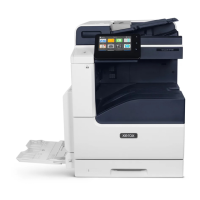
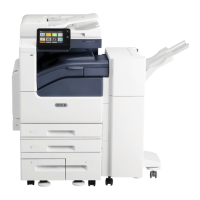
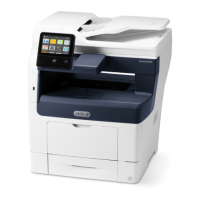
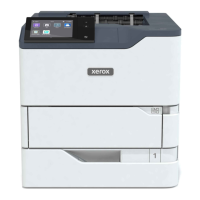
Xerox VersaLink B7135 - User Manual

Xerox VersaLink B7135
234 pages
Print Icon
To Next Page IconTo Next Page
Loading...
Xerox
®
VersaLink
®
B71XX
Multifunction Printer User
Documentation

Table of Contents

Questions and Answers

  • J
    Jeremiah ColonAug 8, 2025
    What to do if my Xerox VersaLink B7135 does not print?
    • J
      Jonathan PhamAug 8, 2025
      If your Xerox All in One Printer isn't printing, first, press the Power/Wake button on the control panel in case the printer is in Power Saver mode. Also, check the control panel for any error messages (Status LED blinking amber) and follow the instructions to clear them. Ensure that the printer has paper loaded in the tray. Replace any empty toner cartridges, the drum cartridge if it has reached its end of life, or the toner waste container if it is full.
  • B
    Brian BeanAug 13, 2025
    How to fix Xerox VersaLink B7135 All in One Printer that does not power on?
    • B
      Brittney WeberAug 13, 2025
      If your Xerox All in One Printer does not power on, make sure the power switch is in the On position after opening the front door, and press the Power/Wake button on the printer control panel. Ensure the power cord is securely plugged into the outlet, using the provided bracket to secure it. Test the outlet with another appliance or try a different outlet. Verify that the power source matches the printer's electrical specifications.
  • A
    Alexis JacksonAug 18, 2025
    Why does my Xerox VersaLink B7135 reset or power off frequently?
    • R
      Ryan WilcoxAug 18, 2025
      If your Xerox All in One Printer resets or powers off frequently, ensure the power cord is correctly plugged into both the printer and the outlet, securing it with the provided bracket. If a system error occurred, power the printer off and on again. Print the Error History Report. Connect the printer directly to a suitable outlet, avoiding uninterruptible power supplies or power strips shared with other high-power devices.
  • J
    John JohnsonAug 23, 2025
    What to do if my Xerox All in One Printer is making unusual noises?
    • R
      Ryan FlynnAug 23, 2025
      If your Xerox All in One Printer is making unusual noises, power off the printer and check for any obstructions or debris inside. If you cannot remove it, contact your Xerox representative.
  • D
    Destiny TaylorAug 28, 2025
    What to do if paper tray does not close in Xerox VersaLink B7135 All in One Printer?
    • J
      Jessica WardAug 28, 2025
      If the paper tray on your Xerox All in One Printer does not close fully, power off the printer and check for any debris or obstructions blocking the tray. If you cannot remove it, contact your Xerox representative.
  • S
    susangonzalezSep 2, 2025
    What to do if condensation has formed inside the Xerox VersaLink B7135 All in One Printer?
    • B
      Barbara DillonSep 2, 2025
      If condensation has formed inside your Xerox All in One Printer, allow the printer to operate for several hours at room temperature. Reduce the humidity in the room or move the printer to a location where the temperature and relative humidity are within the operating specifications.

Summary

Safety and Precautions

Notices and Electrical Safety

General safety instructions and warnings for electrical hazards.

Power Cord and Emergency Procedures

Guidelines for safe power cord usage and emergency shutdown procedures.

Operational Guidelines

Supplies and Maintenance

Printer Supplies and Maintenance Safety

Guidance on safe handling of supplies and performing maintenance.

Getting Started

Control Panel Interface

User Account and Password Management

Printer Authentication and Applications

Printer Information and Configuration

Embedded Web Server and Reports

Accessing and using the web server for configuration and printing reports.

Network Connectivity Setup

Finding and Viewing Printer IP Address

Steps to locate and view the printer's IP address for network configuration.

Remote Printer Management

Remote Control Panel Usage

How to access and use the printer's control panel remotely via a web browser.

Printer Specifications

Xerox VersaLink B7135 Specifications

General IconGeneral
FunctionsPrint, Copy, Scan, Fax
Print Speed (Black)35 ppm
Print Speed (Color)35 ppm
Print Resolution1200 x 1200 dpi
Duplex PrintingAutomatic
Memory (Standard)4 GB
ADF Capacity50 sheets
Scan Resolution600 x 600 dpi
Copy Speed (Black and Color)35 cpm
Copy Resolution600 x 600 dpi
Display5-inch color touchscreen
ConnectivityEthernet, USB, Wi-Fi
Mobile PrintingApple AirPrint, Google Cloud Print
Paper SizesA4, A5, A6
Fax Resolution300 x 300 dpi
Weight28.5 kg

Related product manuals