EasyManua.ls Logo

Xerox VersaLink B605 - User Manual

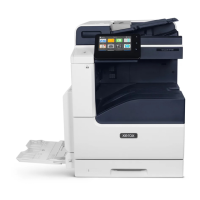
Xerox VersaLink B605
273 pages
Print Icon
To Next Page IconTo Next Page
Loading...
VERSION 3.0
J
UNE 2018
702P05551
Xerox
®
VersaLink
®
B605/B615
Multifunction Printer
User Guide

Table of Contents

Other manuals for Xerox VersaLink B605

Questions and Answers

  • M
    Miguel PinedaSep 12, 2025
    What to do if condensation has formed inside Xerox VersaLink B605 All in One Printer?
    • M
      Maureen RogersSep 12, 2025
      If condensation has formed inside your Xerox All in One Printer: * Allow the printer to operate for several hours at room temperature if it has been sitting in a cold room. * Reduce the humidity in the room or move the printer to a location with appropriate temperature and humidity if the relative humidity is too high.
  • M
    Misty RamosAug 23, 2025
    What to do if Xerox All in One Printer pulls multiple sheets together?
    • P
      phillipholmesAug 23, 2025
      If your Xerox All in One Printer is pulling multiple sheets together, try the following: * Remove some paper if the tray is too full, ensuring not to load past the MAX fill line. * Remove the paper, align the edges, and reload it if the edges aren't even. * Replace moist paper with new, dry paper. * Load a new ream of paper to reduce static electricity. * Use only Xerox-approved paper. * Clean the feed rollers with a clean, lint-free cloth moistened with water.
  • H
    Hector WhiteAug 25, 2025
    How to fix jams during automatic 2 sided printing on Xerox All in One Printer?
    • D
      Dana GrantAug 25, 2025
      To resolve jams during automatic 2-sided printing on your Xerox All in One Printer: * Use paper of the correct size, thickness, or type. * Ensure that paper is loaded into the correct tray.
  • E
    Emily FrazierAug 27, 2025
    What causes label and envelope misfeeds in Xerox VersaLink B605?
    • K
      Karen MartinezAug 27, 2025
      Label and envelope misfeeds in your Xerox All in One Printer can be caused by: * Incorrectly loaded label sheets. Load label sheets according to the manufacturer's instructions, face up. * Damaged labels. Do not use sheets where labels are missing, curled, or pulled away from the backing sheet. * Incorrectly loaded envelopes. You can print envelopes from the Bypass Tray or Tray 1. * Wrinkling envelopes. Use supported envelopes, noting that the heat and pressure of the laser printing process can cause wrinkling. When you load envelopes long-edge feed, ensure that you specify landscape orientation in the print driver.
  • S
    Samantha MartinezAug 27, 2025
    How to solve automatic 2 sided printing problems on Xerox VersaLink B605 All in One Printer?
    • A
      aliciacoxAug 28, 2025
      To solve automatic 2-sided printing problems on your Xerox All in One Printer: * Ensure that you are using a supported paper size and weight for 2-sided printing. Note that envelopes, cardstock, and labels cannot be used for 2–sided printing. * In the print driver Printing Options tab, select 2–Sided Print.
  • M
    Michael RamirezAug 29, 2025
    What causes paper jam message to stay on Xerox VersaLink B605?
    • C
      Christopher HartAug 29, 2025
      If the paper jam message remains on your Xerox All in One Printer: * Recheck the paper path to ensure all jammed paper has been removed. * Check and close any open doors on the printer.
  • C
    Cynthia WilkinsonSep 22, 2025
    How to remove condensation inside Xerox All in One Printer?
    • S
      Steven GriffithSep 22, 2025
      If condensation has formed inside your Xerox All in One Printer: * Allow the printer to operate for several hours at room temperature. * Reduce the humidity in the room or move the printer to a location where the temperature and relative humidity are within the operating specifications.
  • R
    rosalessabrinaDec 1, 2025
    Why Xerox All in One Printer does not print?
    • J
      johnsontiffanyDec 1, 2025
      Your Xerox All in One Printer might not be printing due to several reasons: * It could be in Power Saver mode, so press the Power/Wake button on the control panel. * There might be an error; if the Status LED is blinking amber, follow the control panel instructions. * The printer may be out of paper, so load paper into the tray. * Incorrect paper may be loaded, so load the correct paper and specify the correct paper settings on the control panel. * The paper settings may not match the paper loaded, so select a paper tray with the correct paper from the print driver. * A toner cartridge might be empty, so replace it. * If no control panel indicators are lit, power the printer off and on again, ensuring the power cord is properly connected. * The printer could be busy; if ...
  • E
    Emily BishopSep 10, 2025
    What to do if Xerox VersaLink B605 All in One Printer is making unusual noises?
    • C
      crawfordjoseSep 10, 2025
      If your Xerox All in One Printer is making unusual noises, power off the printer and remove any obstruction or debris inside.
  • M
    Michael BallardSep 7, 2025
    What to do if my Xerox VersaLink B605 document prints from wrong tray?
    • M
      melissa65Sep 7, 2025
      If your Xerox All in One Printer prints documents from the wrong tray: 1. Check the tray selected in the print driver. 2. Access the page setup or printer settings of the application from which you are printing. 3. Set the paper source to match the tray selected in the print driver or set the paper source to Automatically Select. 4. Check that you have the latest print driver installed.

Summary

1 Safety

Notices and Safety

Read instructions carefully before operating the printer to ensure safe operation.

Electrical Safety

Guidelines and warnings related to electrical hazards and proper power cord usage.

Operational Safety

Guidelines for safe operation, including handling moving parts and avoiding hazards.

2 Getting Started

Power Options

Instructions on powering the printer on/off and managing sleep/low-power modes.

Accessing the Printer

Methods for logging into the printer and using smart cards for access.

Installation and Setup

Steps for installing the printer and initial setup procedures.

Connecting the Printer

Instructions for connecting the printer via USB, wired network, or wireless.

Installing the Software

Procedures for installing printer drivers and utilities for various operating systems.

3 Customize and Personalize

4 Xerox Apps

Copy

Instructions for making copies, adjusting settings, and using copy workflows.

Email

Scanning images and attaching them to emails with specified options.

Scan To

Methods for scanning documents to email, USB, home folder, or network locations.

Fax

Using the Fax feature to send, receive, and manage fax jobs.

5 Printing

Selecting Printing Options

Configuring print settings like 2-sided printing, layout, and quality.

6 Paper and Media

Supported Paper

Information on recommended paper types, weights, and sizes.

7 Maintenance

General Precautions

Important warnings and precautions for printer maintenance.

Cleaning the Printer

Procedures for cleaning the printer's exterior and scanner components.

8 Troubleshooting

General Troubleshooting

Procedures to locate and resolve common printer problems.

Paper Jams

Locating, minimizing, and clearing paper jams from various printer areas.

Print-Quality Problems

Troubleshooting steps for common print quality issues.

Xerox VersaLink B605 Specifications

General IconGeneral
Copier resize25 - 400 %
Package depth660 mm
Package width600 mm
Package height1000 mm
Package weight41000 g
Country of originVietnam
Maximum resolution1200 x 1200 DPI
Optional connectivityWireless LAN
Maximum number of copies999 copies
Storage temperature (T-T)-20 - 40 °C
Operating temperature (T-T)10 - 32 °C
Sustainability certificatesENERGY STAR
Operating relative humidity (H-H)10 - 85 %
Copy speed (black, normal quality, A4)55 cpm
Book copy functionYes
Maximum copy resolution600 x 600 DPI
Time to first copy (black, normal)5.2 s
N-up printing16
Print technologyLaser
Warm-up time (from sleep mode)11 s
Time to first page (black, normal)4 s
Print speed (black, normal quality, A4/US Letter)55.5 ppm
Duplex print speed (black, normal quality, A4/US Letter)49.3 ppm
PCL fonts83
Digital sender-
Printing colorsBlack
Maximum duty cycle300000 pages per month
Recommended duty cycle0 - 25000 pages per month
Number of PostScript fonts136
Number of print cartridges1
Page description languagesHP-GL, PCL 5e, PCL 6, PostScript 3
Storage relative humidity (H-H)10 - 95 %
Scan toE-mail, FTP, SMB, USB
Scan driversTWAIN, WIA
Scanner typeFlatbed & ADF scanner
Maximum scan area216 x 356 mm
Output color depth24 bit
Scan speed (black)58 ppm
Scan speed (color)55 ppm
Output grayscale depth8 bit
Image formats supportedJPG, TIF, TIFF
Document formats supportedPDF, XPS
FaxingMono faxing
Fax memory4 MB
Modem speed33.6 Kbit/s
Fax forwarding toE-mail, Fax
Control typeTouch
Product colorBlue, White
Market positioningBusiness
Browser supportedMicrosoft Internet Explorer, Microsoft Edge, Mozilla, Firefox, Apple Safari, Google Chrome
Printer managementDHCP, SNMP, WINS, HTTP, HTTPS, TLS, SNTP, MDNS
Cabling technology10/100/1000Base-T(X)
Security algorithms256-bit AES, FIPS 140-2, HTTPS, IPPS, IPSec, SNMPv3, SSL/TLS
Ethernet LAN data rates10, 100, 1000 Mbit/s
Online services supportedDropbox, Google Drive, OneDrive
Mobile printing technologiesApple AirPrint, Google Cloud Print, Mopria Print Service, Xerox PrintBack
Supported network protocols (IPv4)TCP/IP:HTTP/HTTPS, InternetPrintingProtocol, LPR/LPD, RawSocketPrinting/Port9100, IPv4/IPv6, WSD, LDAP, Bonjour/AirPrint, FTP
Supported network protocols (IPv6)IPv6
Paper input typePaper tray
Total input capacity700 sheets
Total output capacity400 sheets
Total number of input trays2
Custom media width76 - 216 mm
Custom media length127 - 356 mm
Duplex media weight60 - 176 g/m²
Paper tray media typesBond paper, Card stock, Envelopes, Labels, Letterhead, Lightweight paper, Plain paper, Pre-Printed, Recycled paper
Paper tray media weight60 - 128 g/m²
Maximum ISO A-series paper sizeA4
Multi-Purpose Tray media weight60 - 220 g/m²
CompatibilityVersaLink B605/B615
Internal memory4096 MB
Processor familyARM
Processor frequency1050 MHz
Card reader integratedNo
Internal storage capacity250 GB
Sound power level (standby)22.9 dB
Sound pressure level (printing)58.3 dB
AC input voltage220 - 240 V
AC input frequency50 - 60 Hz
Power consumption (off)0.3 W
Power consumption (sleep)1.1 W
Power consumption (standby)90 W
Power consumption (average operating)820 W
Mac operating systems supportedMac OS X 10.11 El Capitan, Mac OS X 10.12 Sierra, Mac OS X 10.13 High Sierra
Other operating systems supportedHP-UX 11.31, IBM AIX 7.2, Solaris 11
Server operating systems supportedWindows 2000 Server, Windows Server 2003, Windows Server 2008, Windows Server 2008 R2, Windows Server 2012
Windows operating systems supportedWindows 10, Windows 7, Windows 8
Cables includedPhone
Harmonized System (HS) code84433100
Weight and Dimensions IconWeight and Dimensions
Depth502.8 mm
Width470 mm
Height843.7 mm
Weight39300 g

Related product manuals