EasyManua.ls Logo

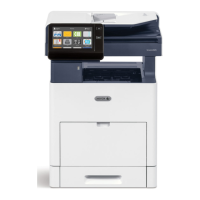
Xerox VersaLink B7030 - User Manual

Xerox VersaLink B7030
281 pages
Print Icon
To Next Page IconTo Next Page
Loading...
Xerox
®
VersaLink
®
B7025/B7030/B7035
Multifunction Printer
User Guide

Table of Contents

Other manuals for Xerox VersaLink B7030

Questions and Answers

  • P
    Paul SampsonAug 4, 2025
    Why is my Xerox VersaLink B7030 not printing?
    • J
      James SerranoAug 4, 2025
      If your Xerox All in One Printer is not printing, it could be in Power Saver mode. To resolve this, press the Power/Wake button on the control panel. Alternatively, the printer might have an error, indicated by the Status LED blinking amber; follow the instructions on the control panel to clear the error. Other possible causes include the printer being out of paper (load paper into the tray), an empty toner cartridge (replace it), or the drum cartridge reaching its end of life (replace the drum cartridge). Also, check if the printer is busy, and clear any pending print jobs.
  • D
    Donna GarzaAug 8, 2025
    What to do if paper tray does not close on Xerox VersaLink B7030 All in One Printer?
    • K
      Kevin MartinezAug 9, 2025
      If the paper tray on your Xerox All in One Printer does not close fully, some debris or an object may be blocking the tray. Power off the printer, then remove the obstruction or debris.
  • S
    Stephanie PerryAug 13, 2025
    Why does my Xerox VersaLink B7030 All in One Printer keep turning off?
    • O
      osmithAug 13, 2025
      If your Xerox All in One Printer resets or powers off frequently, ensure the power cord is correctly plugged into both the printer and the outlet. Secure the power cord in place using the provided bracket. Another reason may be that the printer is connected to an uninterruptible power supply; in this case, connect the printer directly to a suitable outlet. Also, avoid sharing a power strip with other high-power devices; plug the printer directly into the outlet or a dedicated power strip. If a system error occurred, power the printer off and on again.
  • S
    Stephanie KnoxAug 17, 2025
    Why is my Xerox VersaLink B7030 printing from the wrong tray?
    • V
      veronicawellsAug 17, 2025
      If your Xerox All in One Printer prints from the wrong tray, the application and print driver may have conflicting tray selections. To correct this, check the tray selected in the print driver. Also, go to the page setup or printer settings of the application from which you are printing and set the paper source to match the tray selected in the print driver or set the paper source to Automatically Select. To have the print driver select the tray, set the tray used the paper source to Auto Selection Enabled.
  • J
    Jack GoodAug 21, 2025
    How to fix automatic 2-sided printing on Xerox VersaLink B7030?
    • M
      Megan LambertAug 22, 2025
      If you are experiencing automatic 2-sided printing problems with your Xerox All in One Printer, make sure you are using the correct paper. Avoid using transparencies, envelopes, labels, or reloaded paper for automatic 2-sided printing. Also, on the print driver Printing Options tab, ensure that 2-sided Printing is selected.
  • J
    Jesse PowellAug 26, 2025
    Why is there condensation inside my Xerox VersaLink B7030?
    • E
      Elizabeth GarnerAug 26, 2025
      If condensation has formed inside your Xerox All in One Printer, it may be because the printer has been sitting in a cold room. Allow the printer to operate for several hours at room temperature. Alternatively, the relative humidity of the room may be too high. Reduce the humidity in the room or move the printer to a location where the temperature and relative humidity are within the operating specifications.
  • S
    Steven WalkerAug 30, 2025
    Why is my Xerox All in One Printer making unusual noises?
    • J
      Jacqueline RossAug 30, 2025
      If your Xerox All in One Printer is making unusual noises, there may be an obstruction or debris inside the printer. Power off the printer and remove any obstruction or debris.

Summary

Safety

Notices and Safety

Read safety instructions carefully before operating the printer to ensure safe operation.

Electrical Safety

Guidelines for safe electrical connections and operation to prevent hazards.

Operational Safety

Guidelines for safe operation of the printer, including handling of moving parts.

Maintenance Safety

Precautions to follow when performing maintenance procedures on the printer.

Printer Symbols

Explanation of symbols used on the printer to indicate hazards or warnings.

Getting Started

Parts of the Printer

Identifies and describes the main external and internal components of the printer.

Power Options

Instructions for powering the printer on, off, and managing power-saver modes.

Installation and Setup

Overview of printer installation, setup, and connection methods.

Customize and Personalize

Customize and Personalize Overview

Information on customizing device features and personalizing workflows for productivity.

Xerox Apps

Printing

Selecting Printing Options

Information on print driver help and options for Windows, Macintosh, UNIX, Linux, and mobile.

Printing Features

Options for paper selection, print quality, image settings, and page layout.

Paper and Media

Supported Paper

Guidelines for paper types, weights, sizes, loading, and storage for best results.

Loading Paper

Step-by-step instructions for loading paper into various printer trays.

Maintenance

General Precautions

Important warnings and precautions to follow during printer maintenance.

Cleaning the Printer

Procedures for cleaning the printer's exterior, scanner, and document feeder.

Adjustments and Maintenance Procedures

Adjusting paper registration and printer altitude for optimal performance.

Troubleshooting

General Troubleshooting

Common printer issues and their solutions, including power and connectivity problems.

Paper Jams

Locating, minimizing, clearing, and troubleshooting paper jams in various printer areas.

Print-Quality Problems

Controlling and solving print quality issues related to paper, media, and printer settings.

Copy and Scan Problems

Troubleshooting issues related to copy and scan quality, such as lines or spots.

Fax Problems

Resolving issues with sending and receiving faxes.

Xerox VersaLink B7030 Specifications

General IconGeneral
Print TechnologyLaser
FunctionsPrint, Copy, Scan, Fax
Print Resolution1200 x 1200 dpi
Copy SpeedUp to 30 cpm
Copy Resolution600 x 600 dpi
Scan ResolutionUp to 600 x 600 dpi
Fax Speed33.6 kbps
Duplex PrintingAutomatic
Mobile PrintingApple AirPrint, Google Cloud Print, Xerox Print Service Plug-in for Android, Mopria
Control Panel7-inch color touchscreen
Memory2 GB
Print Speed30 ppm
Supported Media SizesA4, A5, A6, B5, B6, Letter, Legal, Executive
ConnectivityUSB, Ethernet, Wi-Fi
Processor1 GHz
Scan SpeedUp to 55 ipm

Related product manuals